

You check your analytics dashboard after a busy work week, click to see which landing pages brought in new leads, and suddenly freeze: "I spent months building these pages to win new clients, so why are prospective buyers clicking my main service links only to land on blank 'Page Not Found' screens?"
Here is the plain truth: Nothing kills customer momentum faster than a dead-end 404 error screen. When a high-intent buyer clicks your result on Google to view your pricing or book a consultation, landing on a broken page sends them running straight to your direct competitors.
Learning how to fix 404 errors on website assets stops this silent leak. It restores smooth customer journeys, preserves your domain authority, and keeps eager buyers moving toward your booking form.
Historically, clearing out broken URLs meant spending weekends parsing raw server access logs or wrestling with database tables. Modern platform architectures have simplified that operational burden. When you run your business on BoltWeb, finding and fixing broken links on your website is very easy. We know how hard finding broken links and dead page errors used to be across complex sites. Inside your BoltWeb dashboard, there is a native workspace called AI Foundry. Once you enable it, AI Foundry scans your storefront, finds missing pages, and suggests quick fixes you can apply in a single click. This saves hours of manual work so you can use that extra time to focus on scaling your business and serving your clients.
Here is your operational blueprint to locate broken URLs, fix HTTP status errors, and protect your digital storefront's search performance.
1. How to Fix 404 Errors on Your Website: Start by Finding the Broken URLs
Let's clear up a major source of confusion right from the start: A visual "Page Not Found" message displayed in a browser is not always the same thing as a technical HTTP status code. A true server error occurs when your web host returns an explicit 404 Not Found header to search bots, confirming that the requested URL contains no active content.
Follow this systematic 5-step diagnostic process:
- Locate the Exact URL: Identify the specific web address generating the error response.
- Investigate the Failure: Determine whether the page was deleted, renamed, or linked incorrectly.
- Determine True Intent: Decide if the missing page should be restored or permanently redirected.
- Apply the Correct Fix: Deploy a direct 301 redirect or update your inline links.
- Verify Technical Headers: Confirm the final destination returns a clean 200 OK response.
Mastering how to fix 404 errors on website pages clarifies how to fix 404 errors and prevents recurring website 404 error problems across your site (start with the complete SEO audit checklist for small businesses).
2. Find 404 Errors Using Google Search Console and Website Crawlers
Guessing which pages are broken across a growing site is an exhausting waste of your operational focus. Combine official search data with automated site crawlers like Screaming Frog SEO Spider to build a complete target list:
- Google Search Console: Open the Page Indexing Report to view URLs logged under Not found (404) or Target URL Not Found.
- Automated Site Crawlers: Run a domain crawl to identify internal hyperlinks pointing to non-existent addresses.
- Server Access Logs: Review server logs to spot external visitors landing on legacy URLs that tools missed.
| Discovery Source | Primary Technical Insight |
|---|---|
| Search Console Index Report | Pages search bots failed to crawl |
| Automated Crawler Scan | Broken internal links inside body copy |
| Web Host Access Logs | Dead external links clicked by users |
Using these methods helps you find 404 pages, fix 404 errors in Google Search Console, uncover website broken links, and run a reliable 404 error checker routine (learn to identify your best performing website pages).
3. Identify Why Your Website Pages Are Returning 404 Errors
Before rushing to add redirects, you must figure out why the page failed in the first place. Treating a simple menu typo the same as a full site migration will mess up your analytics data. Eight primary triggers behind broken page errors:
- Renamed URL Slugs: Changing a page address from /services to /our-services without updating references.
- Typographical Errors: A mistyped link in your body text pointing to a misspelled URL path.
- Deleted Service Offers: Removing an old product or service page without forwarding the traffic.
- Unmapped Redesigns: Launching a new website without setting up legacy redirect mappings.
- Broken External Links: Industry blogs or directories linking to an outdated address on your domain.
- Expired Seasonal Content: Taking down temporary promotional pages after an event ends.
- Missing Server Directives: Accidental edits to your root configuration file stripping rewrite rules.
- Internal Linking Loops: Menu buttons pointing to draft or staging URLs that were never published.
Diagnosing the causes of 404 errors helps resolve broken URL errors, explains why visitors see a website page not found message, and pinpoints why pages return 404 (also see diagnosing a sudden drop in website traffic).
4. Decide Whether to Restore, Redirect, or Keep a 404 Page
Here is a costly mistake many business owners make: blindly redirecting every single missing page straight to their homepage. Forwarding irrelevant broken URLs to your homepage confuses visitors and triggers Soft 404 warnings inside Google Search Console. Match your technical response to the actual page scenario:
| Page Condition | Correct Technical Fix |
|---|---|
| Relevant replacement exists | Deploy direct 301 permanent redirect |
| Page deleted by mistake | Restore page content at original URL |
| No logical replacement | Allow natural 404 or return 410 Gone |
| External backlinks exist | Redirect to closest category page |
Setting up a 301 redirect 404 rule correctly is vital for fix 404 errors SEO health, clarifying 404 vs 410 decisions when you redirect broken URLs (see how to match search intent to attract visitors).

5. Fix Broken Internal Links That Send Visitors to 404 Pages
Discovering that your own navigation menus, body paragraphs, or footer blocks contain links to dead pages is frustrating, but it is also the easiest issue to fix. Audit internal link paths across your site:
- Header Navigation: Verify every drop-down menu link leads to a live, active page.
- Body Copy Hyperlinks: Update inline blog links that point to outdated service addresses (see our guide to internal linking strategy for small business SEO).
- Footer & Button CTAs: Test every quote request button to ensure target forms load cleanly.
Taking steps to fix broken internal links eliminates website broken links and cleans up internal link 404 errors across your storefront (also see finding and fixing broken links on your website).
6. Set Up 301 Redirects for URLs That Have Moved
When a valuable page permanently shifts to a new web address, a 301 permanent redirect acts like a postal forwarding order, moving search crawlers and human visitors straight to your new page. Follow these implementation steps:
- Map Old URLs to New Destinations: Match old URLs directly to their closest relevant equivalent.
- Avoid Multi-Hop Chains: Point original links straight to final destinations to prevent chain delays (learn to fix redirect chains for SEO).
- Test the Destination: Verify the original link returns a 301 status code followed immediately by a 200 OK header.
Deploying a clean 301 redirect 404 workflow makes it easy to redirect old URLs, fix 404 URL errors, and manage website URL redirect rules (also see how to fix redirect chains for SEO).

7. Restore Deleted or Renamed Pages Without Losing Useful Content
If you accidentally deleted a high-traffic service page or renamed a slug that already built search authority and external backlinks, restoring the original URL is often far better than adding a redirect. How to recover missing page assets:
- Check CMS Revision History: Restore earlier published drafts directly from your platform database.
- Re-publish at the Original Slug: Recreate the page using its exact historic URL string to preserve external backlinks.
- Update Internal Navigation: Re-link restored pages from relevant category menus and main body copy.
Knowing how to restore deleted website pages helps recover deleted webpage content, fix missing website pages, and resolve a misconfigured renamed URL (also see identifying your best performing website pages).
8. Fix 404 Errors After a Website Migration or Redesign
Launching a redesigned site without a redirect map is one of the fastest ways to destroy your organic search rankings. Execute this post-migration recovery checklist:
- Audit Historic Sitemaps: Compare your legacy XML sitemap against your new URL structure.
- Deploy URL Redirect Rules: Ensure every old URL path forwards directly to its new equivalent.
- Update Analytics & Search Console: Verify index settings using official tools like the Google Search Console Performance Report.
Resolving 404 errors after website migration protects overall website redesign SEO, completes your migration redirect checklist, and lets you fix 404 after migration (also see how to change your domain name without losing SEO).
9. Fix 404 Errors on WordPress and Other Website Platforms
Sometimes a page exists in your database, but misconfigured hosting settings or routing rules prevent visitors from reaching it. Troubleshoot common platform issues:
- Reset Permalink Settings: In WordPress, navigate to Settings → Permalinks and hit Save Changes to rewrite your .htaccess file.
- Audit CMS Category Routes: Ensure parent categories haven't been deleted while child pages remain active.
- Clear Platform Caching: Flush server-side and plugin caches to clear outdated page routing.
Tackling how to fix 404 errors WordPress users face resolves persistent WordPress 404 error bugs, simplifies overall website 404 fix steps, and clears up CMS 404 errors.
10. Check Whether Broken External Links Need to Be Fixed
Outbound links pointing to dead external resources damage your editorial quality and signal to search engines that your content is unmaintained. Handle broken outbound references using these rules:
- Replace with an Updated Source: Find a modern, live article covering the topic and update your link.
- Remove the Outbound Link: Unlink the text while leaving your core body copy intact.
- Verify External Status: Ensure the external site isn't experiencing a temporary server blip before removing the link (learn to find and fix broken links on your website).
Auditing broken external links with an external link checker routine makes it easy to fix broken website links (also see running a complete link health scan).
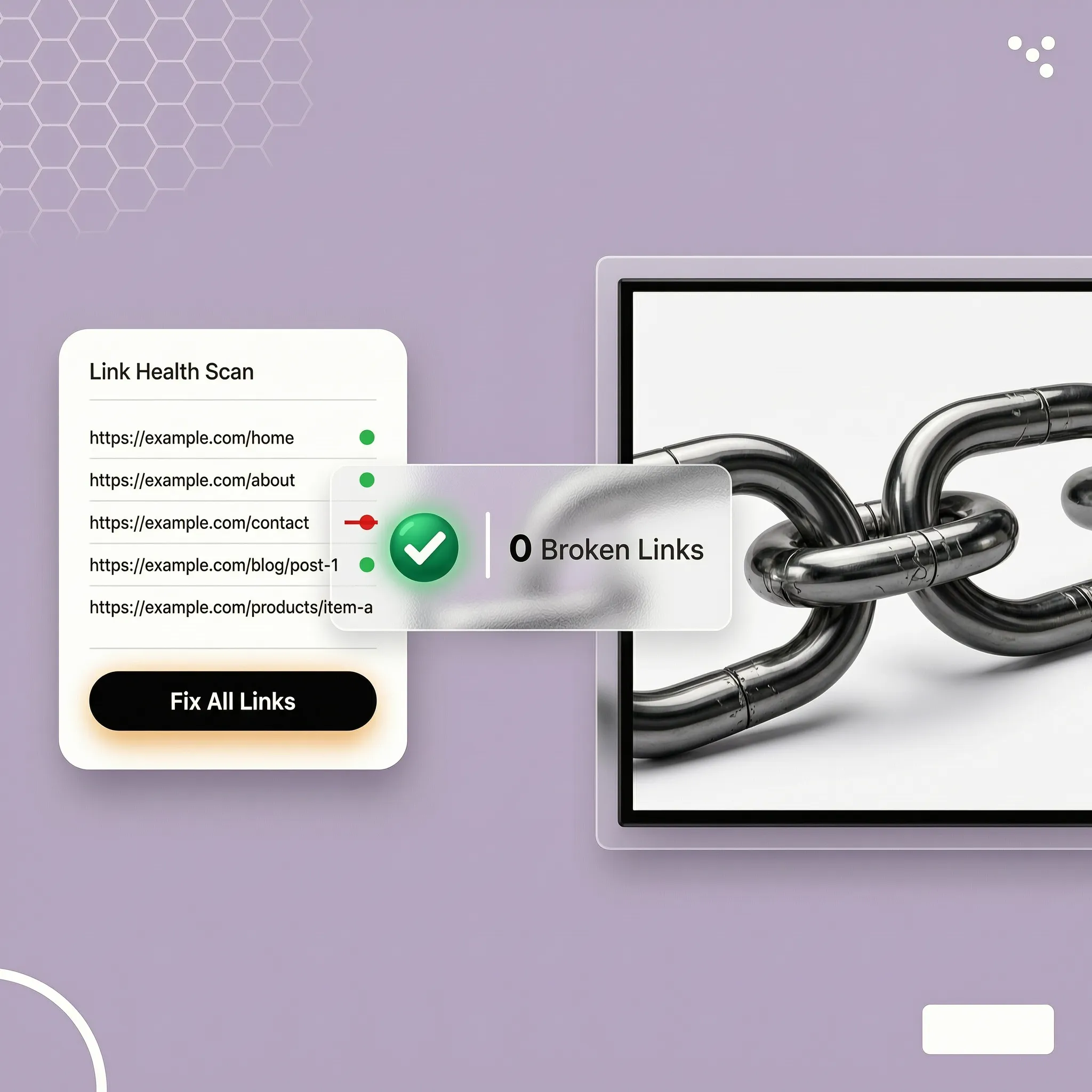
11. Verify 404 Fixes and Check for Redirect Errors
Never assume a technical fix worked simply because the page looks fine in your personal browser. Always test response codes directly. Your Post-Fix Testing Protocol:
- Inspect HTTP Response Headers: Use browser developer tools to verify your old URL returns a clean 301 status followed by a 200 OK header.
- Check for Soft 404 Signals: Ensure target pages contain substantial content so search bots don't flag them as empty.
- Re-Crawl with Search Console: Request indexing for fixed URLs using official inspection tools (review setup steps in the official Google Analytics Help Center).
Taking time to test 404 errors lets you verify 301 redirects, eliminate soft 404 warnings, and validate paths with an HTTP status code checker (combine with the Google Search Console guide for small businesses).
12. Prevent Future 404 Errors with a Website Maintenance Checklist
Preventing broken page errors requires establishing a simple monthly operational routine as your business grows. Your 15-Minute Monthly Maintenance Routine:
- Step 1: Scan Search Console Reports: Review indexing exclusions monthly to spot new broken URLs early.
- Step 2: Map URL Slugs Before Publishing: Maintain a master URL spreadsheet whenever restructuring pages.
- Step 3: Audit Top Lead Pages: Verify high-converting service landing pages load instantly (see how to get more customers from your website and how to calculate website ROI).
Building a workflow to prevent 404 errors reinforces website maintenance SEO, integrates broken link prevention, and simplifies website SEO maintenance on BoltWeb (combine with the core metrics every small business should monitor).

Build a Scaling Digital Storefront with BoltWeb
Managing manual site audits, fixing server config files, and tracking down broken page errors shouldn't consume your valuable workweek. Building your digital storefront on BoltWeb ensures your business runs on an infrastructure engineered for instant search visibility, fast mobile rendering, and automated link integrity right out of the box.
Whether you operate a local home service company, run a specialized advisory firm, or manage a growing online shop, BoltWeb designs search-optimized section structures, connects analytics tags automatically, formats clean mobile navigation, and accelerates your growth using our advanced AI website generator.
Frequently Asked Questions: Fixing 404 Errors on Your Website
1. I stumbled upon a 404 page while clicking around my own website, so is this small glitch actually scaring off my potential buyers?
Hitting a missing page error isn't just a minor visual annoyance; it is a massive leak in your customer acquisition funnel that drains your daily revenue. When a prospective client lands on your site ready to hire your business, tap your pricing guide, or read your service details, getting slapped with a blank four-oh-four page shatters their confidence in your brand instantly. Instead of looking around for another link, they hit the browser back button and head straight to your direct competitor. Resolving those missing page errors preserves your hard-earned traffic, ensuring every visitor glides seamlessly from their initial search inquiry right into your booking form. Building your online presence on BoltWeb removes these technical headaches from day one. As an all-in-one business website builder, BoltWeb automatically handles internal page routing, updates dynamic sitemaps, and eliminates broken paths in under 60 seconds!
2. What actually happens under the hood when Googlebot hits a 404 error on one of my key pages?
Think of search engine crawlers as automated inspectors attempting to catalog every room in your digital store. When Googlebot clicks an internal link that returns a four-oh-four status code, it hits a complete dead end, wasting a chunk of your domain's allocated crawling allowance on a ghost address. If search engine scanners run into broken page errors repeatedly across your domain, Google cuts back how often it inspects your site altogether. That means your newest promotional landing pages, updated service pricing, and fresh articles sit unindexed and invisible to local buyers typing in target search queries. Clearing out non-existent page requests ensures search crawlers process your site structure efficiently, preserving your search engine rankings and overall authority (also see how to check if your website is indexed).
3. Why do 404 page errors keep popping up across my site when I haven't deleted any of my main service pages?
Page errors have a sneaky habit of accumulating behind the scenes without you ever pressing the delete button on your dashboard. Every time you rename an old page web address to sound sleeker, mistype an internal link inside a blog post, or link out to a partner site that recently closed down, an active error is born. Over time, these broken links build up across your menus, footers, and old articles, creating silent speedbumps for real people looking for solutions. Running a routine technical site check flags these missing paths long before your active buyers stumble across them (also see the complete SEO audit checklist for small businesses).
4. How do I uncover every hidden 404 error on my website without manually clicking every single link?
Trying to click every button, navigation menu item, and inline hyperlink across your site by hand is an exhausting waste of your operational focus. Logging into your Google Search Console portal gives you an immediate look at what search crawlers experience, surfacing every specific URL flagged under your page indexing reports. You can also run an automated site scanning audit to fetch a complete spreadsheet of every broken internal link currently returning an error, giving you a precise roadmap to fix your pages in minutes (also see finding and fixing broken links on your website).
5. What is the exact difference between leaving a page as a 404 error versus setting up a 301 permanent redirect?
Knowing when to let a page stay missing versus when to forward it to a new location saves your business substantial domain authority. If a page was created by mistake and never attracted search engine traffic or external backlinks, letting it return a clean missing page code is completely fine. However, if you permanently removed a high-value service page that earned strong search rankings or valuable external links, deploying a permanent three-oh-one redirect automatically guides visitors and search crawlers to your newest relevant page, ensuring you hold onto every drop of hard-earned link power (also see how to fix redirect chains for SEO).
6. Will having a handful of 404 errors cause Google to penalize my entire domain and drop my search positions?
Google won't issue an immediate manual penalty fine simply because a couple of old, obsolete pages return a missing page status. The real danger comes from soft ranking decay caused by poor user experience and wasted crawl budgets. Search engine algorithms heavily favor storefronts that deliver fast, seamless, and reliable journeys for buyers. When your site is cluttered with dead-end links, search engines view your brand as abandoned or poorly maintained, gradually lowering your overall search placements and handing your prime keywords right over to your competitors (also see fixing high-traffic pages that fail to convert).
7. Why are my external resource links breaking when I reference partner sites or industry tools in my content?
Whenever you add outbound links to third-party tools, news publications, or partner sites inside your articles, you pass control of that user journey to someone else. If that external site owner updates their website structure, changes their domain name, or shuts down their business, your outgoing link instantly turns into a dead end for your readers. Routinely auditing your outbound links ensures every resource you share remains active, protecting your reputation as an authoritative, reliable source in your space (also see internal linking strategy for small business SEO).
8. How do broken 404 page errors hurt my mobile search performance and smartphone user experience?
Mobile users browse with zero patience, navigating your site on smaller touchscreens over spotty cellular data networks. When a smartphone user taps a call-to-action button only to watch a blank error screen load, their browser is forced to process an extra network request for zero value, causing immediate frustration and instant bounces. Fixing your internal link paths ensures smartphone visitors land directly on your offer pages without getting trapped in dead-end digital loops (also see how to make a website mobile-friendly).
9. Should I create a custom 404 error page, or is it better to redirect every missing page straight to my homepage?
Dumping every lost visitor onto your homepage without explanation is a confusing, frustrating experience for buyers searching for specific answers. Designing a thoughtful, custom error page owns the mistake gracefully, delivers a friendly message, and highlights clear navigation links to your core service offerings, main articles, and contact form. Converting a lost visitor into a guided prospect transforms an accidental error into an engaging path that keeps clients exploring your business (also see landing page CTA best practices).
10. Will resolving my 404 errors bring back lost search traffic and increase my daily sales inquiries?
Fixing broken pages provides an immediate performance boost to both search engine crawling efficiency and visitor conversion rates. The moment you clean up broken links and eliminate dead ends, search engine bots scan your domain faster, updating your indexed pages and search rankings within days. Pairing frictionless site navigation with functional links gives search engines every reason to reward your storefront with higher search visibility and increased click volume (also see tracking SEO conversions in Google Analytics).
11. How do hidden 404 errors wreck my paid ad campaigns and misreport my marketing analytics data?
If you launch paid search campaigns, social media ads, or email updates that accidentally link to a mistyped or missing URL, you are actively flushing your advertising budget down the drain. Interested buyers who tap your ad hit a dead screen and exit, while your tracking dashboard logs high click costs and zero leads without showing you what went wrong. Auditing your promotional destination links before launching any campaign ensures every paid click lands cleanly on your high-converting offer page (also see how to calculate website ROI).
12. How can I build my website so broken page errors never drag down my search growth again?
Preventing technical link breaks long-term requires establishing your digital presence on a platform engineered to manage link architecture automatically behind the scenes. Modern website platforms eliminate manual link maintenance by dynamically updating internal pathways whenever you edit a page address or adjust your navigation structure. Selecting an infrastructure built for instant search performance ensures your links work flawlessly, your pages load instantly, and your storefront stays fully tuned to turn visitors into daily sales (also see the website maintenance checklist for small business).