
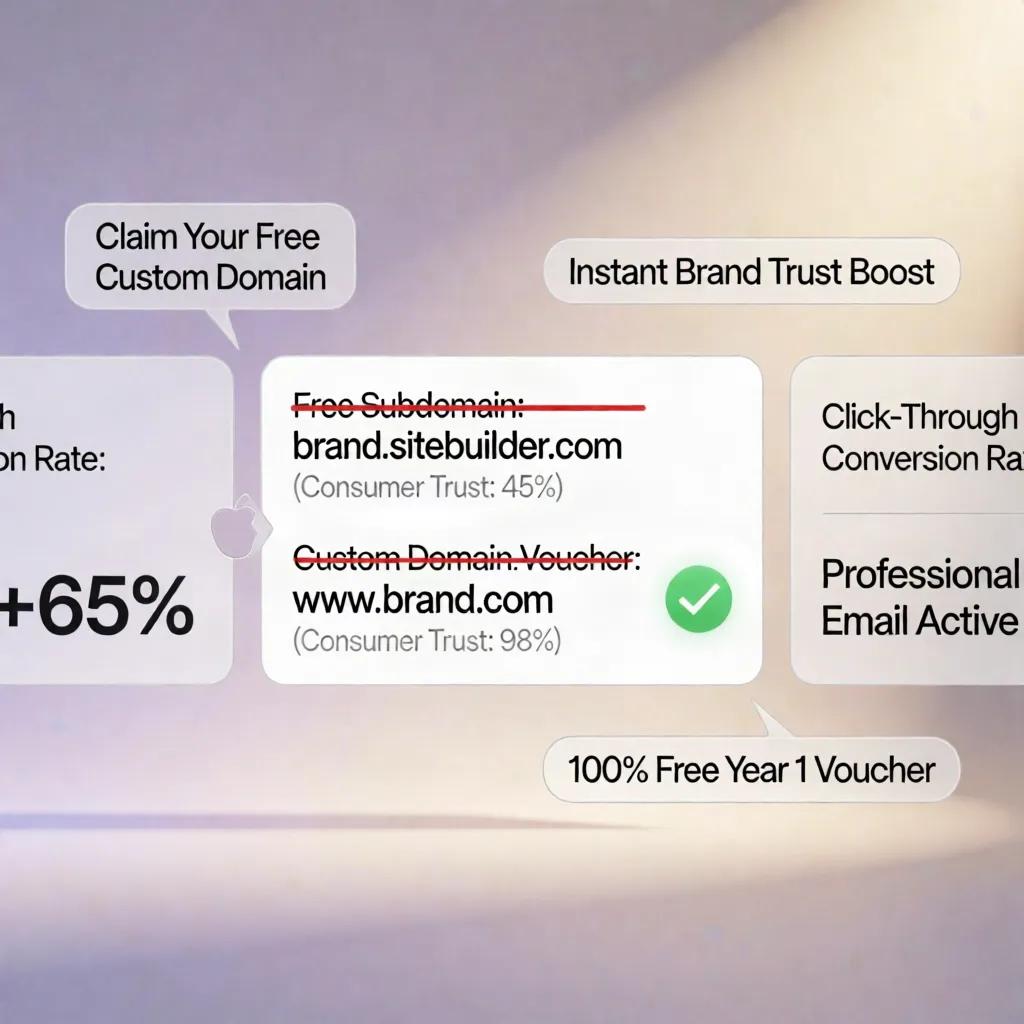

Changing your brand name, migrating to a fresh top-level domain, or acquiring secondary web addresses to capture market share is a major milestone for any growing company. However, if prospective buyers type your old address into a browser and hit a dead error screen, you bleed client leads, confuse your audience, and destroy hard-earned search engine rankings in seconds.
Here is the good news: Redirecting a domain to another website is a simple, stress-free process when you follow a structured operational setup.
yourdomain.comyourdomain1.com automaticallyWhen you manage your web address on BoltWeb, custom domain routing and traffic management remain totally seamless. As an all-in-one business website builder, BoltWeb manages domain forwarding, enforces automated HTTPS encryption across all routes, writes search-optimized sales copy, and keeps your storefront live without expensive agency retainer fees.
Here is your step-by-step master operational guide on how to redirect a domain to another website, preserve your search authority, and capture 100% of your incoming web traffic.
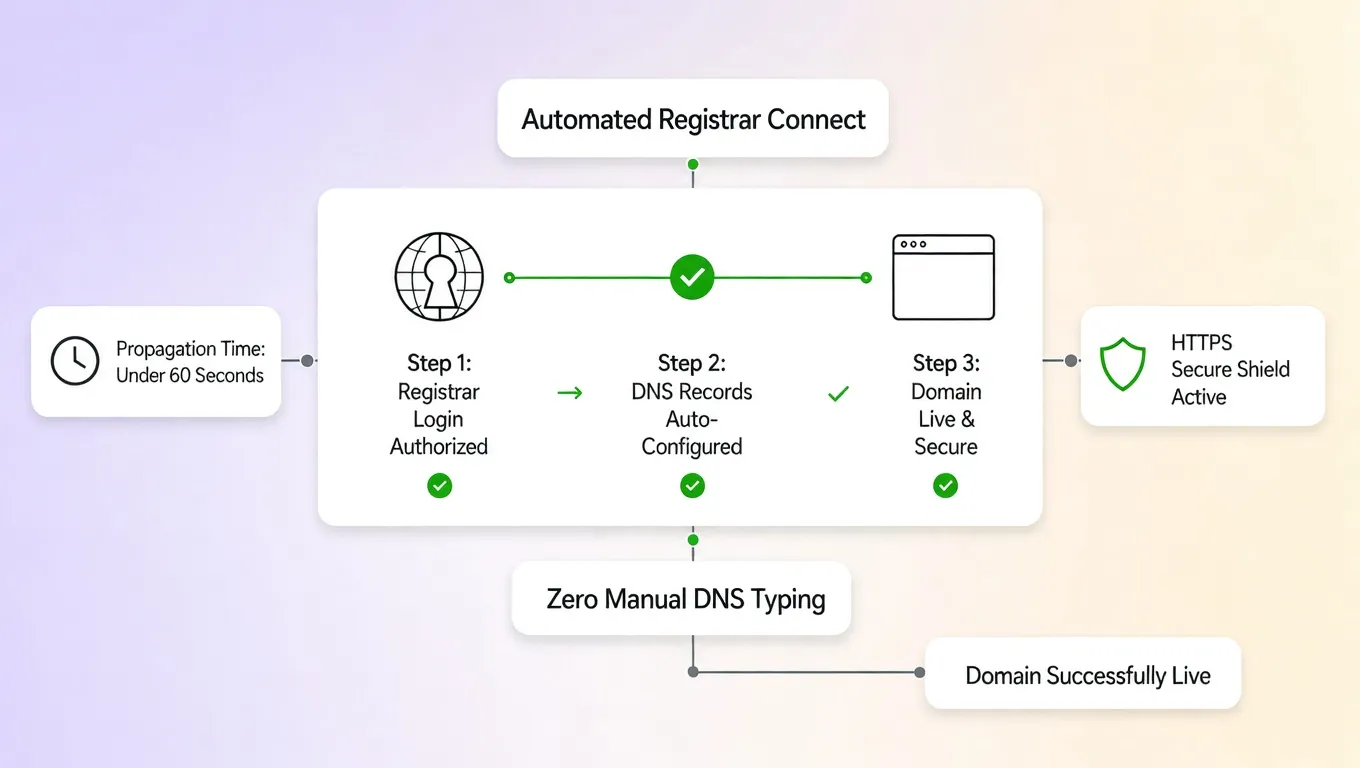
The Master Domain Redirect Protocol Matrix
| Redirect Method | Primary Use Case | SEO Authority Transfer | Typical Setup Time |
|---|---|---|---|
| 301 Permanent Redirect | Brand migrations (yourdomain.com → yourdomain1.com) | Passes ~95–99% Search Equity | Under 2 minutes |
| 302 Temporary Redirect | Seasonal promos, short-term campaigns, site maintenance | Retains equity on source domain | Under 2 minutes |
| Registrar Domain Forwarding | Forwarding secondary brand assets to primary storefront | Full equity transfer if set to 301 | Immediate setup |
| URL-Level Page Redirect | Moved product pages or modified blog slugs | Directs specific page traffic | Under 60 seconds |
1. How to Redirect a Domain to Another Website
If you acquired a secondary web address like yourdomain.com and want every incoming visitor to land seamlessly on your main storefront at yourdomain1.com, you don't need to write complex server scripts or hire an expensive IT consultant. Here is the plain truth: Executing a clean domain forward transfers 100% of your incoming visitor traffic and search engine signals directly to your active website.
Follow this rapid 4-step checklist to redirect a domain to another website:
- Log into your account dashboard where your source domain is registered (Namecheap, GoDaddy, or BoltWeb).
- Open your domain list, locate your source address, and click Manage.
- Scroll down to the Redirect or Domain Forwarding panel directly below your main domain settings.
- Input your target destination URL (https://yourdomain1.com), select 301 Permanent Redirect, click Save, and your domain redirect setup is complete!
Learning how to redirect a domain to another website guarantees that every prospect who types your address reaches your active offer without hitting broken pages.
2. Choose the Right Type of Domain Redirect for Your Situation
Before toggling settings in your manager panel, select the exact redirect method that matches your specific business goal. Compare your primary operational choices:
- Whole Domain Forwarding: Routes every visitor hitting yourdomain.com straight to yourdomain1.com. Ideal for brand name changes, secondary acquisitions, or typo protection.
- URL-Level Page Redirects: Forward a specific subpage (yourdomain.com/old-service) to a updated page (yourdomain1.com/new-service).
- DNS CNAME Pointing: Points subdomains (app. or shop.) to external cloud platforms while keeping your main domain intact.
Understanding domain forwarding vs redirect distinctions helps you select from common domain redirect types so you can redirect a domain safely.
3. Redirect Your Domain Through Your Domain Registrar
You don't need to pay for active hosting or build a new website on your old domain just to forward its traffic. You can execute full domain forwarding directly at the registrar level where you bought the domain. Whether you bought your domain on Namecheap, GoDaddy, or BoltWeb, setting up forwarding takes just seconds:
- Sign into your registrar dashboard and click on Domains.
- Click Manage right next to your domain name.
- Locate the Domain Forwarding or Redirect option directly below your primary settings.
- Paste your destination website URL (https://yourdomain1.com) into the submission box.
- Save your settings to complete your domain forwarding setup.
Leveraging domain registrar forwarding allows you to forward domain to another website without maintaining extra web servers.
4. Redirect a Domain Using Your Website Host or Server
If you host both your old and new domains on a dedicated web server or cloud builder platform, you can manage redirects through your hosting control panel. When to manage redirects at the host level:
- Mass Page Mapping: When migrating hundreds of blog posts or product URLs to new paths.
- Server-Level Rules: Using .htaccess or NGINX configuration files to enforce SSL and canonical rule redirection.
Configuring rules to redirect domain through hosting dashboard options gives you advanced control over your website redirect setup and server redirect logic.
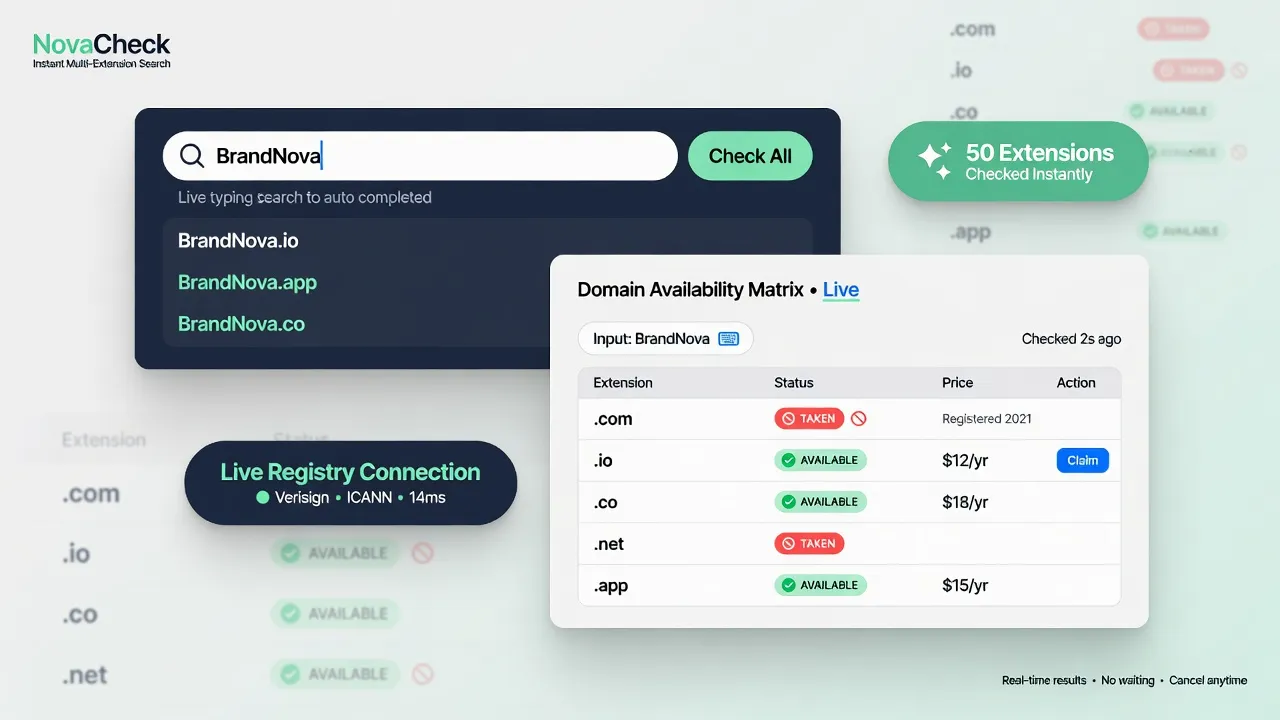
5. Redirect Your Old Domain to a New Domain
Executing a complete brand name change or domain migration requires careful planning so you don't confuse your returning clients or drop out of Google search results. Follow these best practices during a domain move:
domain1.com)Executing a planned redirect old domain to new domain process guarantees continuity during a domain name change redirect, ensuring seamless old domain forwarding.
6. Redirect One Page or URL Without Redirecting the Entire Domain
You don't always need to forward your entire domain name. If you simply renamed a product slug or retired an old service offering, set up a URL-level redirect. When to use page-level forwarding:
- Discontinued Products: Send visitors looking for sold-out inventory to your primary category catalog.
- Updated Article Slugs: Forward outdated blog URLs to your fresh, updated guides.
Learning how to redirect one URL to another using a targeted URL redirect rule allows you to redirect a page to another page without affecting the rest of your site layout.
7. Choose Between a 301 and a 302 Redirect
"Which redirect should I use, and does the choice affect SEO?"
Selecting the correct HTTP status code tells search engine crawlers whether your domain move is permanent or temporary. Compare these two primary status codes:
301 Permanent Redirect ⟹ Passes ~95–99% Ranking Equity to Destination
302 Temporary Redirect ⟹ Retains Ranking Equity on Original Source URL
| Status Code | Best Strategic Application |
|---|---|
| 301 Permanent Redirect | Permanent domain moves, rebrands, page migrations, permanent URL consolidations |
| 302 Temporary Redirect | Temporary promotional landing pages, A/B split testing, site maintenance |
Evaluating 301 vs 302 redirect choices ensures you execute a permanent domain redirect for long-term moves while reserving a temporary redirect for short-term campaigns.
8. Keep HTTPS, WWW, and Non-WWW Versions Redirecting Correctly
A common mistake during domain setup is forwarding only the bare domain (yourdomain.com) while forgetting the www or https:// variations, causing broken link errors for mobile users. Ensure full coverage across all 4 URL variations:
http://yourdomain.comhttps://yourdomain.comhttp://www.yourdomain.comhttps://www.yourdomain.comConfiguring your rules to redirect www to non-www or redirect non-www to www alongside an automated HTTP to HTTPS redirect guarantees every visitor lands on your active storefront.
9. Will Redirecting a Domain Affect SEO or Google Indexing?
If you acquired a domain with existing organic search traffic and high-value backlinks, executing a proper redirect transfers that ranking equity directly to your primary website. How to protect your search performance during a redirect:
- Use 301 Status Codes: Signals to Google crawlers that your content has permanently moved to its new location.
- Submit Change of Address: Use Google Search Console to submit an official Change of Address notice when executing full brand domain migrations.
- Avoid Redirect Chains: Never redirect Domain A to Domain B, and then Domain B to Domain C. Direct Domain A straight to its final destination.
Mastering domain redirect SEO principles and executing a clean 301 redirect SEO setup allows you to redirect domain without losing SEO visibility (review ranking guidelines in how to do SEO for a new website).
10. Test Your Domain Redirect Before You Rely on It
Once you save your forwarding rules inside your dashboard, run a thorough audit to verify that traffic routes smoothly across all devices. Run this 4-step testing sequence:
Taking time to test domain redirect configurations allows you to check 301 redirect status codes using a reliable domain redirect checker before launching marketing campaigns.
11. Fix Common Domain Redirect Problems
If your redirected domain displays a browser error screen or gets stuck in a loop, use this diagnostic sequence to fix the issue:
- Clear Local Browser Cache: Browsers aggressively cache 301 redirects. Clear your cache or test in an incognito window.
- Wait for DNS Propagation: New forwarding settings can take 1 to 24 hours to distribute across global internet routers.
- Fix Redirect Loops: Confirm your target domain isn't accidentally pointing back to your source domain.
- Verify SSL Certificate: Ensure an active SSL certificate is provisioned on your source domain so https:// redirects don't trigger security warnings.
Troubleshooting a domain redirect not working alert resolves a redirect loop error and fixes domain forwarding not working bugs immediately.
12. Know When to Keep, Redirect, or Let an Old Domain Expire
Once your new site at yourdomain1.com is live and ranking high, you might wonder if paying the annual renewal fee for yourdomain.com is still worth it. Here is the strategic reality: You should almost ALWAYS renew and maintain your old domain redirect. Why keeping your old address active is crucial:
- Prevents Brand Hijacking: If you let your old domain expire, a competitor or domain squatter can buy it, capture your legacy traffic, or impersonate your brand.
- Preserves Legacy Backlinks: All high-authority websites linking to your old address will continue passing SEO ranking power to your new storefront as long as your 301 redirect remains active.
Asking should I keep my old domain reveals why you should keep old domain after migration investments active, ensuring an old domain redirect protects your business for years to come.
Launch and Route Your Custom Domains Today: Skip complex server settings, broken links, and expensive developer retainers. Manage your custom domain routing on BoltWeb, build responsive landing pages, and create a business website using our advanced domain and website builder in under 60 seconds!
12 High-Converting FAQs: How to Redirect a Domain to Another Website
1. How do I redirect a domain to another website without losing my existing visitors?
Here's the plain truth: Acquiring a secondary web address or updating your brand name should never mean losing client leads or sending prospects to broken web pages. Executing a clean domain forward ensures 100% of your incoming traffic lands directly on your active storefront. When you manage your address inside BoltWeb, setting up custom domain routing takes less than two minutes. As an all-in-one business website builder, BoltWeb handles domain forwarding, enforces automated HTTPS encryption across all paths, writes search-optimized sales copy, and deploys a lead-ready storefront in under 60 seconds.
2. What is the difference between domain forwarding vs redirect rules?
Before configuring settings inside your registrar panel, choose the exact redirect method that fits your business goal:
- Domain Forwarding: Sends all traffic arriving at yourdomain.com directly to yourdomain1.com. It is ideal for brand name updates, acquiring secondary .com extensions, or capturing phonetic misspellings.
- URL-Level Page Redirects: Forwards specific subpages (yourdomain.com/old-service) directly to new destinations (yourdomain1.com/new-service).
Understanding domain forwarding vs redirect differences helps you select from primary domain redirect types so you can redirect a domain with complete confidence.
3. How do I set up domain registrar forwarding directly where I bought my domain?
You don't need to pay for web hosting or build a new website on your old domain just to forward its traffic. Follow these direct steps inside your registrar dashboard:
- Log into your registrar account (such as Namecheap, GoDaddy, or BoltWeb) and click Manage next to your domain.
- Scroll down to the Domain Forwarding or Redirect panel directly below your primary settings.
- Paste your target destination URL (https://yourdomain1.com), select 301 Permanent Redirect, and save.
Leveraging domain registrar forwarding allows you to forward domain to another website and finish your domain forwarding setup in seconds.
4. How can I redirect a domain using my website hosting or web server panel?
If you maintain active web hosting for both your source and target domains, configuring redirection through your hosting control panel grants deeper technical control. When host-level redirection makes sense:
- Bulk URL Mapping: When migrating hundreds of blog posts, portfolio pages, or product catalogs to new paths.
- Server Rule Control: Utilizing .htaccess or NGINX configuration files to enforce SSL encryption and canonical rules.
Configuring rules to redirect domain through hosting panels streamlines your overall website redirect setup and server redirect structure.
5. What is the right way to redirect an old domain to a new domain during a rebrand?
Executing a brand move requires connecting your legacy URLs to your new storefront so returning clients and search engine crawlers don't hit dead ends. Follow these migration best practices: Map Corresponding Pages: Connect old service URLs directly to their exact counterparts on your new web address. Maintain Permanent 301 Rules: Keep your source domain active so historical links and bookmarks continue routing visitors smoothly. Planning a redirect old domain to new domain process protects customer traffic during a domain name change redirect, ensuring long-term old domain forwarding stability.
6. How do I redirect one page or URL without forwarding my entire domain?
You don't always need to forward an entire web address. If you simply renamed a product slug or retired an old offer page, set up a targeted URL-level redirect. When to use page-level forwarding: Discontinued Products: Direct clients searching for retired products straight to your updated category catalog. Updated Article Slugs: Route outdated blog URLs to your fresh, comprehensive guides. Learning how to redirect one URL to another using a targeted URL redirect rule allows you to redirect a page to another page without affecting the rest of your site layout.
7. Should I choose a 301 permanent redirect or a 302 temporary redirect?
Selecting the correct HTTP response code tells search engine crawlers whether your domain move is permanent or temporary: 301 Permanent Redirect: Signals that your web address has permanently moved, passing approximately 95% to 99% of ranking equity directly to your target destination. 302 Temporary Redirect: Signals a short-term detour, keeping search authority anchored to your original source URL. Comparing 301 vs 302 redirect options ensures you apply a permanent domain redirect for long-term brand moves while saving a temporary redirect for short-term promotional campaigns.
8. How do I keep www, non-www, and HTTPS versions redirecting correctly?
A common oversight during domain setup is forwarding only the bare address (yourdomain.com) while forgetting the www or https:// variations. Verify that all 4 primary URL variations forward smoothly: http://yourdomain.com, https://yourdomain.com, http://www.yourdomain.com, and https://www.yourdomain.com. Configuring settings to redirect www to non-www or redirect non-www to www alongside an automated HTTP to HTTPS redirect guarantees visitors land securely on your active storefront.
9. Will redirecting a domain to another website hurt my SEO rankings on Google?
If you acquired a web address that already receives organic search traffic and high-value backlinks, executing a proper 301 redirect transfers that ranking power directly to your main website. How to protect your search performance:
- Use 301 Permanent Status Codes: Tells Google crawlers to index your new web address as the official destination.
- Avoid Redirect Chains: Never route Domain A to Domain B, and then Domain B to Domain C. Direct Domain A straight to its final target.
Understanding domain redirect SEO rules and implementing a clean 301 redirect SEO setup allows you to redirect domain without losing SEO visibility.
10. How do I test my domain redirect to make sure it works on mobile devices?
Once you save your forwarding settings inside your account dashboard, run a quick verification audit across multiple devices. Run this simple testing checklist:
- Incognito Address Check: Type your source domain in a private browser window to verify instant forwarding.
- Mobile Screen Audit: Tap the domain link on a mobile smartphone to confirm rapid page loading.
- HTTP Status Code Verification: Use a free header checker tool to verify a clean 301 response code.
Taking time to test domain redirect rules lets you check 301 redirect responses using a domain redirect checker before launching new ad campaigns.
11. How do I troubleshoot and fix common domain redirect errors?
If your forwarded domain displays a browser error screen or gets stuck in a loop, work through these diagnostic checks:
- Clear Local Browser Cache: Web browsers cache 301 redirects aggressively. Clear your browser cache or test using an incognito window.
- Allow DNS Propagation Time: New forwarding rules can take 1 to 24 hours to update across global internet routers.
- Fix Circular Redirect Loops: Verify that your target web address isn't accidentally configured to point back to your source address.
Fixing a domain redirect not working alert resolves a redirect loop error and corrects domain forwarding not working issues fast.
12. Should I keep paying for my old domain and maintain redirects long term?
Once your new website is live and ranking, you might wonder if renewing your old web address every year is still necessary. Here is the strategic reality: You should almost always keep your old domain active and redirected. Why maintaining your old domain is critical: Prevents Brand Hijacking — If you let your old address expire, a competitor can buy it, capture your legacy traffic, or impersonate your brand. Preserves Link Authority — All websites linking to your old address will continue passing valuable SEO authority as long as your 301 redirect remains active. Asking should I keep my old domain shows why you should keep old domain after migration investments active, ensuring an old domain redirect protects your business on BoltWeb for years to come!