Switching website builders often feels like taking a massive leap into the dark.
Maybe your current platform is clunky, slow, or frustratingly rigid. Perhaps you struggle to edit simple sections, your site fails to rank on Google, or visitor conversions have hit a wall. You know you need a better website builder, but the fear of breaking your live site, losing years of search engine visibility, or corrupting client data keeps you stuck on an underperforming system.
Moving your website to a new builder does not have to be a technical headache or a high-risk gamble. When you follow a clear, practical sequence, you can transition your content, preserve your domain, protect your SEO, and launch a higher-performing site seamlessly.
Here is the step-by-step master guide to moving your website to a new website builder without losing what matters most to your business.
How to Move Your Website to a New Website Builder Without Losing What Matters
The golden rule of migrating platforms is simple: keep your original website active while you build and refine the new one in the background.
Attempting to delete your existing site before rebuilding leads to unnecessary business downtime, missed customer inquiries, and lost sales. By building your new site in a private staging environment, your current platform continues to capture traffic, serve customers, and process requests right up until the exact second you flip the switch.
CURRENT LIVE WEBSITE
(Stays Active • Serves Visitors • Captures Leads)
▼
Inventory Existing Site
Rebuild on New Builder
▼
NEW TESTED WEBSITE BUILDER
(Private Staging • Fully Tested • Instant Switch)
Choose Your New Website Builder Before You Cancel the Old One
Never cancel your subscription or delete your old website account until your new site is completely built, tested, and published live on your custom domain. When selecting your new website builder, evaluate whether the platform fixes the fundamental flaws that made you want to move in the first place:
| Key Feature to Evaluate | Why It Matters for Your Business | Red Flags in Legacy Builders |
|---|---|---|
| Editing & Design Freedom | Lets you update layouts, text, and media without needing custom code. | Rigid grid templates that break on mobile screens. |
| Integrated SEO Framework | Automatically generates clean code, fast page load speeds, and structured schema markup. | Bloated code scripts that slow down page loads and hurt Google rankings. |
| Built-in Conversion Tools | Includes high-converting forms, live chat, and lead capture out of the box. | Requires dozens of paid third-party plugins that conflict with each other. |
| Scalable Cloud Hosting | Ensures your site handles sudden traffic spikes effortlessly without crashing. | Shared server bandwidth caps that suspend your site when traffic increases. |
Prematurely canceling your old platform destroys your fallback safety net. Take your time to select a platform that gives your business room to scale.
Make a List of Everything on Your Current Website
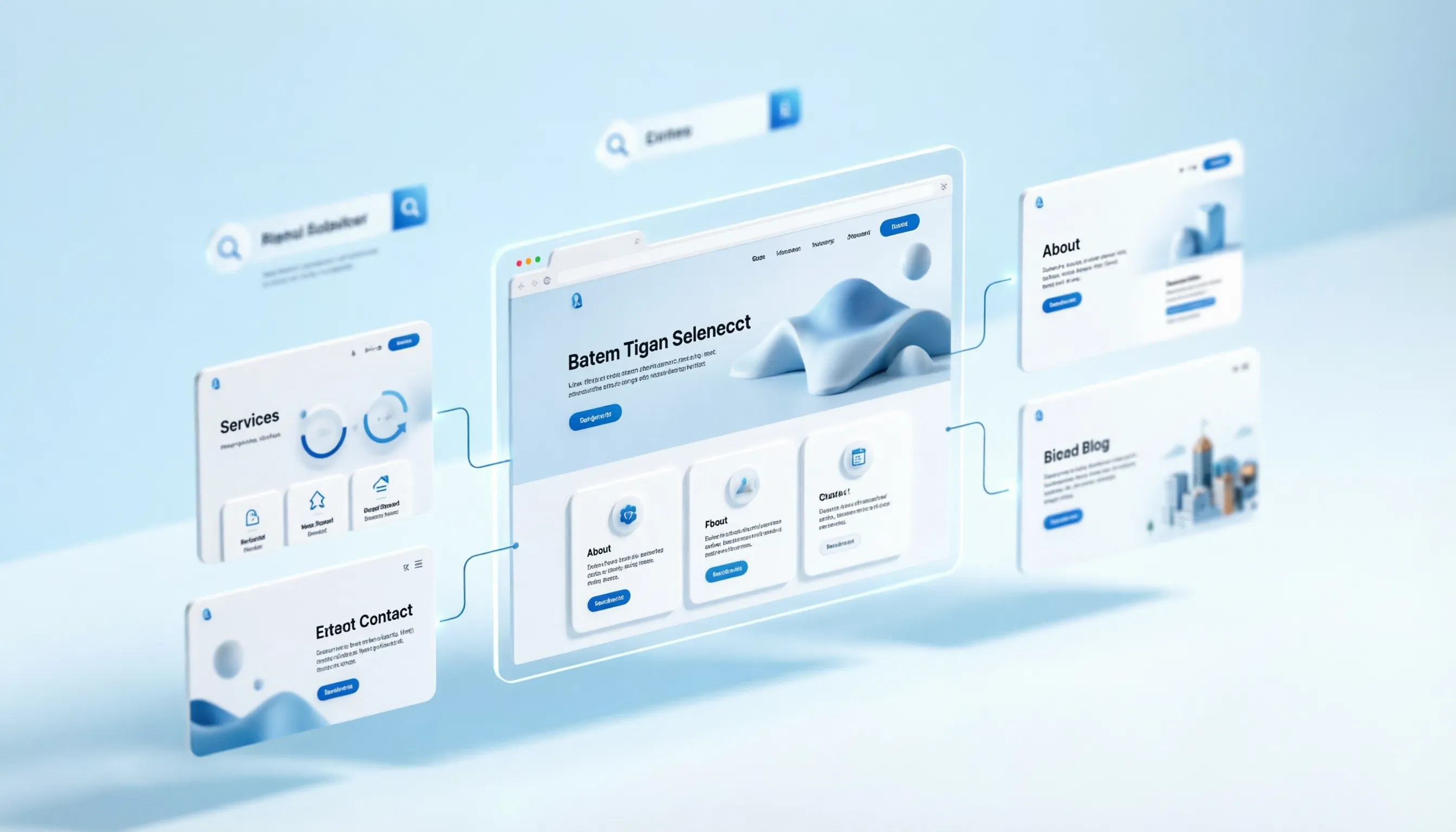
Before recreating a single page, perform a thorough content inventory. Knowing every asset on your existing site ensures nothing critical gets left behind during the migration. Map out your entire site architecture:
- Core Pages: Home, About, Services, Pricing, Portfolio, Contact, and Privacy Policy.
- Media Assets: High-resolution product images, team headshots, brand logos, and downloadable PDFs.
- Customer Data & Inputs: Lead capture forms, booking calendars, newsletter lists, and payment gateways.
- Content Collections: Blog posts, case studies, client testimonials, and product catalogs.
Creating a centralized content inventory spreadsheet serves as your structural roadmap during the rebuilding phase.
Save Your Important Content, Images, and Website Data
Never rely on your old builder's internal servers to store your only copies of critical brand assets. Before migrating, export and back up all text copy, media files, and customer records locally.
- Save Text Copy: Copy all core page text, service descriptions, and headlines into a master document.
- Download Media Assets: Save original images, graphics, videos, and media files into categorized local folders.
- Export Customer Data: Export customer contact lists, order histories, form submissions, and subscriber data into .csv files.
- Export Blog / Product Feeds: If your old platform allows, export blog posts and e-commerce product catalogs via standard XML or CSV exports.
Securing off-site backups guarantees that years of valuable content remain safe regardless of what happens to your old hosting account.
Rebuild Your Important Pages on the New Website Builder
Migrating to a new builder provides the perfect opportunity to clean up outdated layouts, refine your value proposition, and fix lingering user experience (UX) issues. Instead of copying outdated or underperforming layouts line-for-line, apply modern web design principles:
- Reduce Choice Paralysis: Apply Hick’s Law by streamlining top navigation menus. Keep menu options clean so visitors focus on your primary calls-to-action (CTAs).
- Align Visual Hierarchy: Use clear heading hierarchy (H1, H2, H3) and ample white space to guide the reader's eye naturally down the page.
- Close Psychological Loops: Leverage the Zeigarnik Effect by placing clear progress steps on quote forms or bookings to encourage visitors to complete their inquiries.
Focus on rebuilding your highest-value pages first (Home, Core Services, and Primary Conversion Pages) before moving to supplementary content.
Keep Your Existing Domain When You Switch Builders
You do not need to buy a new domain name when switching website builders. Your custom domain (yourbusiness.com) carries established brand trust, backlinks, and search engine authority that you must preserve. To keep your domain during a platform move:
- Keep Domain Registration Intact: If your domain is registered with a third-party registrar (like GoDaddy, Namecheap, or Cloudflare), keep it registered there.
- Do Not Transfer Ownership Prematurely: You only need to update your domain's DNS pointing records (A Records or CNAME records) when you are ready to point to the new builder.
Maintaining your existing web address ensures repeat visitors, bookmarks, and print marketing materials continue working without interruption.

Protect Your Google Rankings During the Move
Unplanned website migrations can cause severe search engine visibility drops if page URLs or site structures change without proper mapping. Protect your search engine optimization (SEO) setup using this post-migration checklist:
[OLD SITE URL STRUCTURE]
example.com/our-services
[NEW SITE URL MAPPING]
example.com/services
(301 Permanent Redirect)
- Match URL Slugs Exactly: Keep page URL structures identical whenever possible (e.g., keep your site.com/about as yoursite.com/about).
- Implement 301 Redirects: If a page URL must change, set up permanent 301 redirects on your new platform from the old URL to the new URL. This signals to Google that the content has moved permanently and transfers your ranking power.
- Migrate Metadata: Copy over your original page titles, meta descriptions, alt text, and open-graph image tags.
- Preserve Internal Links: Ensure text links within your pages point to active, valid URLs on the new platform.
Careful URL mapping protects your hard-earned keyword rankings and prevents incoming visitors from hitting frustrating 404 error pages. Implement these search optimization fundamentals to maintain your visibility.
Recreate Forms, Payments, Bookings, and Other Important Features
Static design is only half the equation—your new site must seamlessly handle the functional workflows your customers rely on daily. Rebuild critical business functionality:
- Lead Capture & Inquiry Forms: Recreate contact forms, quote request fields, and newsletter signups. Send test submissions to confirm email notifications land in your inbox.
- E-Commerce & Payment Gateways: Reconnect payment processors (Stripe, PayPal) and verify that checkout systems calculate tax and shipping accurately.
- Booking & Scheduling Integrations: Re-embed calendar scheduling widgets to ensure clients can continue booking appointments seamlessly.
- Analytics & Pixel Tracking: Install your Google Analytics 4 (GA4) measurement IDs, Google Tag Manager scripts, and ad conversion tracking pixels.
Verifying functional integrations prevents lost revenue and guarantees a smooth transition for existing customers.
Test the New Website Before You Point Your Domain to It
Before connecting your public domain name, audit every page, link, and interactive element across your new site on a private preview link. Audit your new site against this pre-launch checklist:
- ✔ Mobile Responsiveness: View every page on smartphones and tablets to confirm layouts, font sizes, and buttons adjust fluidly.
- ✔ Link Verification: Click every navigation button, footer link, and text hyperlink to ensure there are zero broken paths.
- ✔ Form Submission Audits: Submit dummy data through every form, booking widget, and checkout funnel.
- ✔ Browser Compatibility: Test your preview site across major browsers (Chrome, Safari, Firefox, Edge) to verify consistent visual rendering.
Catching minor display or link issues privately ensures your public launch is completely polished. Follow a comprehensive website launch checklist to guarantee success.
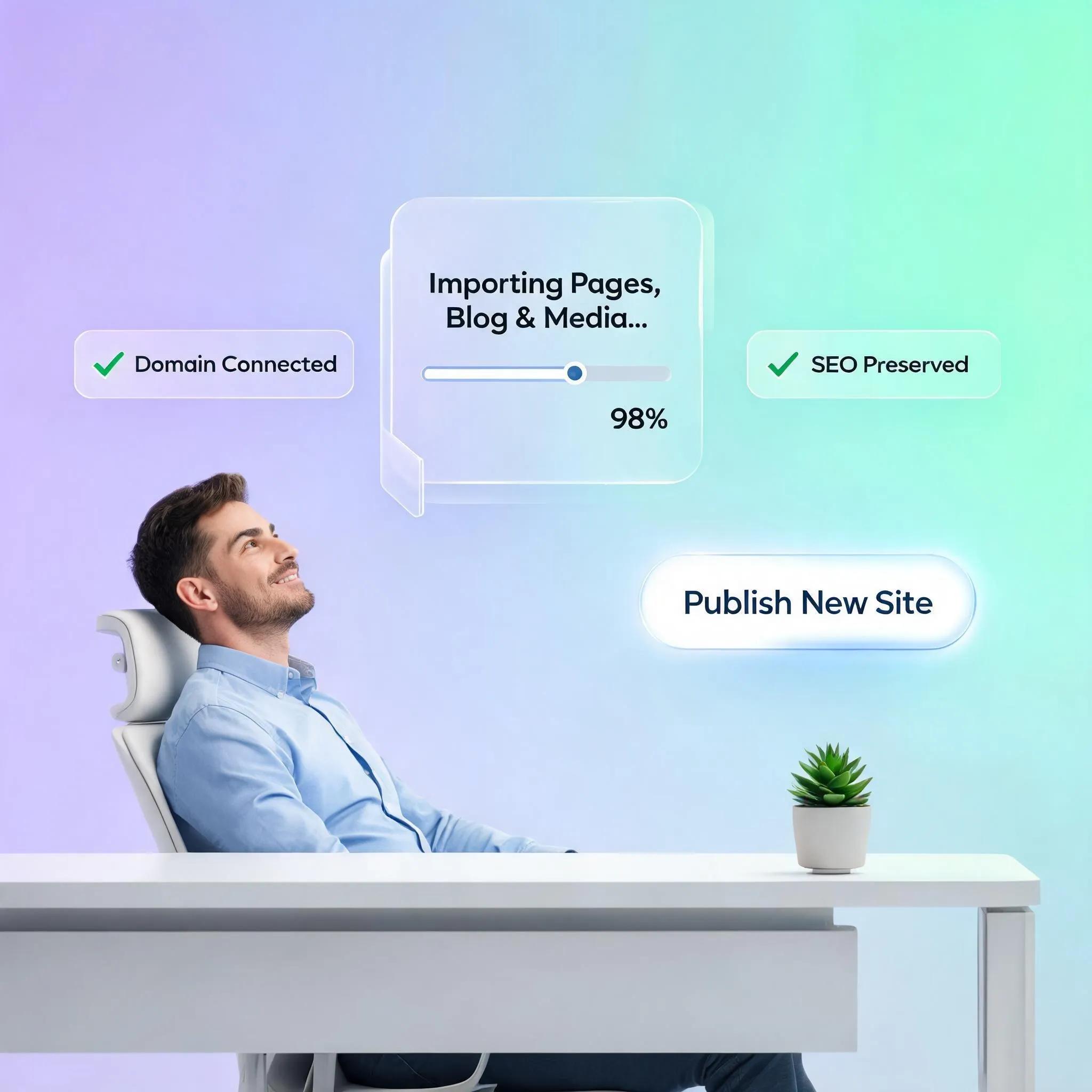
Connect Your Domain and Launch the New Website
Once testing is complete and verified, it is time to connect your domain and push your new site live to the world. Complete your live launch:
- Access Domain DNS Settings: Log into your domain registrar account (e.g., GoDaddy, Namecheap).
- Update A Records / CNAME: Replace the old builder's IP address with the new website builder’s required A Record or CNAME destination details.
- Publish in the New Builder: Click "Publish" or "Connect Domain" within your new builder's dashboard.
Domain Registrar (e.g., Namecheap)
▼
DNS Settings Panel
▼
(OLD BUILDER IP)
[Deactivated]
(NEW BUILDER IP)
[Live & Active]
DNS propagation typically completes globally within a few minutes up to 24 hours. During this brief window, traffic gracefully shifts from the old platform to your new builder. Learn how to connect a domain to your website properly to avoid downtime.
Check Google, Analytics, Links, and Customer Journeys After the Switch
Your launch is not complete the moment DNS updates—active post-launch monitoring protects your long-term organic traffic and user experience. Execute these post-launch verification checks:
- Submit XML Sitemap to Google Search Console: Upload your new sitemap XML URL to Google Search Console so search engines index your new pages rapidly.
- Verify Live SSL Certificate: Confirm your custom domain displays a secure HTTPS padlock icon in browser address bars.
- Monitor Analytics Traffic: Verify real-time visitor data in Google Analytics to confirm tracking scripts record live visits accurately.
- Run a Crawl Audit: Use site audit tools to check for lingering 404 errors, missing meta tags, or broken image paths.
Active post-launch checks give you complete peace of mind that your migration succeeded without losing traffic or sales momentum. Verify your Google indexing status right away.

Move to a Better Website Builder Without Starting From Zero
Many business owners struggle with legacy website builders that fail to perform. Whether your current platform limits your design freedom, causes technical errors, hurts your Google visibility, or frustrates you with slow page speeds, staying stuck on the wrong tool costs your business growth every day.
If you are ready to migrate to a builder that gives you complete freedom, high performance, and rapid scaling capabilities without technical headaches, BoltWeb is the ultimate solution. As a modern business website builder, BoltWeb eliminates the friction of traditional web platforms. Powered by an advanced AI website builder, BoltWeb helps you rebuild stunning, high-converting websites in a fraction of the time—complete with fast cloud hosting, clean search engine optimization, and responsive design out of the box.
Why migrating to BoltWeb is the best choice for your business:
Rebuild & Launch Rapidly
Use AI-powered design tools to recreate your pages, generate conversion-focused copy, and customize layouts in seconds.
Built-in Google SEO Optimization
Every site built on BoltWeb features clean code and rapid load speeds that search engine algorithms love to index and rank.
Zero Server & Plugin Maintenance
Stop worrying about plugin conflicts or server outages. BoltWeb handles your entire hosting infrastructure securely.
Infinite Scalability
Expand your business with built-in A/B testing, live chat tools, and lead capture features designed to turn casual visitors into loyal clients.
Switching to a specialized small business website builder like BoltWeb allows you to move away from frustrating legacy platforms, protect your search traffic, and scale your business with total confidence.

How to Move Your Website to a New Website Builder: 12 Frequently Asked Questions
Switching to a new website builder can transform your online presence—giving you access to better editing tools, faster load speeds, and higher conversion rates. However, moving platforms requires a clear strategy to ensure your content, SEO rankings, and user experience transfer smoothly. Here are 12 essential FAQs using Voice of Customer (VoC) insights, web migration best practices, and search optimization principles.
Can I automatically import my old website directly into a new website builder?
Because every website builder uses proprietary visual frameworks, codebases, and database structures, there is no universal "one-click" import tool that migrates pixel-for-pixel visual layouts across different builders. However, most modern platforms allow you to import key structured content—such as blog posts via XML/CSV feeds, customer databases, and media libraries—while recreating your page layouts using modern, drag-and-drop page components.
Will moving to a new website builder ruin my Google search rankings?
Not if executed properly. To protect your search positions, keep your page URLs identical whenever possible. If your new website builder changes your URL structures (e.g., changing /services/web-design to /web-design), you must map and implement 301 redirects from every old URL to its corresponding new page. This tells search engines that your content has moved permanently and transfers your earned backlink equity.
What is the exact step-by-step process for migrating to a new builder without breaking anything?
A successful builder migration follows four core stages:
- Audit & Backup: Export your existing site content, text, media files, customer lists, and current URL inventory.
- Rebuild & Structure: Set up your pages, layout architecture, and blog posts inside the new builder environment.
- Configure & Test: Set up 301 redirects, connect form submissions, verify analytics tags, and review mobile responsiveness.
- Point DNS & Launch: Update your domain’s A Records or CNAME settings to point your public address to the new builder.
How do 301 redirects work, and why are they mandatory during a builder switch?
A 301 redirect is an automatic web instruction that seamlessly forwards both site visitors and search engine crawlers from an old web address to a new one. Without 301 redirects, anyone clicking an indexed Google search link, old bookmark, or social media post will hit a jarring 404 Page Not Found error, damaging your user experience and dropping your search rankings.
Do I need to buy a new domain name when I switch website builders?
No. Your domain name (e.g., yourbusiness.com) is completely independent of the website builder platform you use. You keep ownership of your domain name at your current domain registrar (Namecheap, Cloudflare, GoDaddy, etc.) and simply update its DNS settings to point to your new website builder when your new site is ready to go live.
Will my website experience downtime during the migration process?
No. Your old website remains fully active and accessible to the public while you build, format, and review your new site inside the new platform's staging area. The transition only happens when you update your domain's DNS records, which takes just a few minutes to propagate across the web with zero interruption for your visitors.
How do I move my blog posts and articles to the new builder?
Most legacy builders (like WordPress or Squarespace) allow you to export your blog library into an XML or CSV file. Modern website builders feature built-in CMS importers that let you upload this file, automatically migrating your post titles, publish dates, body text, and images in bulk without manual copy-pasting.
How do I handle custom domain email accounts tied to my website during the move?
If your email is managed through a third-party cloud service like Google Workspace or Microsoft 365, your email will remain completely unaffected. You simply need to copy your existing MX records and TXT/SPF records over to your new DNS manager when updating your domain records so mail delivery continues uninterrupted.
What happens to my third-party integrations, tracking scripts, and analytics?
Your historical analytics data stays safe inside your Google Analytics or Meta Ads accounts—it does not live on your website builder server. Before taking your new site live, copy your existing measurement IDs (Google Tag Manager, Google Analytics 4 tracking scripts, or Meta Pixel codes) and paste them into your new builder’s custom code or integration settings.
How long does a full website builder migration typically take?
For a simple 5-to-10 page brochure site, migrating content and configuring layouts can take as little as a single afternoon. For larger sites with extensive blog libraries, custom dynamic database structures, or complex lead-capture forms, migrations typically take 3 to 7 days from initial audit to final launch.
How do I verify that everything is working properly before cancelling my old platform subscription?
Never cancel your old platform immediately after pointing your domain. Wait 48 to 72 hours after your DNS update to verify: All pages render correctly on desktop and mobile devices. Form submissions deliver leads to your inbox correctly. 301 redirects are forwarding old links without 404 errors. Analytics tracking tags are recording incoming site traffic. Once verified, you can safely cancel your old subscription.
What is the easiest way to switch to a platform that handles performance and layout design automatically?
If you are moving away from restrictive legacy builders to gain speed, flexibility, and higher conversions, switching to a modern web platform like BoltWeb simplifies the entire transition. Powered by an advanced AI website builder, BoltWeb allows you to re-architect pages, generate conversion-focused section layouts, manage dynamic content structures, and launch mobile-responsive sites in minutes. It handles cloud hosting, SSL certificates, performance optimization, and clean page routing automatically—giving you a seamless upgrade without technical friction. Explore the best website builder features to upgrade your platform today.