Building a website triggers a very specific, underlying anxiety: Is my site actually safe, or am I leaving a digital back door wide open for hackers?
When you launch a business online, the fear is real. You worry about automated bot networks crawling your pages, malware hijacking your domain, customer data getting leaked, or waking up to find your site completely erased. Most business owners don't have a background in cybersecurity, and navigating backend servers, database permissions, and encrypted protocols feels like learning a second language.
Here’s the truth: Making a website secure isn't about setting up a single magical shield. It is about understanding exposure, locking down access, and eliminating weak points before someone else finds them.
Follow this step-by-step framework to secure your website against modern cyber threats, protect your visitors, and gain total confidence in your online presence.
1. How to Make a Website More Secure: Start With What Could Go Wrong
You cannot defend what you don't understand. Most cyberattacks are not targeted personal strikes by sophisticated hackers; they are automated scripts crawling thousands of sites every minute searching for known, unpatched vulnerabilities.
To figure out how to make a website more secure, you must first map your exposure across four core zones:
When you look at how to protect a website, security shifts from a vague fear into a manageable checklist. Identifying where your site touches users, stores data, and executes code gives you a clear roadmap for website protection.
2. Secure the Door Everyone Uses: Your Website and Login Accounts
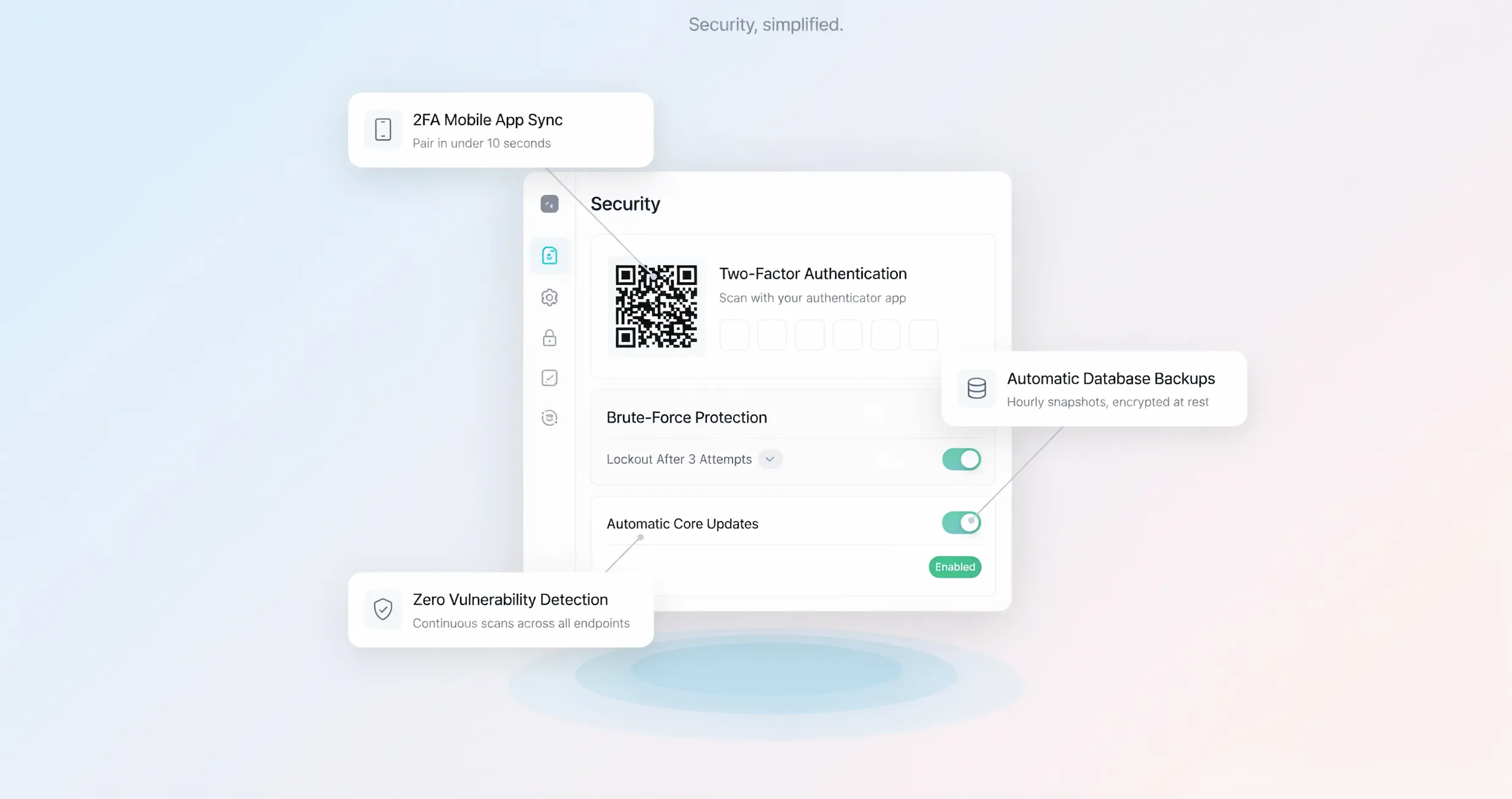
If an attacker gains access to your primary administrator account, every other security layer becomes irrelevant. They have the keys to the castle. Implementing basic website account security and strong website login security eliminates over 80% of automated breach attempts instantly:
- Enforce Multi-Factor Authentication (MFA): Require a secondary verification step via an authenticator app. Even if a bad actor steals your password, multi-factor authentication blocks unauthorized access.
- Use Unique, Strong Passwords: Never reuse credentials across services. Employ 16+ character passphrase combinations managed by a dedicated password manager.
- Limit Login Attempts: Implement strict rate-limiting rules so brute-force scripts cannot guess thousands of password combinations per minute.
3. Put HTTPS Between Your Visitors and Your Website
When a user submits a contact form, enters credit card details, or logs into an account on an unencrypted website, that data travels across the open web in plain text. Anyone sniffing the network can intercept it.
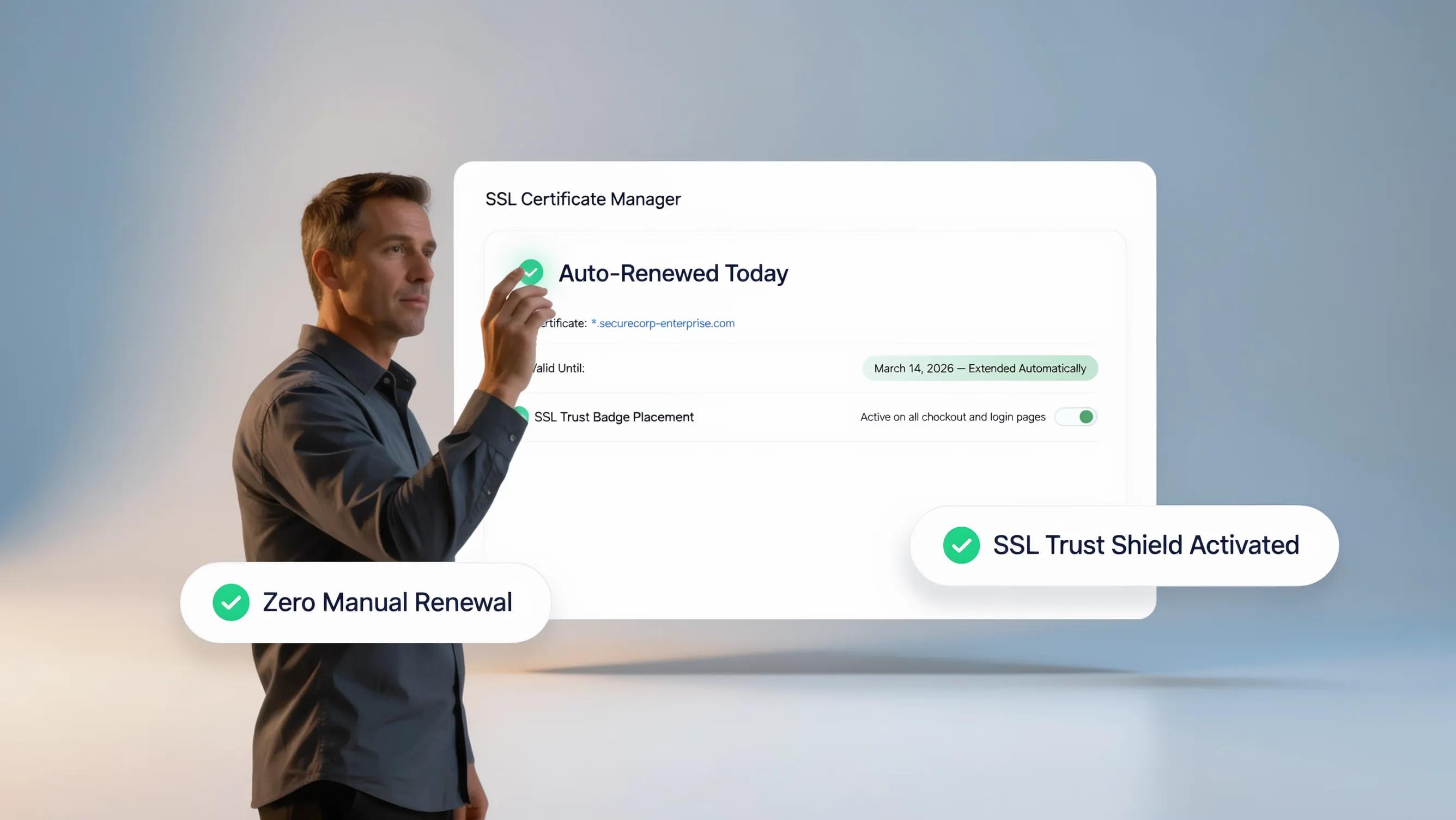
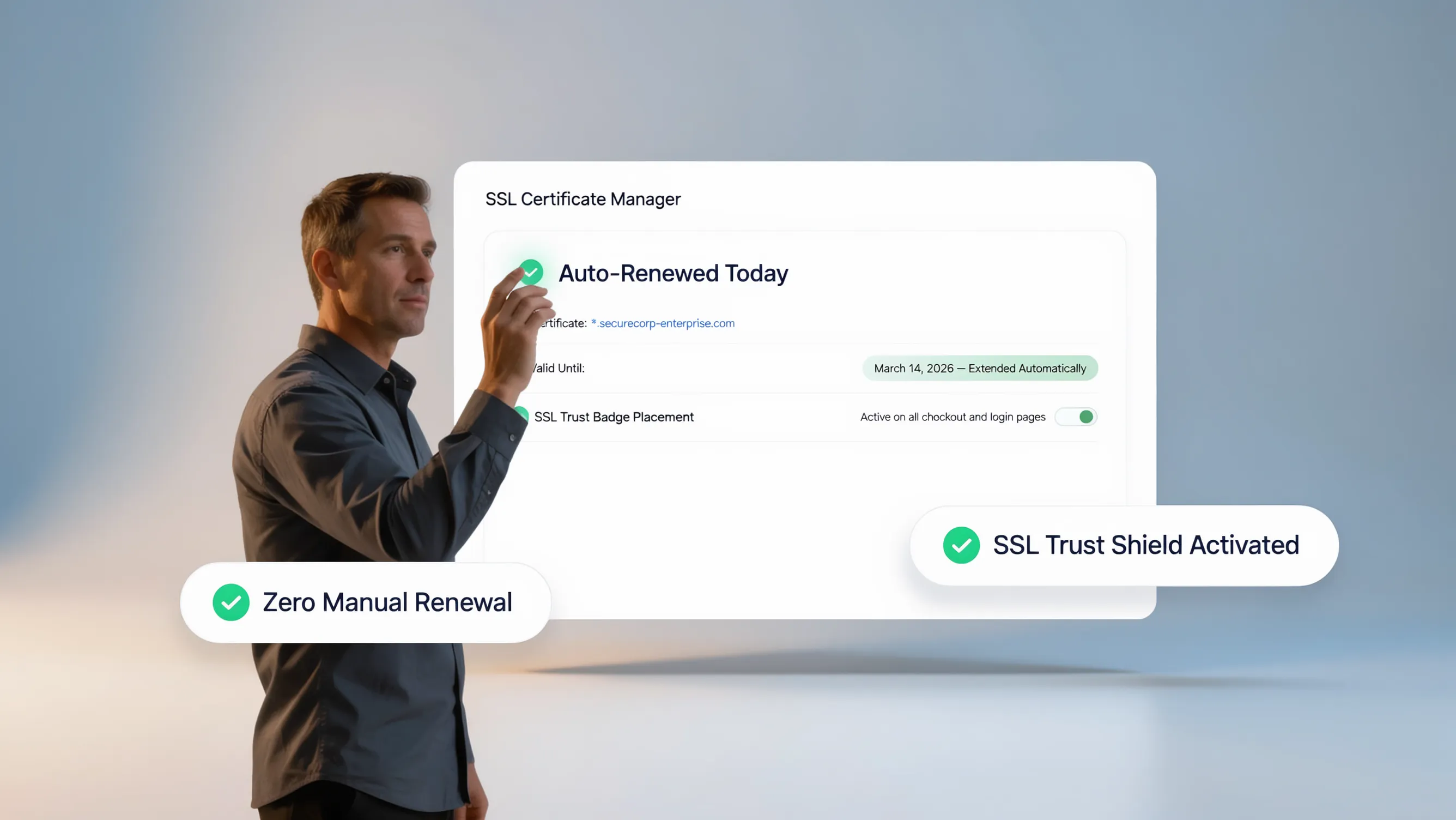
To create a secure website, implementing HTTPS via an active SSL certificate is mandatory:
- Obtain and install a valid website SSL certificate.
- Force automatic 301 redirects from http:// to https://.
- Verify that all site assets (images, scripts, styles) load over secure connections to avoid mixed-content security warnings.
Beyond encryption, HTTPS serves as a vital public trust signal. Web browsers mark non-HTTPS sites as "Not Secure," which instantly scares away potential clients and tanks your search engine visibility.
Keep the Software Behind Your Website From Becoming the Weak Point
Yes. The vast majority of content management system (CMS) hacks occur through outdated third-party extensions, plugins, and base software frameworks containing unpatched website vulnerabilities.
When security researchers discover a bug in a popular plugin, they publish the vulnerability patch publicly. Hackers immediately write automated bots to scan the web for websites running that specific outdated version. To maintain strong CMS security and plugin security:
- Turn on automated software updates for core files and critical maintenance patches.
- Perform weekly manual audits to update third-party themes, integrations, and plugins.
- Replace or remove abandoned plugins that haven't received developer updates in over six months.
Give Visitors Less to Attack
In cybersecurity, every piece of code you add to your site expands your attack surface. If you have 40 active plugins installed, you have 40 potential entry points that require constant monitoring and updating. Applying website security best practices means practicing aggressive digital minimalism:
- Delete Unused Plugins & Themes: Don't just deactivate them—permanently delete unused code files from your server.
- Remove Inactive Accounts: Delete legacy user profiles, temporary developer accounts, and old employee permissions.
- Prune Unnecessary Scripts: Strip out tracking tags, widgets, and external integrations that no longer serve a direct business goal.
Fewer components translate directly to a tighter, cleaner website security posture.
Protect the Information Your Website Collects
Data privacy and website data security are critical elements of building customer trust. If your business collects leads, contact details, or payment information, you are legally and ethically responsible for safeguarding that stored data. Follow these primary guidelines for website form security and customer data security:
| Security Area | Best Practice Implementation |
|---|---|
| Data Minimization | Collect only the information you strictly need. If you don't need a phone number or address, don't ask for it. |
| Form Sanitization | Use input validation to strip out malicious code scripts submitted through contact fields. |
| Storage Security | Avoid storing sensitive raw customer data inside basic website databases. Use encrypted third-party processors. |
| Spam Protection | Implement modern, privacy-focused CAPTCHA alternatives to stop automated form injection attacks. |
Stop Common Attacks Before They Reach Your Website
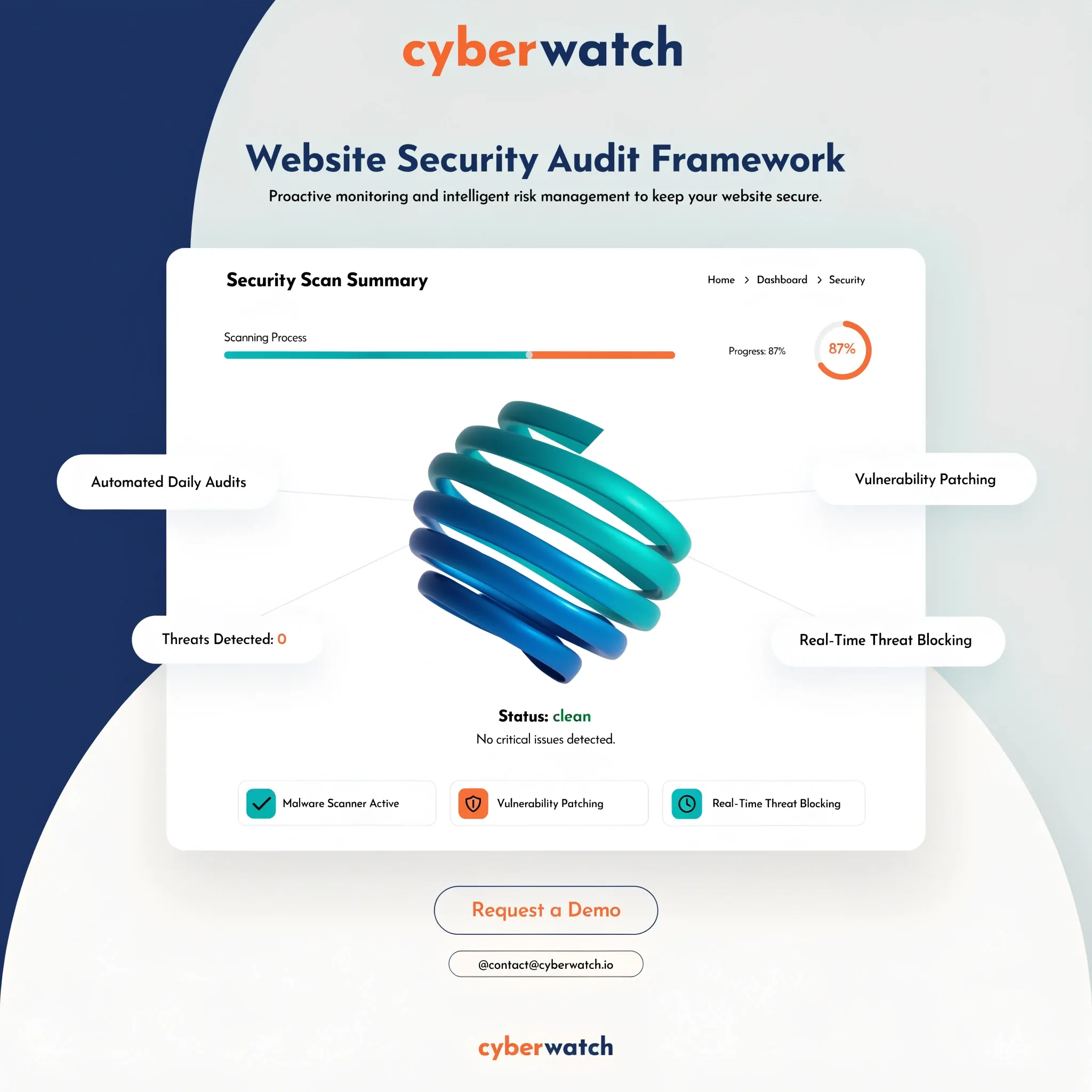
Waiting until traffic reaches your web server to filter out bad actors wastes system resources and exposes your application to direct threats. You need a guard stationed at the edge of your network.
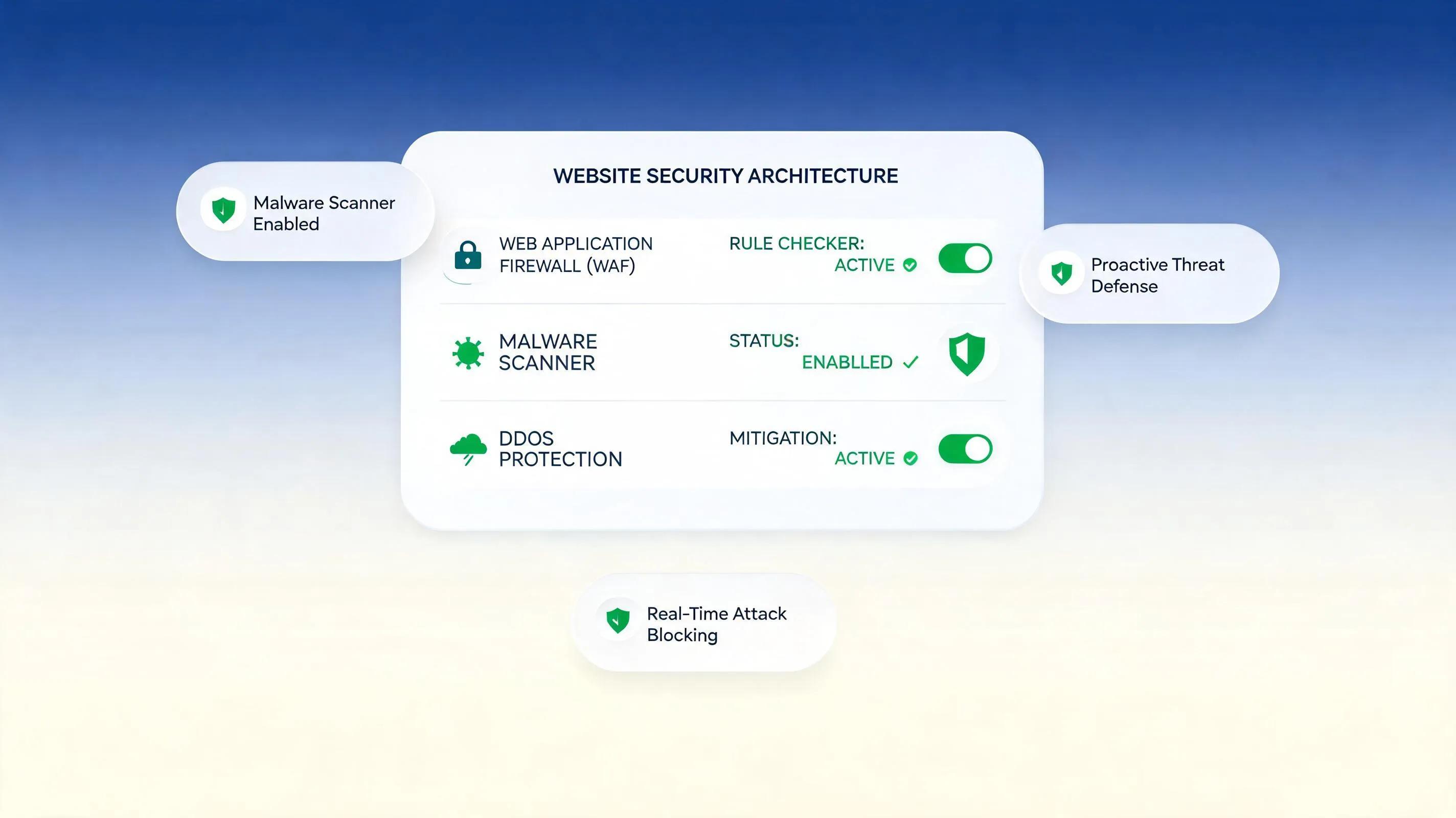
A Web Application Firewall (WAF) inspects incoming traffic in real time, filtering out malicious requests before they ever touch your site.
Setting up a robust website firewall delivers comprehensive website protection:
- DDoS Protection: Absorbs traffic surges from distributed botnets trying to force your site offline.
- SQL Injection & XSS Blocking: Filters out malicious code payloads injected into URL parameters or form inputs.
- IP Rate Limiting: Throttles suspicious IP addresses that make rapid, abnormal requests to sensitive pages.
Lock Down the Parts Visitors Should Never See
Public visitors should only see rendered frontend pages. They should never be able to browse administrative file trees, configuration settings, or private database connections. Proper website access control isolates sensitive backend areas:
- Restrict Admin Directories: Limit administrative panel access to specific white-listed IP addresses where possible.
- Secure API Keys & Credentials: Store secret database passwords and API tokens in environment variables outside the public web root directory.
- Set Strict Website Permissions: Configure directory and file permissions (e.g., 644 for files, 755 for directories) to prevent unauthorized file execution.
Properly separating public pages from private administrative surfaces eliminates accidental data exposure.
9.Make Backups Your Way Back In
No security system is 100% fail-proof. Human error, server hardware failures, and zero-day exploits happen. When prevention fails, your website backup strategy is your ultimate safety net. True resilience requires automated, offsite redundancy:
- Schedule Automated Backups: Run daily incremental backups of database content and weekly full-site snapshots.
- Store Offsite: Never store backup files on the same server hosting your live website. Transfer them to secure cloud storage locations.
- Test the Website Recovery Process: Periodically perform a test website restore on a staging environment to confirm your backups actually work when needed.
10. Know When Something Has Changed
Many modern web compromises don't deface your homepage or take your site offline. Instead, malicious scripts operate silently in the background—injecting spam links, redirecting mobile users to external pages, or harvesting form data. Continuous website security monitoring makes silent infections visible:
- File Integrity Monitoring: Get immediate alerts whenever core system files are modified, created, or deleted.
- Malware Monitoring: Use automated daily scanners to check page source code for malicious JavaScript injections.
- Uptime & Traffic Alerts: Monitor unusual traffic spikes or sudden downtime that could signal an ongoing attack.
Catching security anomalies early prevents long-term domain blacklisting and reputational damage.
11. Check the Website Before a Small Problem Becomes a Bigger One
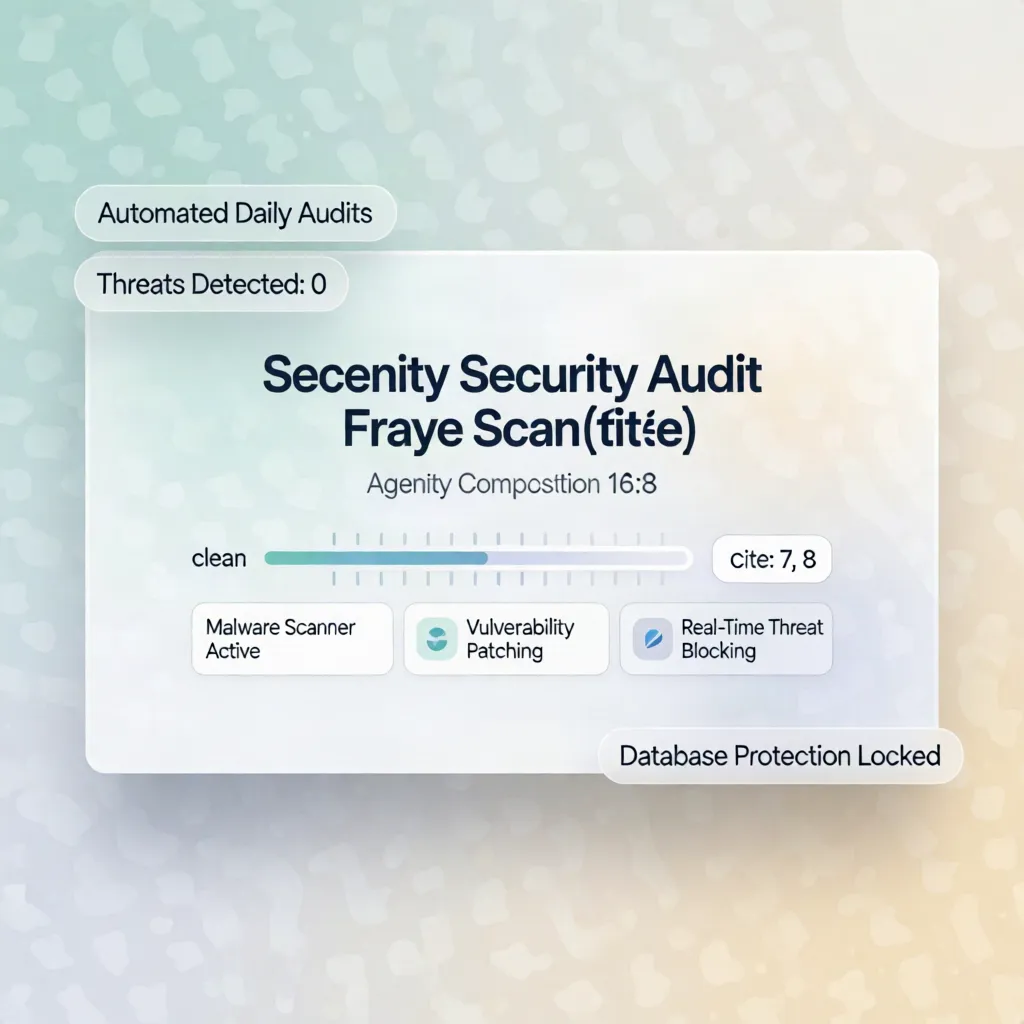
Security is an ongoing operational habit, not a static project. Conducting a structured website security audit every quarter ensures your defenses remain tight as your business grows. Work through this practical website security checklist:
- ✔ Run an automated website security scan to locate unpatched code or exposed directories.
- ✔ Review active user accounts and revoke permissions for inactive team members.
- ✔ Audit all active passwords and force updates for compromised credentials.
- ✔ Test all contact forms, checkout processes, and lead flows for proper encryption.
- ✔ Verify that your automated offsite website security backup files are generating successfully.
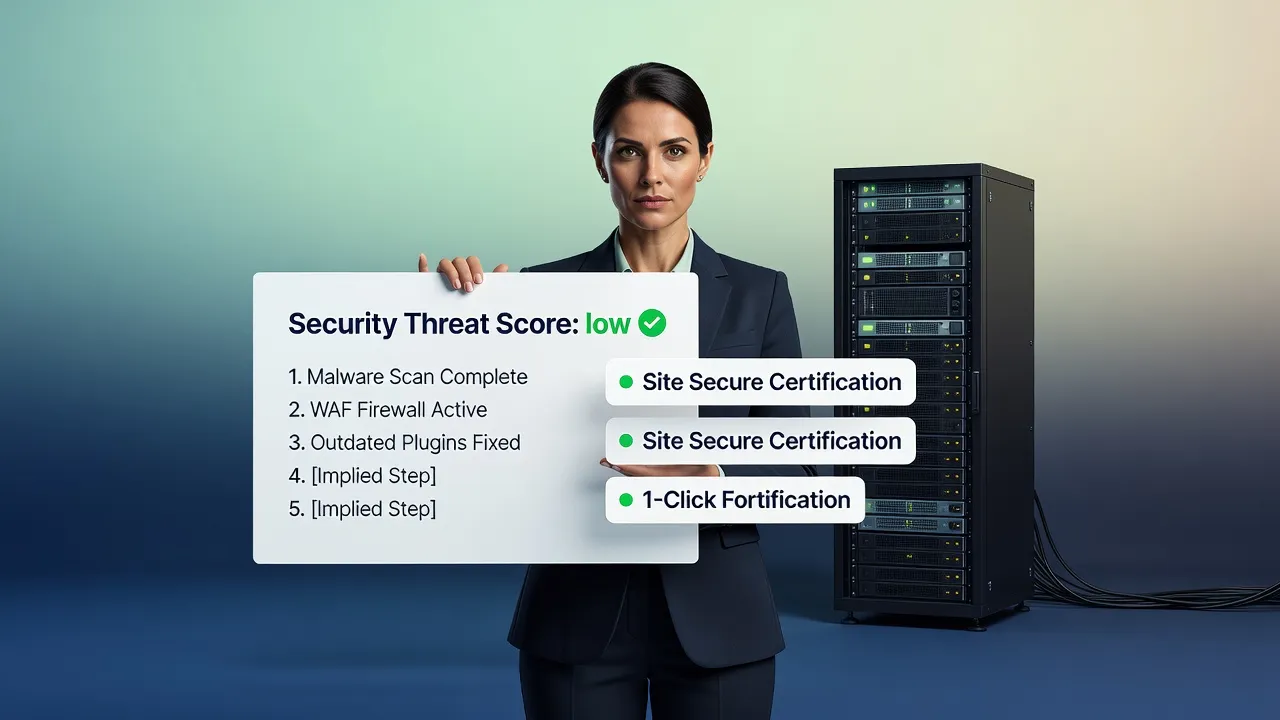
12. Build a Secure Website Without Managing Every Security Layer Yourself
Managing web servers, manual SSL renewals, WAF configurations, database patching, and malware scanning requires substantial technical expertise and constant oversight. For small business owners, trying to manage all these moving pieces manually creates constant stress. This is why modern business owners are turning to closed, fully managed platform environments.
Using an advanced secure website builder like BoltWeb eliminates backend security fears completely:
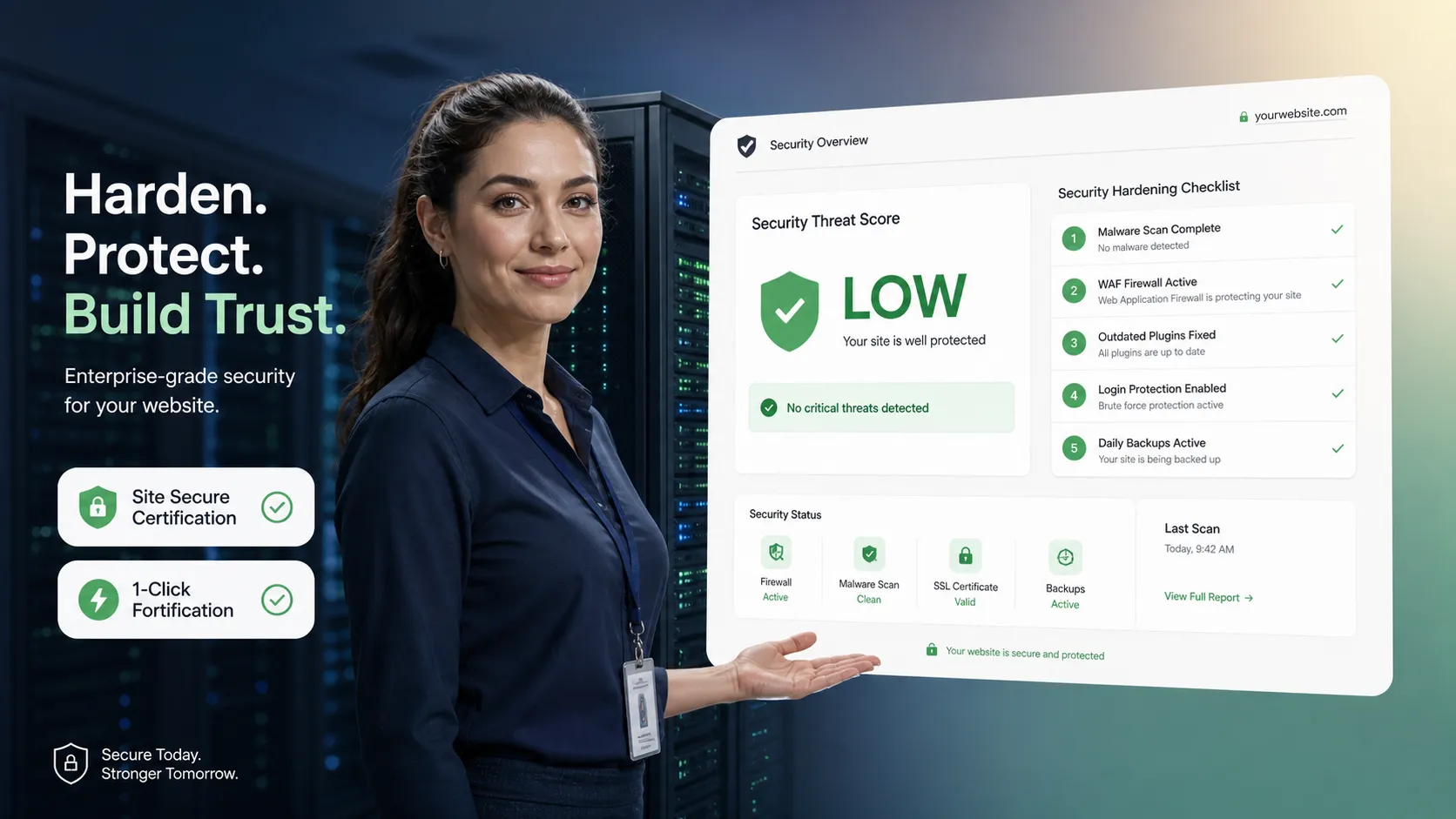
- Built-in Enterprise Security: Platform-level HTTPS, SSL management, continuous server maintenance, and firewall protection are handled automatically out of the box.
- No Vulnerable Plugins: By utilizing an integrated AI website builder ecosystem, you eliminate the risks associated with third-party plugin vulnerabilities and outdated CMS software files.
- Fearless Launching: You can focus entirely on building your brand and creating high-converting content, confident that your underlying architecture is monitored, backed up, and protected by enterprise-grade infrastructure.
FAQ: How to Make a Website More Secure
What is the most important step to secure my website from hackers?
Installing an SSL/TLS certificate to enforce HTTPS is the absolute foundation of web security. HTTPS encrypts all communication between your visitors and your web server, protecting sensitive data like login credentials, passwords, and payment details from interceptors. Beyond SSL, keeping your website software, theme files, and core plugins updated automatically is the single most effective defense against automated bot attacks.
2. How do I prevent brute-force login attacks on my site?
Stop brute-force entry attempts by enforcing multi-factor authentication (MFA or 2FA) across all administrative user accounts and setting strict login attempt limits. You can also move your standard admin login URL away from default directory paths (like /admin or /wp-admin) and restrict login access strictly to trusted IP addresses or require a security CAPTCHA after two failed login attempts.
Do I really need a Web Application Firewall (WAF) for a small business site?
Yes, a Cloud WAF acts as an active digital shield sitting between your website and incoming web traffic. It automatically inspects every incoming request to inspect, identify, and instantly block malicious traffic, distributed denial-of-service (DDoS) attacks, cross-site scripting (XSS), and SQL injection attempts long before they ever reach your actual web server hardware or site files.
How can I protect my web forms from spam and malicious code injection?
Secure contact and lead forms by implementing invisible reCAPTCHA or turnstile challenges alongside strict server-side input sanitization. Never trust data typed into a form; all form input fields must strip out potentially dangerous HTML or SQL characters before processing to eliminate form-based cross-site scripting (XSS) and database injection vulnerabilities. Review our guide on website form security to optimize your inputs safely.
How often should I back up my website files and database?
You should run automated daily backups stored in an isolated, off-site cloud location separate from your primary web hosting server. Maintaining automated off-site backups ensures that if your site ever experiences a malware infection, server crash, or ransomware attempt, you can instantly restore a clean, fully functional version of your entire site with minimal downtime and zero lost customer data.
What should I do if my site gets flagged with a security warning or malware infection?
Immediately put your website into maintenance mode, isolate your server environment, and run a server-side malware scan to identify and remove injected malicious scripts. After removing compromised files, update every administrative password, rotate API access keys, re-verify your file integrity, and submit a formal request for review through Google Search Console to clear the malware warning flag.
7. How do weak file permissions expose my server to unauthorized access?
Incorrect file permissions allow unauthorized scripts or hackers to edit critical core files directly on your server. As a general rule, configure your web directory folders to 755 (read/execute for others, write only for owner) and individual site files to 644. Highly sensitive system files—such as database configuration files storing access passwords—should be set to 600 or 400 to prevent public execution.
Can old or inactive website plugins leak sensitive customer data?
Yes. Simply deactivating an old plugin or theme leaves its underlying code files vulnerable on your web server. Cybercriminals actively scan websites for known software vulnerabilities in obsolete plugins, regardless of whether they are active. Fully delete unused themes and plugins from your directory structure rather than simply turning them off.
How do I secure user accounts and customer passwords on my web application?
Never store user passwords in plain text format inside your database. Always process login passwords using strong, one-way cryptographic hashing algorithms (like bcrypt or Argon2) with custom salt values. Additionally, enforce strong password complexity standards, clear session cookies upon logout, and set automatic session timeouts for inactive logged-in users.
10. What is the easiest way to keep a website secure without managing technical code updates?
The easiest way to ensure total security without manual code maintenance is to host your site on a managed cloud platform like BoltWeb. Modern managed platforms handle server-level security, SSL certificate auto-renewals, cloud firewalls, DDoS protection, and core system updates automatically in the background, keeping your web presence secure without requiring manual developer oversight. Explore the best website builder features to launch your secure platform today.

.webp&w=3840&q=75)