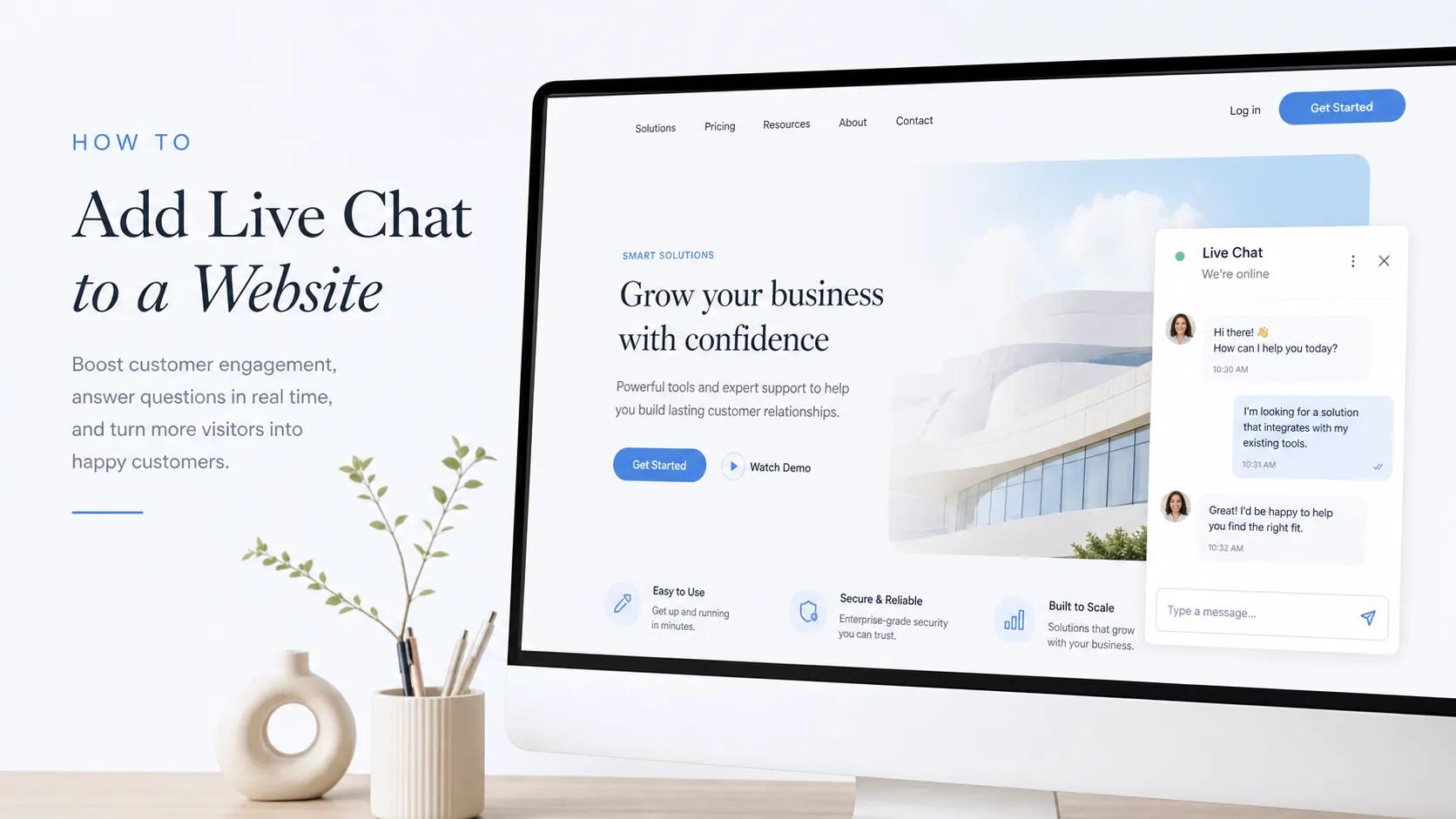
Imagine walking into a retail shop with a quick question about a product, but you cannot find an employee anywhere. After wandering through the aisles for a few minutes, you leave and walk into the store across the street. This exact scenario happens on websites every single day. When potential customers land on your pages, they often have tiny points of hesitation—a quick question about pricing, service coverage, or timelines. If they have to hunt for a contact form or wait hours for an email reply, they simply leave. Adding live chat to your website bridges this gap instantly, giving visitors a direct line to your business right when their buying intent is highest.

How to Add Live Chat to a Website: Start With What Customers Need
Most business owners treat live chat as just another decorative widget to slap onto their site. However, learning how to add live chat to a website starts with understanding what visitors are actually looking for: immediate clarity. Prospective clients do not open a chat window to read long sales pitches; they use it to verify whether your offer fits their specific situation. Integrating a clear website live chat solution removes communication friction, answers buyer doubts in real time, and turns casual browsers into high-intent leads before they click away.
Choose the Right Type of Live Chat for Your Website
Before choosing a software vendor, evaluate how your business handles customer inquiries. The ideal chat setup depends on your team size, daily site traffic, and support availability:
- Live Human Chat: Best for high-ticket service providers, consultancies, and agencies where closing a lead requires tailored, personal communication.
- Automated Chatbots: Ideal for high-traffic stores or technical services that receive the same repetitive questions regarding hours, pricing tiers, or account access.
- Hybrid Live Chat: The most effective setup for growing businesses. An automated bot handles initial greetings and common questions, escalating complex inquiries to a team member when needed.
Selecting the right communication model prevents your team from feeling overwhelmed while ensuring every visitor gets an instant response.

Choose a Live Chat Tool That Fits Your Business
Selecting the right live chat software comes down to essential capabilities rather than bloated feature lists. Look for tools that offer:
- Instant Mobile Notifications: Alerts your team immediately on iOS or Android so you never miss a real-time inquiry.
- Built-in CRM & Lead Capture: Automatically saves visitor contact information, chat transcripts, and referral sources.
- Customizable Trigger Rules: Allows you to pop open the chat window based on scroll depth, time on page, or specific high-intent URLs.
Comparing these core capabilities ensures you install a tool that supports your sales process without adding unnecessary software overhead.
Create Your Live Chat Account and Customize the Chat Box
A generic, unbranded chat widget looks suspicious and hurts site credibility. Customizing your website chat widget helps it look like a natural extension of your brand:
- Brand Colors: Match the widget header and primary action buttons to your website's exact color palette.
- Friendly Representative Photo: Use a real headshot of yourself or a support team member instead of a generic stock avatar.
- Clear Team Name: State clearly who the visitor is talking to (e.g., "BoltWeb Support Team").
Refining the visual appearance of your chat box establishes trust before the visitor even sends their first message.

Add the Live Chat Widget to Your Website
Once your chat profile is configured, adding the widget to your website can be accomplished in a few ways depending on your technical setup:
- Direct Embed Code: Paste a light JavaScript snippet directly into your website's head or footer script section.
- Platform Integrations: Connect popular support software using pre-built integrations or native app store plugins.
- Built-in Builder Add-Ons: Activate live chat directly through your site builder's settings with a single click.
Getting your chat button live quickly allows you to start capturing visitor questions without delay.
Write a Welcome Message That Makes Visitors Want to Start a Conversation
A blank chat box creates conversation anxiety. Visitors often do not know what to ask or if a real person is on the other side. Writing an inviting welcome greeting encourages visitors to type:
- Service Pages: "Have a quick question about our custom plans? Ask us anything here!"
- Pricing Pages: "Trying to figure out which package fits your budget? We're online to help."
- Checkout Pages: "Need help completing your order? Chat with our team right now."
Crafting contextual greetings makes starting a conversation effortless for hesitant prospects.

Make It Easy for Visitors to Ask the Right Question
Do not make visitors guess what to type next. Adding pre-set conversation starters or suggested prompt buttons inside the chat window guides prospects toward the information they need:
- "What are your turnaround times?"
- "Do you offer custom pricing for small teams?"
- "How does the onboarding process work?"
Providing clickable prompt buttons eliminates typing effort on mobile devices and speeds up initial inquiries.
Decide When You or Your Team Should Be Available
Setting false expectations about response times frustrates prospective clients faster than having no chat at all. If your chat says "Online" but nobody replies for two hours, visitors lose trust.
- Set Explicit Business Hours: Automatically switch the chat status to "Offline" or "Away" outside operating hours.
- Use Automated Offline Forms: Collect name, email, and message details when your team is away so you can follow up first thing the next morning.
- State Clear Reply Times: Display realistic indicators like "Usually replies within 10 minutes" to manage visitor expectations.
Managing availability transparently keeps customer trust intact across every interaction.
Use Live Chat to Capture Leads Without Making It Feel Like a Form
Long contact forms often scare prospective leads away. Live chat serves as a low-pressure lead generation channel that collects contact details naturally during conversation.
- Ask for an email address early in the exchange so you can send follow-up details if the visitor drops off.
- Qualify potential clients by asking simple, conversational questions about their timeline or project goals.
- Direct high-intent leads straight to a calendar link once their primary questions are answered.
Turning conversations into qualified sales contacts provides a smooth experience for the customer while driving consistent business growth.

Test Your Live Chat Before Sending Visitors to It
Before driving paid traffic or launching a marketing push, thoroughly test your chat installation to ensure a smooth user experience:
- Send test messages from desktop and mobile browsers to confirm push notifications arrive instantly.
- Verify that email capture forms properly route lead data into your CRM or email platform.
- Check that the chat widget does not overlap important navigation elements, primary call-to-action buttons, or mobile footer bars.
Resolving technical hiccups beforehand guarantees every real visitor enjoys a seamless support experience.
Use Your Chat Conversations to Improve Your Website
Every conversation inside your live chat inbox is valuable customer research. The questions visitors repeatedly ask point out the exact gaps on your current pages.
- If people constantly ask about pricing tiers, make your pricing section clearer or move it higher up the page.
- If prospects ask whether a service includes a specific deliverable, update your feature bullet points.
- Use recurring chat questions to build an authentic FAQ section or refine your main headline copy.
Listening to real visitor inquiries helps you update your site content to answer objections before prospects even need to open the chat window.
Add Live Chat Without Complicated Website Development
You do not need to manage complex code libraries, wrestle with third-party script tags, or pay expensive monthly integration fees just to add live chat to your website. If your business site runs on an outdated platform, adding basic interactive tools can feel technical and frustrating. When you use modern tools to build your online presence, integrating conversion features becomes effortless.
If you want to build a high-performing site from scratch without technical headaches, BoltWeb gives you an all-in-one platform designed for fast setup and effortless expansion. Using an advanced AI website builder allows you to launch custom, rank-ready pages complete with built-in add-ons right out of the box.
Adding live chat and launching your site with BoltWeb follows a straightforward workflow:
- Select the AI site builder and describe your main business concept, services, and target audience in a brief prompt.
- Let the engine generate your multi-page site layout complete with clean design sections and mobile responsiveness.
- Navigate to the right-side panel in the builder, open the Add-Ons menu, and select Live Chat to automatically enable the widget on your site.
- Review your site settings, customize your welcome message, and hit publish to go live instantly.
When visitors land on your published site, they can interact directly with your chat window, and every inquiry lands right inside your unified inbox. Eliminating complex development work lets you focus on answering questions, capturing qualified leads, and scaling your business website.

Frequently Asked Questions: How to Add Live Chat to a Website
Is adding live chat to my website actually worth it?
Short answer: Absolutely. In fact, adding live chat turns passive browsers into paying customers right when their buying intent is highest.
Most website visitors leave without buying simply because they have one quick, unanswered question. By placing a website live chat widget on your page, you eliminate communication friction instantly. You meet prospects where they are, answer doubts in real time, and boost overall sales conversions without increasing your ad spend.
How do I add live chat to my website without coding skills?
Here is the good news: you do not need to touch a single line of complex code.
Modern web tools make adding live chat completely painless. You can either paste a simple pre-built code snippet into your site settings or use an integrated platform. If you build your site using BoltWeb, enabling chat is as simple as toggling an add-on in your dashboard—giving you a fully functional, real-time chat box instantly without hiring a developer.
Should I use a live human agent, an automated chatbot, or both?
Here's the deal: the most effective approach for growing businesses is a hybrid chat model.
- Human Chat: Essential for high-ticket services and complex sales where personal trust drives the deal.
- Automated Chatbots: Perfect for handling common, repetitive queries like operating hours or pricing tiers 24/7.
- Hybrid Model: Uses an automated bot to greet visitors and capture initial details, then seamlessly hands off complex inquiries to a real team member.
What is the best live chat software for small businesses?
The best live chat tool depends entirely on your specific workflow, but look for three non-negotiable features:
- Instant Mobile Alerts: Ensures your team never misses a high-intent inquiry while on the go.
- Built-in Lead Capture: Automatically saves visitor contact details and chat histories into your CRM.
- Customizable Trigger Rules: Allows the chat box to pop up based on user behavior, scroll depth, or specific high-value pages.
Will adding a live chat widget slow down my website speed?
Not if you set it up correctly.
Legacy chat scripts used to bloat page load times, but modern asynchronous chat widgets load independently from your main page content. This ensures your site loads lightning-fast while still delivering a responsive, interactive chat experience for visitors.
Where is the best place to position the chat box on my site?
Think about how people visually scan web pages.
By applying basic Gestalt design principles, the bottom-right corner of the screen has become the universal standard for live chat widgets. Placing your chat button here creates immediate visual recognition without blocking essential navigation menus, headlines, or primary call-to-action buttons.
What should my live chat welcome message say to get more responses?
A blank chat box creates hesitation, but a targeted greeting starts conversations effortlessly.
Instead of a generic "How can I help you?", tailor your greeting to the specific page the visitor is viewing:
- Pricing Pages: "Trying to figure out which plan fits your budget? Chat with us live!"
- Service Pages: "Have a quick question about our project turnaround times? Ask us here."
- Checkout Pages: "Need assistance placing your order? We're online and ready to help."
How can I use live chat to capture leads without annoying visitors?
Nobody likes filling out long, tedious contact forms anymore.
Live chat functions as a low-friction lead generation tool. By asking for an email address early in a natural conversation (e.g., "In case we get disconnected, what's the best email to send this details to?"), you collect qualified leads seamlessly without making visitors feel like they are filling out a marketing form.
What happens when a visitor messages my live chat after business hours?
You don't need to stay online 24/7 to make live chat work for your business.
When your team goes offline, your chat widget should automatically switch to offline mode. This presents visitors with a clean message form stating clear response expectations (e.g., "We're currently offline, but leave your message and email and we'll reply by 9:00 AM tomorrow").
How do I test my website live chat before launching it to visitors?
Testing your chat setup before driving live traffic prevents embarrassing technical glitches.
Follow this quick pre-launch checklist:
- Test Notifications: Send test messages from desktop and mobile browsers to confirm alerts arrive instantly.
- Verify Lead Routing: Ensure submitted contact forms properly push lead details into your CRM or email inbox.
- Check Mobile Layout: Confirm the chat icon does not overlap key mobile navigation elements or buttons.
Can I customize the look of my chat widget to match my brand?
Yes—and you absolutely should. Unbranded, default chat boxes look suspicious and hurt visitor trust.
To make your chat widget feel like a natural extension of your brand, customize the color scheme to match your website's palette, upload a real personal headshot instead of a stock photo avatar, and display a clear team or company name. Read our guide on building website trust for more visual tips.
What is the easiest way to add live chat to a new website from scratch?
If you want to avoid third-party script integrations, complex setup steps, and monthly plugin fees entirely, building your site on an all-in-one platform is the fastest path forward.
Using BoltWeb, you can generate a complete, high-converting website using an advanced AI website builder. Once your site layout is created, you can enable live chat with a single click from the add-ons panel. Every message from your visitors routes straight into your central inbox, giving you a seamless support and lead generation setup right out of the box.