
Every time a website visitor completes a contact form, they hand you an active sales opportunity. Whether they are requesting a custom service quote, booking a consultation, or asking for product details, form submissions represent the lifeblood of digital lead generation. But if your analytics dashboard fails to capture these inquiries, you are operating your business completely blind.
Here is the plain truth: Counting general traffic and pageviews tells you almost nothing about your actual revenue. A landing page can receive 10,000 visitors a month, but if only 5 people submit an inquiry, evaluating pageviews alone creates a dangerous illusion of growth. Measuring exact form completions bridges that gap so you can double down on marketing channels that drive actual profits.
Modern visual platforms make capturing form completions simple right out of the box. When you build your online storefront on BoltWeb, capturing customer leads is completely integrated. As an all-in-one business website builder, BoltWeb automatically connects lead capture forms to clean event outputs—allowing you to deploy high-converting storefronts with built-in analytics in under 60 seconds!
Here is your operational guide on how to track contact form submissions in Google Analytics 4, map form success events, and convert raw inquiries into customer revenue.
1. How to Track Contact Form Submissions in Google Analytics 4
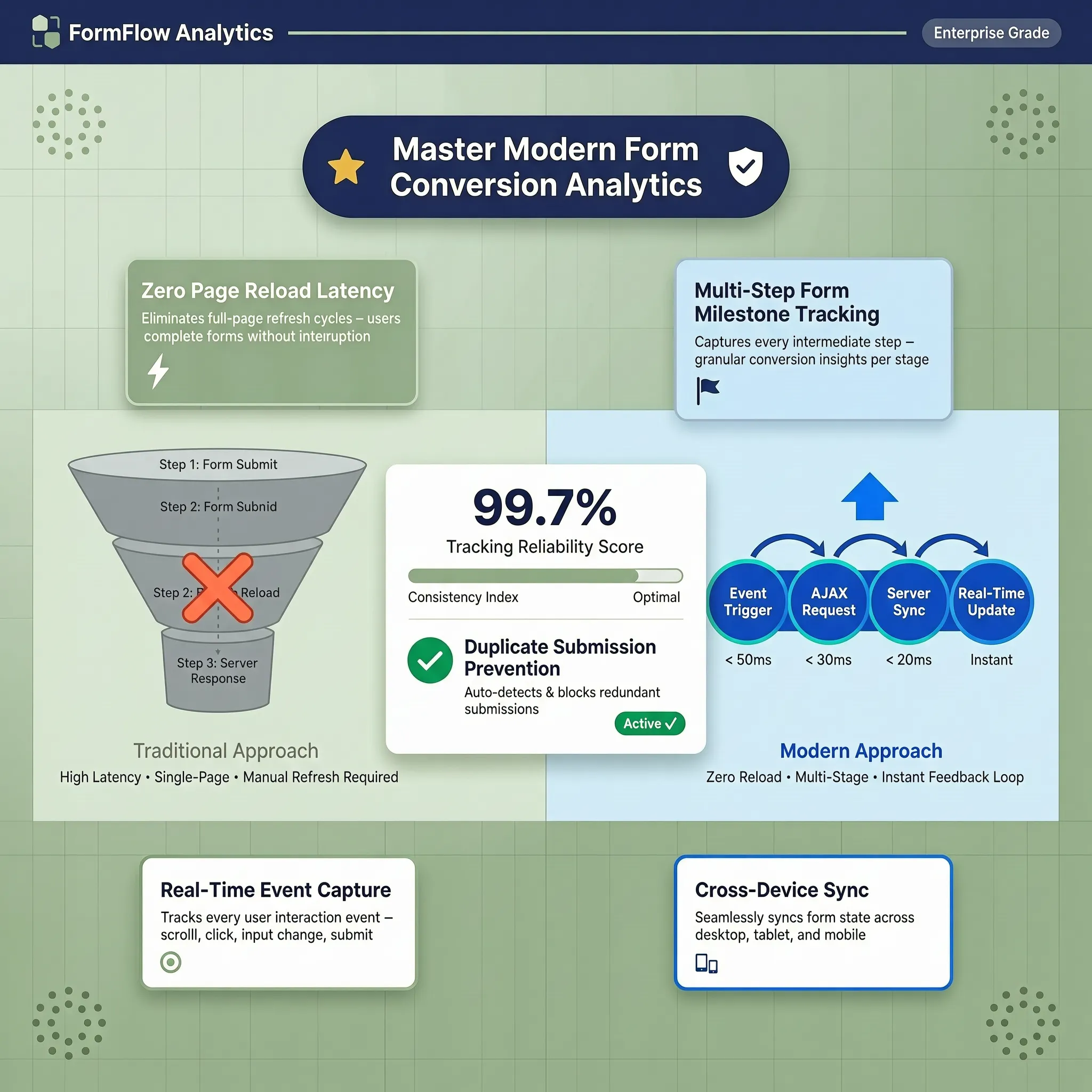
Let's resolve the central measurement problem right from the start: Tracking a form submission is fundamentally different from tracking a simple button tap or a routine page scroll. If a user clicks your "Submit" button but leaves mandatory fields blank, an error message pops up. If your analytics system counts that initial button click as a lead, your reports will register a false lead. To get accurate numbers, you need a setup that triggers an event only when the form successfully passes validation and submits:
| User Action | Technical Measurement Event |
|---|---|
| Taps Submit with empty fields | Validation Error (Zero event count) |
| Fills out form and submits | form_submit event triggered |
| Lands on Thank-You URL | generate_lead Key Event logged |
Mastering how to track contact form submissions in Google Analytics 4 allows you to implement clean GA4 form tracking and establish reliable contact form conversion tracking across all your landing pages (start with the foundational Google Analytics setup walkthrough for small businesses).
2. Choose How to Detect a Successful Contact Form Submission
Relying on simple button click triggers is one of the fastest ways to ruin your marketing data. You must choose a detection method that confirms successful completion:
- Redirect to a Thank-You Page: The user completes the form and is immediately redirected to a unique page URL (/thank-you). This is the cleanest and most reliable tracking method.
- AJAX / In-Page Confirmation Message: The form submits dynamically without reloading the page, displaying a visual "Thank You" message inline. This requires Google Tag Manager (GTM) or custom data layer listeners.
- Native Form Success Callbacks: Using your builder's built-in event listeners to send automated signals straight to your analytics scripts.
Focusing on how to track successful form submissions ensures you trigger a valid GA4 form submission event every time, delivering accurate contact form tracking data (see related tracking in our guide to tracking website button clicks in GA4).
3. Check Whether Your Website Already Tracks Form Interactions
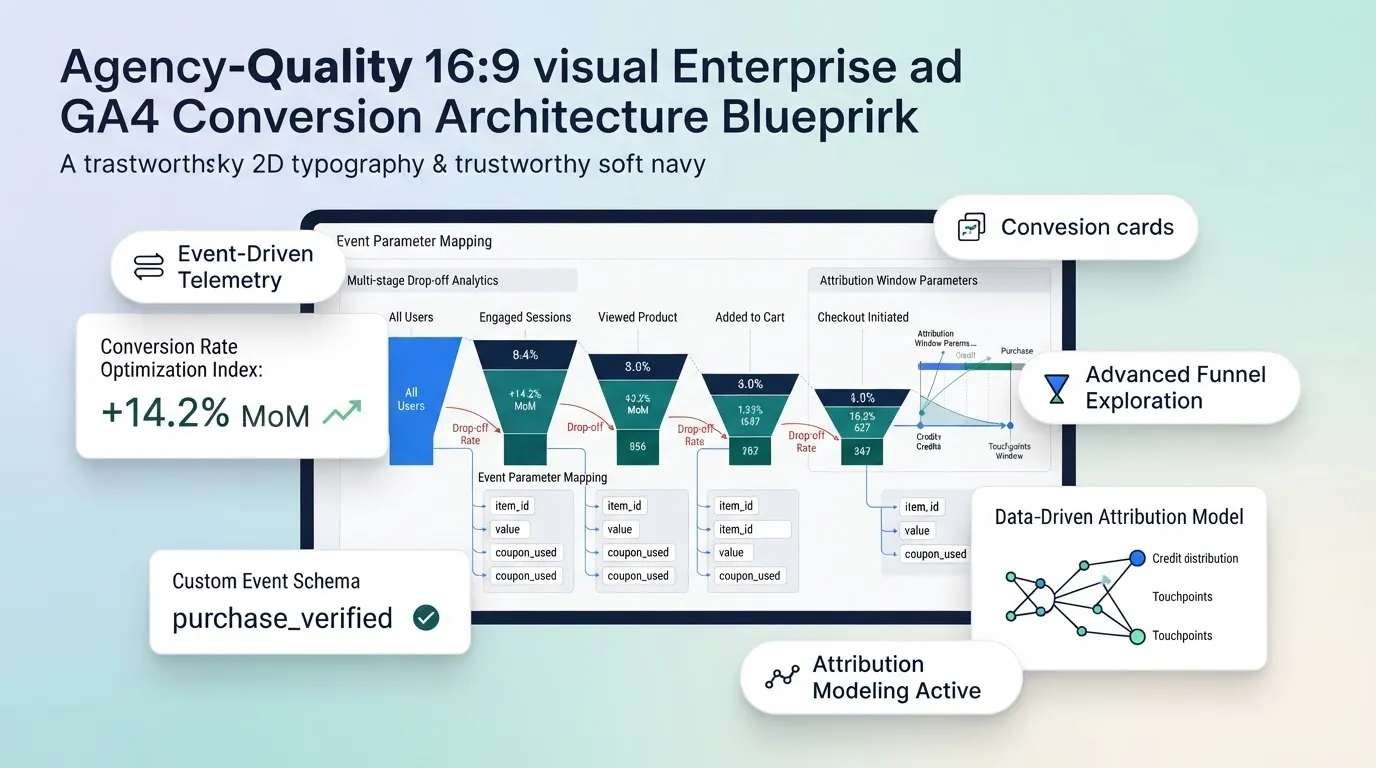
Before adding custom code or setting up new tags, check what your existing setup captures automatically. Google Analytics 4 includes an automated feature called Enhanced Measurement:
form_start eventsInspect how GA4 form interactions function inside GA4 enhanced measurement before assuming automatic form tracking covers your full conversion funnel.
4. Track Form Submissions Using a Thank-You Page
If your form redirects visitors to a dedicated confirmation page upon completion, tracking successful leads becomes remarkably straightforward. Follow this simple 3-step setup:
- Create a Dedicated Page: Build a distinct page URL (such as yourdomain.com/thank-you) that visitors can access only after submitting a form.
- Set Page NoIndex Rules: Ensure search engines do not index your confirmation page so visitors cannot land on it directly from Google search (learn how in knowing when to noindex a website page).
- Configure Pageview Event: Inside GA4, go to Admin → Events → Create Event. Name your custom event
generate_leadand set the condition topage_locationcontains/thank-you.
Thank-You Tracking Formula = Successful Form Submission → Redirect to /thank-you → Trigger generate_lead
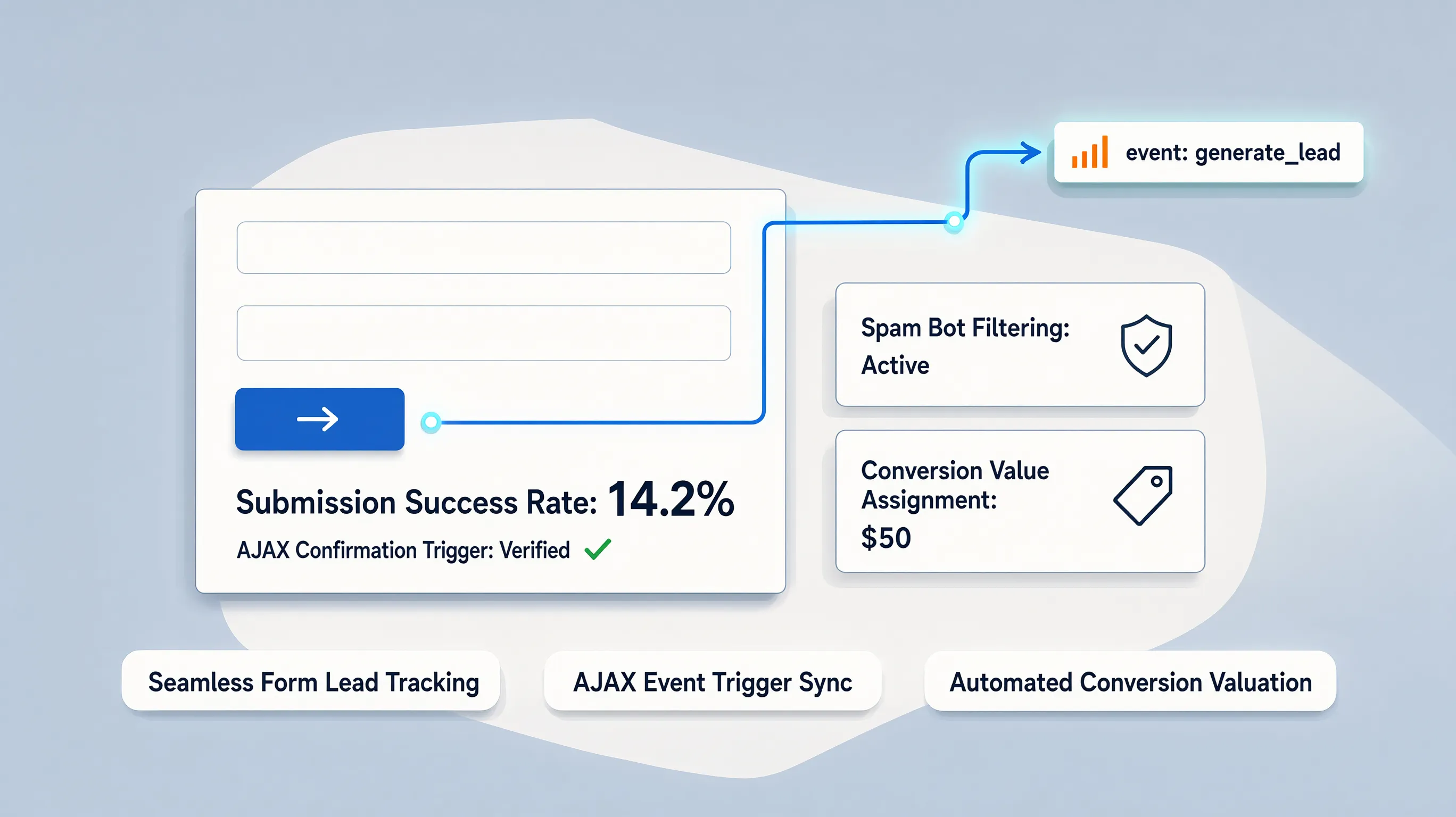
Setting up GA4 thank you page tracking allows you to track thank you page in Google Analytics and establish rock-solid form confirmation page tracking.
5. Set Up Contact Form Submission Tracking With Google Tag Manager
Modern business websites often process forms dynamically using AJAX, keeping the user on the same page while showing a success message. To capture these submissions without page reloads, use Google Tag Manager (GTM):
- Built-in Form Submit Trigger: Create a GTM trigger using the Form Submission type. Check Wait Tags and Check Validation to ensure invalid entries are ignored.
- Element Visibility Trigger: Set GTM to fire an event when the visual success element (e.g., <div id="form-success-message">) becomes visible on screen.
- Custom Data Layer Events: Push a custom event (such as dataLayer.push({'event': 'form_submitted'})) directly from your form script.
Mastering Google Tag Manager form tracking and configuring GA4 form submission tracking GTM tags makes it easy to track AJAX form submissions effortlessly on BoltWeb.
6. Create a Custom Form Submission Event in GA4
Sending generic, unorganized event labels into GA4 makes downstream reporting confusing. Establishing a clean data structure ensures your lead reports stay clear. Follow Google's standard event naming framework:
- Recommended Event Name: Use
generate_leadfor primary inquiry forms orcontact_form_submitfor secondary forms. - Custom Event Parameters: Pass contextual details alongside the event, such as
form_id,form_name, orpage_location.
generate_leadform_id = "main_quote_form"form_name = "Residential Roofing Estimate"page_location = "https://yourdomain.com/roofing"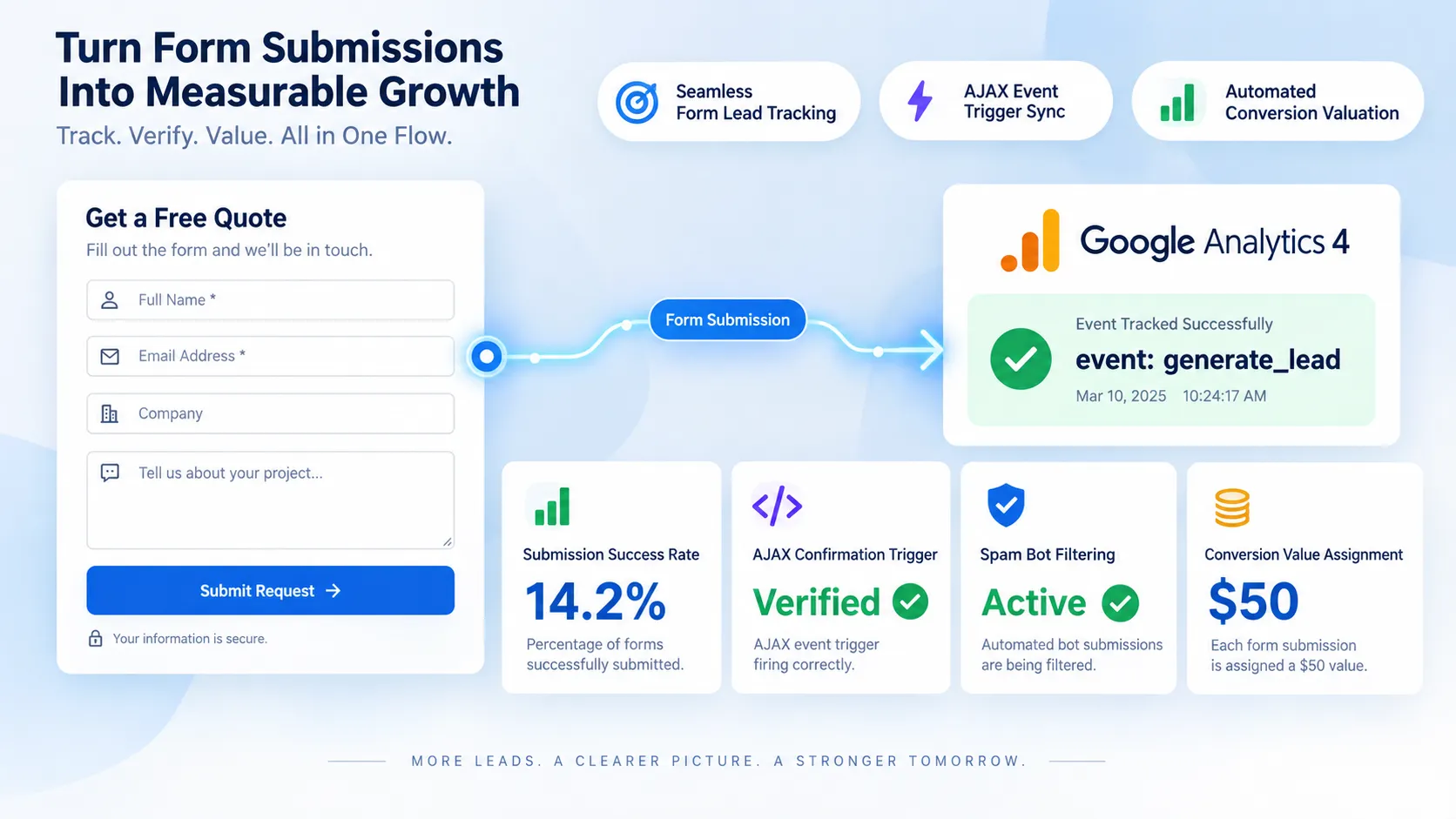
Taking time to create custom event in GA4 environments ensures your GA4 custom form submission event structure integrates cleanly into your global GA4 event tracking dashboard.
7. Mark the Form Submission Event as a Key Event
In Google Analytics 4, critical business actions—formerly known as "Conversions"—are classified as Key Events. How to elevate your form submission event to a Key Event:
- Open Admin Console: Go to Admin → Data Display → Events.
- Locate Your Custom Event: Find your
generate_leadorcontact_form_submitevent in the active list. - Toggle Key Event Status: Flip the toggle switch to Mark as key event.
generate_lead fired on successful submissionCompleting your GA4 key event setup and choosing to mark form submission as key event actions lays the foundation for advanced GA4 form conversion tracking (explore strategies in our complete guide to tracking website conversions with GA4).
8. Test Your Contact Form Tracking Before Publishing It
Deploying unverified analytics tags is a recipe for inaccurate data. Always test your triggers before trusting your analytics numbers. Follow this 3-step quality control workflow:
- GTM Preview Mode: Connect your live storefront to Tag Assistant and submit a test entry to confirm tag execution.
- GA4 DebugView: Navigate to Admin → DebugView to verify that parameter values and event names stream in accurately.
- Validation Test: Intentionally leave required fields blank and click Submit. Confirm that no event fires when validation fails.
Taking time to test GA4 form tracking inside GA4 DebugView using Google Tag Manager preview mode prevents reporting errors before launching paid ad campaigns.
9. Find Contact Form Submissions in Google Analytics Reports
Once your form tags are validated and active, navigate to GA4's reporting modules to extract actionable business insights. Where to locate completed lead metrics:
- Traffic Acquisition Report: Go to Reports → Acquisition → Traffic Acquisition. Add your
generate_leadmetric to see which channels drive inquiry volume. - Custom Explorations: Build a Free Form Exploration report to cross-reference form completions against landing page paths, device types, and geographic locations (learn more in analyzing website traffic reports).
Building a custom GA4 form submission report clarifies how to find form submissions in GA4 across standard Google Analytics lead tracking dashboards.
10. Identify Which Pages and Traffic Sources Generate More Leads
Not all website traffic is created equal. A blog post might draw thousands of passive visitors, while a dedicated local landing page brings in high-intent leads ready to buy. Evaluate lead acquisition across two core dimensions:
- Traffic Source / Medium: Compare leads coming from Google Search, Paid Google Ads, Social Media campaigns, and direct traffic (see finding where website traffic comes from).
- Landing Page Conversion Rate: Pinpoint which specific service pages convert visitors into inquiries at the highest rate (see identifying your best performing website pages).
Learning how to track leads by traffic source inside GA4 lead tracking dashboards empowers you to optimize landing page form conversions (pair this with fixing high-traffic pages with low conversion rates).
11. Fix Common Contact Form Tracking Problems in GA4
If your reported lead counts don't match your actual inbox inquiries, systematically address these common technical issues:
- Form Reload Loop: If users refresh the Thank-You page, GA4 may record a duplicate lead. Prevent this by using single-use session tokens or firing events strictly via GTM custom variables.
- Cross-Domain Friction: If your form is hosted on a third-party portal (like Typeform or Hubspot), ensure cross-domain tracking is configured cleanly.
- Spam Submissions: Automated bots filling out forms inflate lead counts. Eliminate spam entries by using modern CAPTCHA tools (learn strategies in reducing contact form spam).
Diagnosing a GA4 form tracking not working alert resolves duplicate form submission events and helps fix GA4 tracking issues quickly.
12. Measure Lead Quality Instead of Counting Every Submission Equally
Counting raw form submissions is a great first step, but calculating real business growth requires tracking qualified lead quality. Move beyond surface-level numbers to track actual revenue:
Lead Conversion Quality = (Qualified Sales Inquiries / Total Form Submissions Received) × 100
- Sync Analytics with CRM: Connect your lead form workflows to CRM platforms like HubSpot or Salesforce to track which form inquiries turn into paying clients.
- Protect Customer Privacy: Never pass personally identifiable information (PII)—such as raw email addresses, names, or phone numbers—into GA4 event parameters, as this violates Google's terms of service (learn protocols in checking what personal data your website collects).
Learning to track qualified leads in GA4, analyzing lead generation analytics, and adopting systems to measure website leads accurately connects your digital strategy directly to revenue growth on BoltWeb.
Turn Form Inquiries Into Daily Revenue
Configuring lead tracking, setting up event triggers, and matching form submissions to actual sales should never be a frustrating technical ordeal. When you publish your digital storefront on BoltWeb, every element of your site is engineered for action from day one.
Whether you run a local home service business, a boutique advisory firm, or a growing e-commerce brand, BoltWeb builds high-converting form section blocks, formats responsive mobile layouts, connects analytics scripts smoothly, and launches a lead-generating storefront tailored to your target audience.
Frequently Asked Questions: Capturing Form Submissions in GA4
1. How do I track contact form submissions in Google Analytics 4 so I can see my actual leads?
Tracking contact form submissions in GA4 measures when a visitor successfully completes an inquiry, quote request, or contact form on your storefront. Traffic volume alone won't pay your bills—a page receiving 10,000 passive clicks that yields zero inquiries is far less valuable than a targeted landing page bringing in 200 visitors and 20 paying clients. Setting up track contact form submissions in Google Analytics 4 parameters gives you a clear GA4 form tracking engine to evaluate your contact form conversion tracking performance. When you build your storefront on BoltWeb, connecting your form analytics is completely seamless out of the box. As an all-in-one business website builder, BoltWeb automatically pairs lead forms and contact sections with clean event structures in under 60 seconds!
2. How do I make sure GA4 tracks successful form submissions instead of just button clicks?
Relying on simple button click triggers is one of the fastest ways to ruin your analytics data because clicking "Submit" with empty fields fails validation. Ensure your setup tracks completed outcomes rather than attempted clicks: Thank-You Page Redirection: Route visitors to a dedicated confirmation page (/thank-you) upon successful submission and measure pageviews on that unique destination. Inline Success Element Listeners: Trigger tags strictly when on-screen success messages render after client-side form validation succeeds. Server-Side Data Layer Events: Push explicit completion events from your backend form processor straight to your analytics container. Focusing on how to track successful form submissions ensures you log a valid GA4 form submission event every time, delivering accurate contact form tracking metrics.
3. Does Google Analytics 4 track form submissions automatically out of the box?
Before writing custom code or building complex tag containers, check what your analytics property captures natively. GA4 features an automated tool called Enhanced Measurement: Auto-Captured Events: GA4 automatically records form_start when a user interacts with a form field and form_submit when a form fires a browser submit action. Limitations: Automated tracking can log false submissions if client-side validation fails or if AJAX forms submit dynamically without standard browser signals. Inspecting how GA4 form interactions function inside GA4 enhanced measurement lets you evaluate automatic form tracking before adding custom triggers (start with the foundational Google Analytics setup walkthrough for small businesses).
4. How do I set up GA4 thank-you page tracking for contact forms?
If your form redirects visitors to a dedicated confirmation page after submitting their details, measuring successful leads becomes remarkably straightforward. Follow this step-by-step setup path: Create a Dedicated URL: Build a distinct page (such as yourdomain.com/thank-you) accessible exclusively after a form is completed. Set Page NoIndex Rules: Ensure search engine crawlers do not index your thank-you page to prevent false direct hits (learn how in knowing when to noindex a website page). Configure GA4 Event: Go to Admin → Events → Create Event. Name your custom event generate_lead and set the condition to page_location contains /thank-you. Setting up GA4 thank you page tracking allows you to track thank you page in Google Analytics and maintain robust form confirmation page tracking.
5. How do I track contact forms in Google Tag Manager when there is no thank-you page redirect?
Modern storefronts often process forms dynamically using AJAX, keeping the user on the same page while displaying an on-screen confirmation message. Capture these submissions using Google Tag Manager (GTM): GTM Form Submission Trigger: Build a trigger using the Form Submission type. Enable Check Validation so tags fire only when all required fields pass. Element Visibility Trigger: Set GTM to fire an event when your form's visual success message (such as <div class="form-success">) appears on screen. Custom Data Layer Events: Fire custom event scripts (such as dataLayer.push({'event': 'form_complete'})) from your form handler. Mastering Google Tag Manager form tracking and configuring GA4 form submission tracking GTM tags makes it easy to track AJAX form submissions on BoltWeb.
6. What event name should I use for custom contact form submissions in GA4?
Clogging your analytics property with vague, unstructured event labels makes downstream reporting confusing for your entire team. Follow Google's standard event naming framework: Recommended Standard Name: Use generate_lead for primary inquiry forms or contact_form_submit for secondary forms. Custom Parameters: Pass contextual details alongside the event payload, such as form_id, form_name, or page_location. Taking time to create custom event in GA4 environments ensures your GA4 custom form submission event structure integrates cleanly into your global GA4 event tracking dashboard.
7. How do I set up GA4 key events to mark form submissions as primary conversions?
In Google Analytics 4, high-value business outcomes—formerly known as "Conversions"—are officially classified as Key Events. Follow this 3-step activation sequence: Access Admin Console: Navigate to Admin → Data Display → Events. Locate Target Event: Find your custom event (such as generate_lead) in the active event list. Toggle Key Event Status: Flip the switch beside the event to Mark as key event. Completing your GA4 key event setup and choosing to mark form submission as key event actions lays the foundation for advanced GA4 form conversion tracking (explore strategies in our complete guide to tracking website conversions with GA4).
8. How do I test GA4 form tracking to verify my event fires correctly?
Never launch paid ad campaigns or interpret reports without verifying whether your tracking tags fire strictly under the correct conditions. Run through this quality assurance checklist: GTM Preview Mode: Connect your live storefront to Tag Assistant and submit a test entry to confirm tag execution. GA4 DebugView: Open Admin → DebugView to verify parameter values and event names stream in accurately. Validation Failure Test: Intentionally leave required fields blank and click Submit. Confirm that no event fires when validation fails. Taking time to test GA4 form tracking inside GA4 DebugView using Google Tag Manager preview mode prevents reporting errors before launching paid ad campaigns.
9. Where can I find contact form submission reports inside Google Analytics 4?
Once your form tags are validated and active, navigate to GA4's reporting modules to review incoming lead volume. Locate your form lead metrics across these reports: Traffic Acquisition Report: Navigate to Reports → Acquisition → Traffic Acquisition. Add your generate_lead metric column to see which channels bring in inquiries. Custom Explorations: Build a Free Form Exploration report to cross-reference form completions against landing page paths, device types, and traffic channels (learn more in analyzing website traffic reports). Building a custom GA4 form submission report clarifies how to find form submissions in GA4 across standard Google Analytics lead tracking dashboards.
10. How do I see which landing pages and marketing campaigns bring in the most form leads?
Acquiring site traffic is meaningless if those visits fail to convert into active inquiries. You need to identify which specific pages drive business. Evaluate lead acquisition across two core dimensions: Traffic Source / Medium: Compare leads coming from Google Search, Paid Google Ads, Social Media campaigns, and direct visits (see finding where website traffic comes from). Landing Page Conversion Rate: Pinpoint which specific service pages convert visitors into inquiries at the highest rate (see identifying your best performing website pages). Learning how to track leads by traffic source inside GA4 lead tracking dashboards empowers you to optimize landing page form conversions (combine with fixing high-traffic pages with low conversion rates).
11. How do I fix common GA4 form tracking issues like missing or duplicate submissions?
If your reported lead metrics don't match your actual inbox notifications, run through these primary technical fixes: Prevent Thank-You Page Refresh Loops: If users refresh the confirmation page, GA4 may record a duplicate lead. Prevent this by using single-use session tokens or firing events strictly via GTM custom variables. Resolve Cross-Domain Gaps: If your form lives on a third-party portal (like Typeform or HubSpot), configure cross-domain measurement settings cleanly. Block Form Spam Bots: Automated bots filling out forms inflate lead counts. Eliminate spam entries by using modern CAPTCHA tools (learn strategies in reducing contact form spam). Diagnosing a GA4 form tracking not working alert resolves duplicate form submission events and helps fix GA4 tracking issues fast.
12. How do I measure lead quality in GA4 instead of just counting total form submissions?
Counting raw form submissions is a great start, but calculating real business growth requires tracking qualified lead quality downstream. Connect your digital measurement to actual sales revenue: Sync Analytics with CRM Data: Connect your lead form workflows to CRM platforms (like HubSpot or Salesforce) to track which form inquiries turn into paying clients. Protect Customer Privacy: Never pass personally identifiable information (PII)—such as raw email addresses, names, or phone numbers—into GA4 event parameters, as this violates Google's terms of service (learn protocols in checking what personal data your website collects). Learning to track qualified leads in GA4, analyzing lead generation analytics, and adopting systems to measure website leads accurately connects your digital strategy directly to revenue growth on BoltWeb (also see the core metrics every small business should monitor).