
Every single visitor who lands on your digital storefront represents potential revenue. They might read your blog posts, browse your services, or scroll through your portfolio. But if your analytics system fails to tell you which of those visitors actually buy your products, book consultations, or submit quote requests, you are running your business on guesswork.
Here is the plain truth: Traffic volume alone does not pay your bills. A storefront receiving 50,000 monthly visitors that yields zero inquiries is far less valuable than a targeted landing page bringing in 200 visitors and 20 high-ticket client bookings. Tracking exact user conversion actions bridges that gap—allowing you to double down on marketing channels that generate real profits.
Modern visual platforms make setting up analytics simple right out of the box. When you build your online presence on BoltWeb, connecting conversion triggers is completely integrated. As an all-in-one business website builder, BoltWeb automatically pairs lead forms, booking widgets, and call buttons with clean event structures—helping you deploy search-optimized, high-converting storefronts in under 60 seconds!
Here is your master operational guide on what does website conversion tracking mean in Google Analytics 4, how to configure GA4 key events, and how to convert raw traffic metrics into daily revenue.
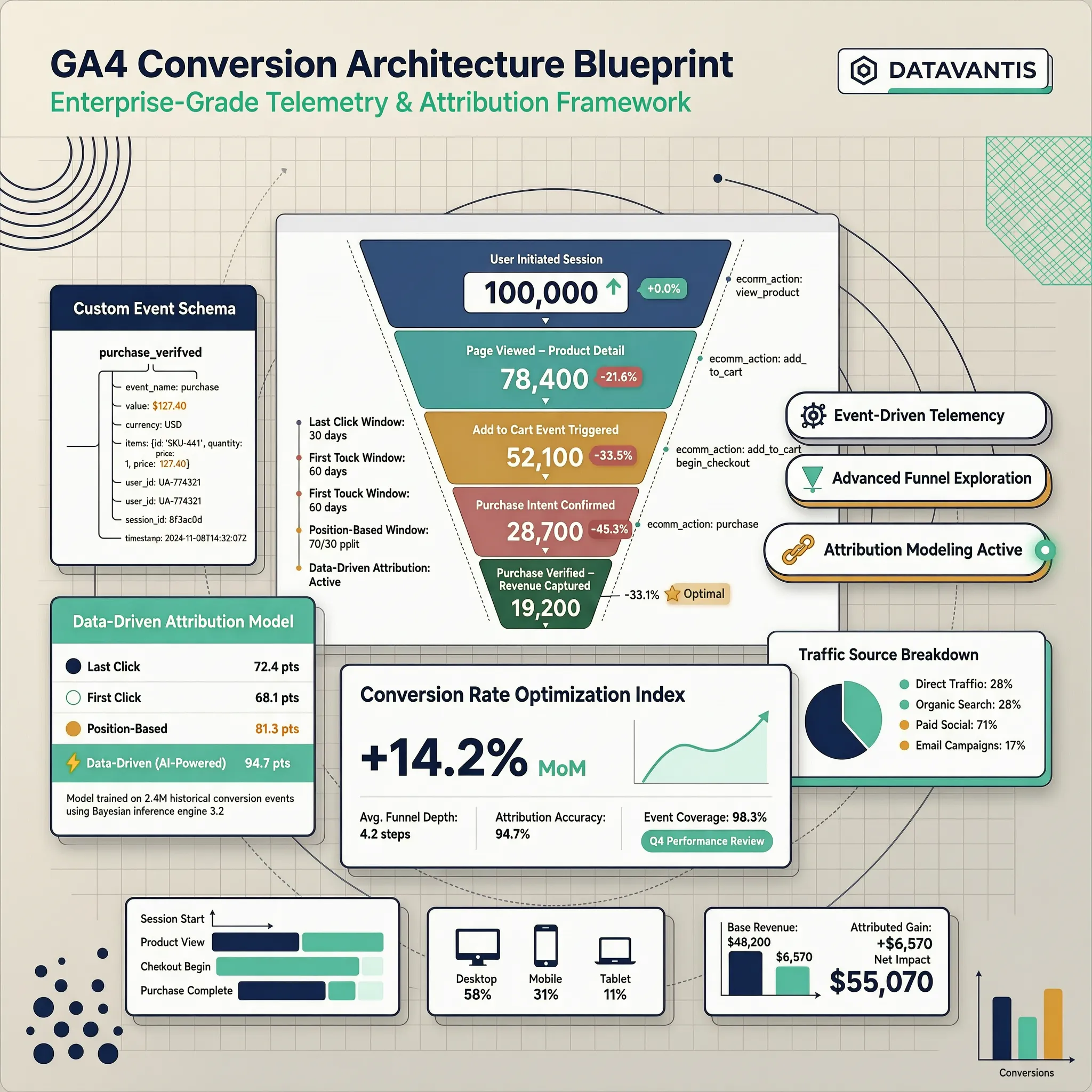
1. What Does Website Conversion Tracking Mean in Google Analytics 4?
Let's address the central analytics mystery right from the start: In Google Analytics 4, conversion tracking measures the exact moment a passive website visitor completes a high-value commercial action on your site. Google recently updated its core analytics terminology. What used to be called "Conversions" inside GA4 reports are now officially designated as Key Events:
| User Interaction | GA4 Analytics Classification |
|---|---|
| Scrolling down a page | Engagement Event |
| Clicking a menu link | Standard Event |
| Submitting a lead form | Key Event (Primary Conversion) |
| Completing an online purchase | Key Event (Primary Conversion & Revenue) |
Mastering what does website conversion tracking mean in Google Analytics 4 allows you to set up reliable GA4 conversion tracking and deploy accurate website conversion tracking across your entire sales funnel (start with our complete Google Analytics setup walkthrough for small businesses).
2. Choose Which Website Actions Your Business Needs to Measure
A common mistake business owners make is clogging their analytics reports by marking every minor link tap as a primary success metric. Focus your tracking engine strictly on outcomes that directly impact your bottom line:
- Service Businesses: Focus on quote request form completions, click-to-call phone dials, and automated calendar bookings.
- E-Commerce Stores: Track product additions to cart, checkout starts, and completed purchase transactions.
- SaaS & Software Platforms: Monitor free trial signups, account creations, and demo request submissions.
Defining clear website conversion goals and mapping custom GA4 conversion events provides actionable conversion tracking examples that keep your reporting clean and focused (review the core metrics every small business should monitor alongside your conversion data).
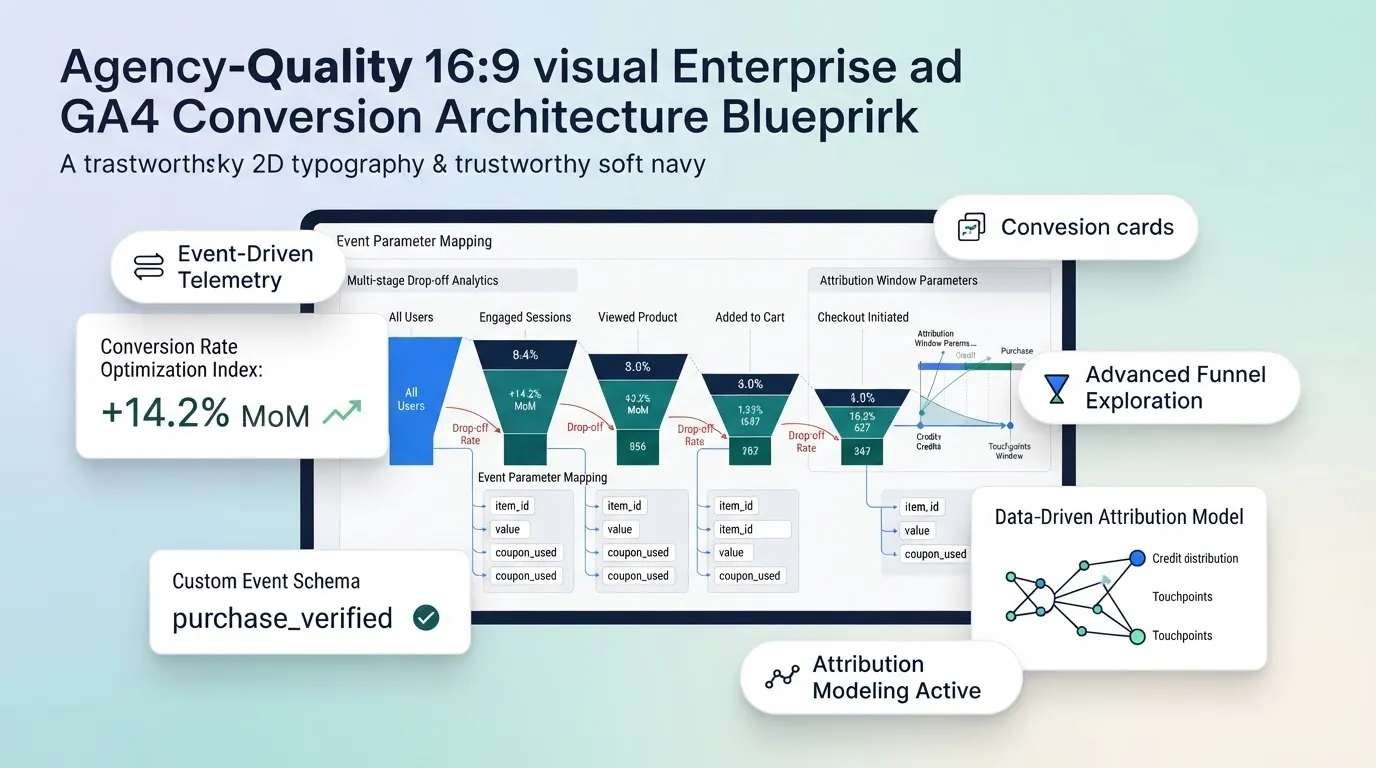
3. Understand GA4 Events, Key Events, and Conversion Measurement
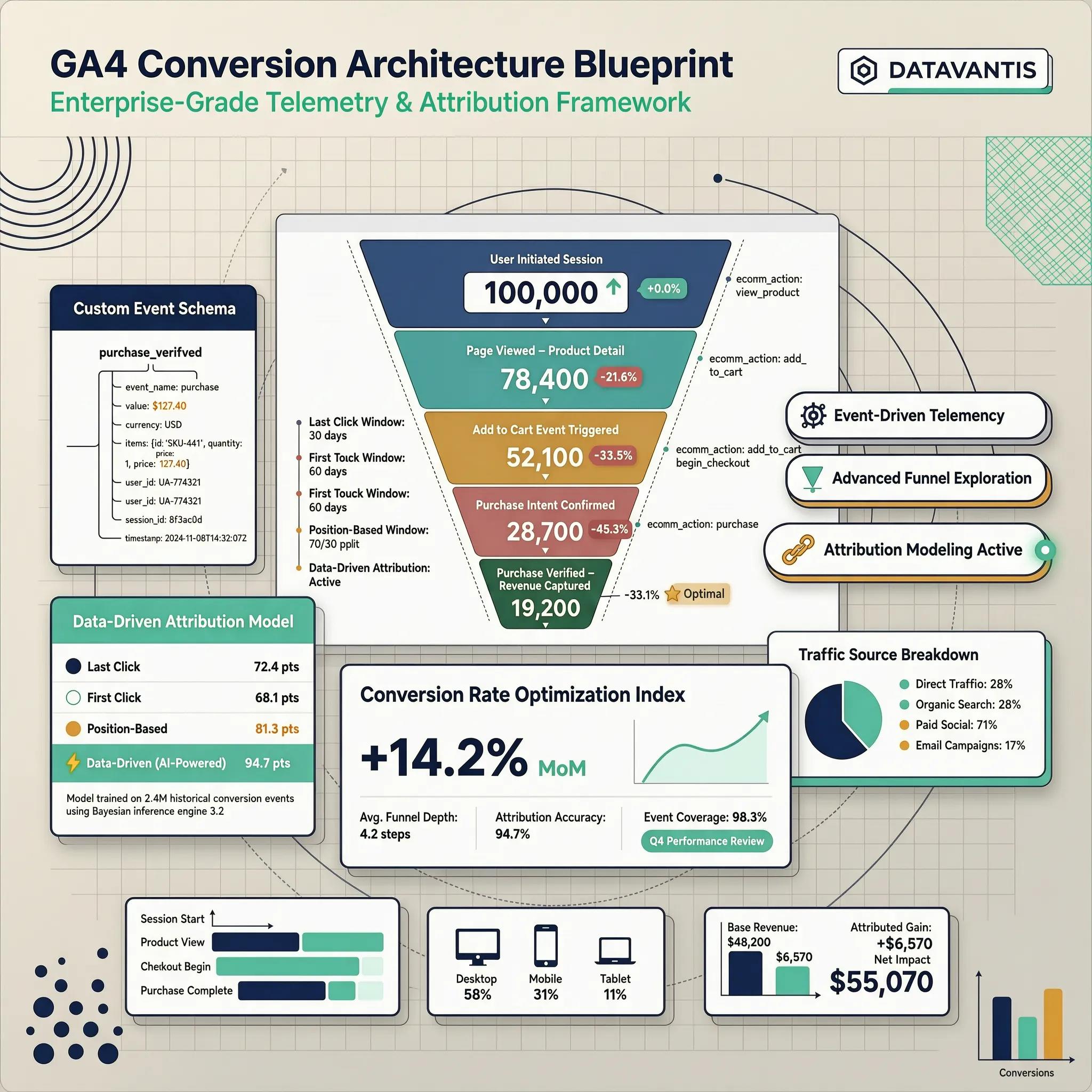
To configure your reports correctly, you must understand how Google Analytics 4 structures incoming data. GA4 measures everything as an event. However, events follow a distinct hierarchy:
- Automatically Collected Events: Basic interactions logged natively, such as session_start and first_visit.
- Enhanced Measurement Events: Optional interactions captured automatically, like scroll, file_download, and click.
- Recommended & Custom Events: Specific actions you set up manually, such as generate_lead or sign_up.
- Key Events: Custom or recommended events that you explicitly mark as primary business successes inside the GA4 admin dashboard.
Conversion Measurement Path = User Action → Custom GA4 Event → Toggle "Mark as Key Event"
Understanding how standard GA4 events escalate into GA4 key events clarifies how to analyze Google Analytics conversion events effectively.
4. Check Which Conversion Events GA4 Already Tracks
Before spending hours writing custom code or setting up new tags, audit what your existing setup collects automatically. GA4 includes a powerful feature called Enhanced Measurement:
Reviewing your GA4 enhanced measurement configurations allows you to inspect automatically collected events before adding extra tracking, simplifying how you check GA4 events.
5. Set Up Custom Events for Important Website Actions
When native settings fall short of capturing proprietary business interactions, creating custom events ensures no valuable action gets missed. How to deploy custom event rules:
- Use Google Tag Manager (GTM): Create custom triggers that fire when specific form success messages display or custom buttons get clicked (learn setup steps in tracking website button clicks in GA4).
- Follow Standard Naming Schemes: Always use Google's recommended snake_case format (such as generate_lead or view_promotion).
generate_leadlead_type = "Roofing Quote Request"page_location = "https://yourdomain.com/quote"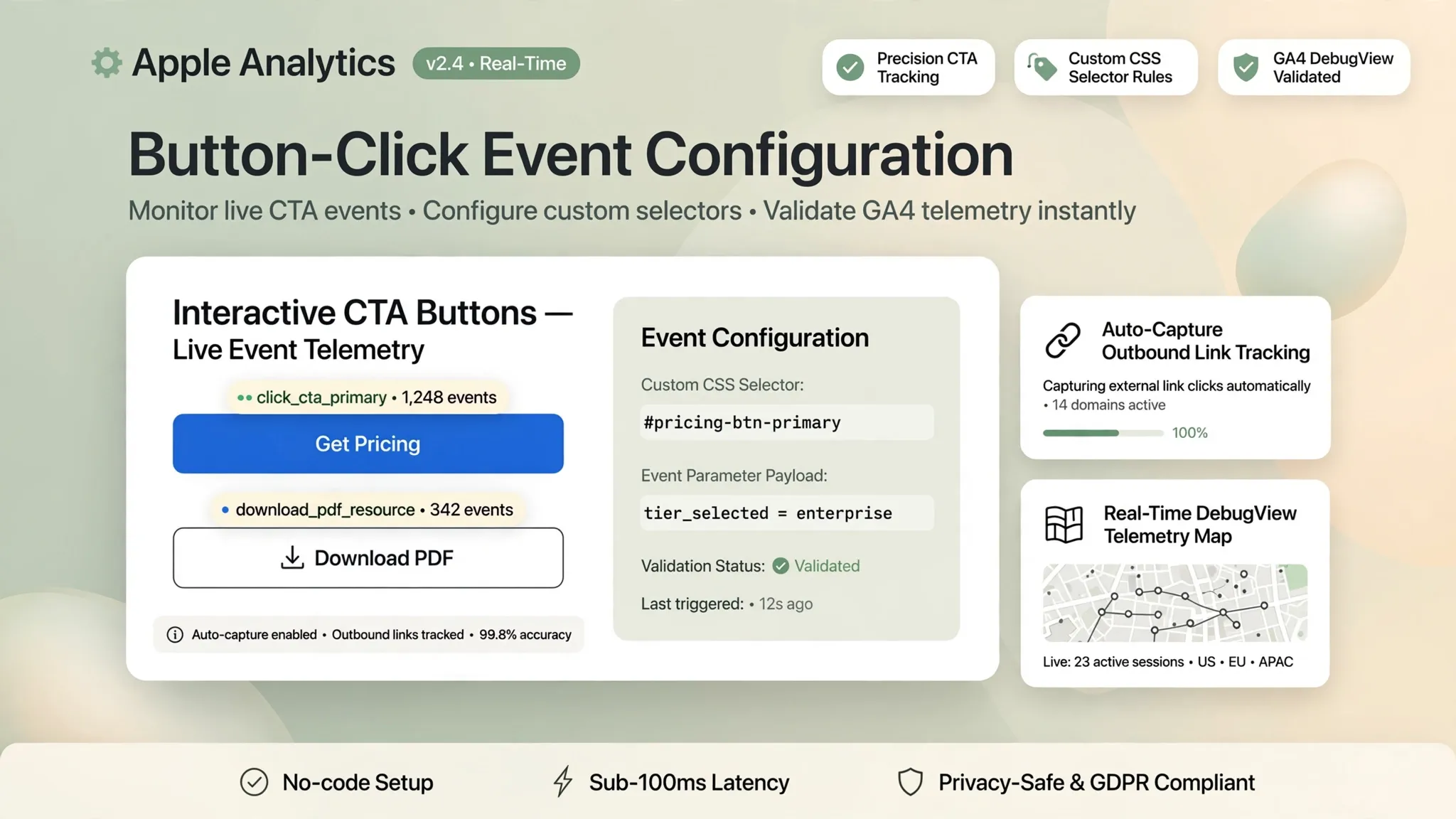
Learning how to create custom events in GA4 streamlines GA4 custom event tracking and modernizes your overall Google Analytics event setup.
6. Track Completed Contact Form Submissions as Key Events
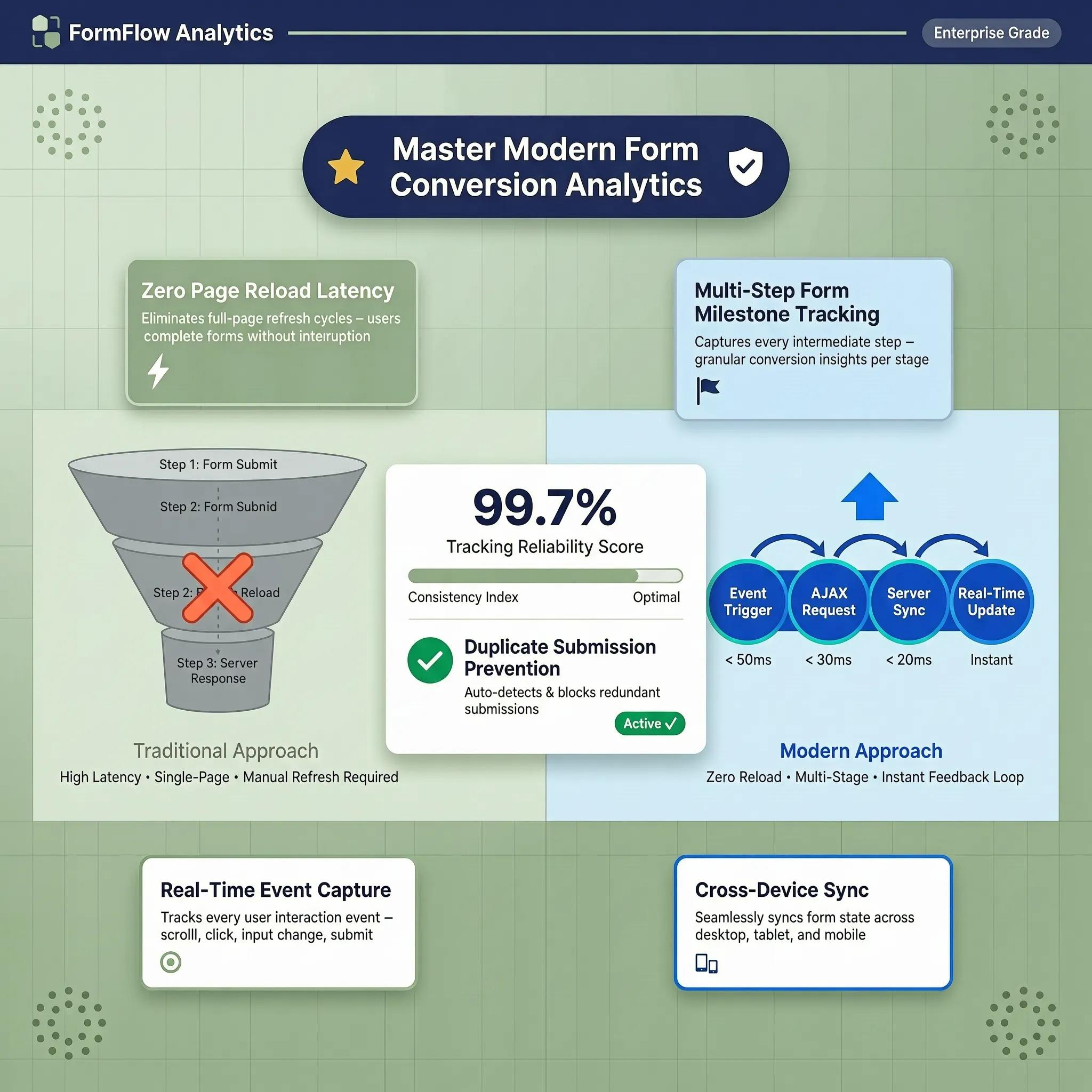
If your tracking system triggers every time a user taps "Submit"—even when required fields are left empty—your lead reports will register false metrics. To capture genuine inquiries, measure confirmed completions:
- Thank-You Page Redirects: Redirect users to a unique confirmation URL (/thank-you) upon successful submission and log that specific page view (see tracking contact form submissions in GA4).
- Form-Success Listeners: Use GTM data layer listeners to fire tags strictly when client-side validation succeeds.
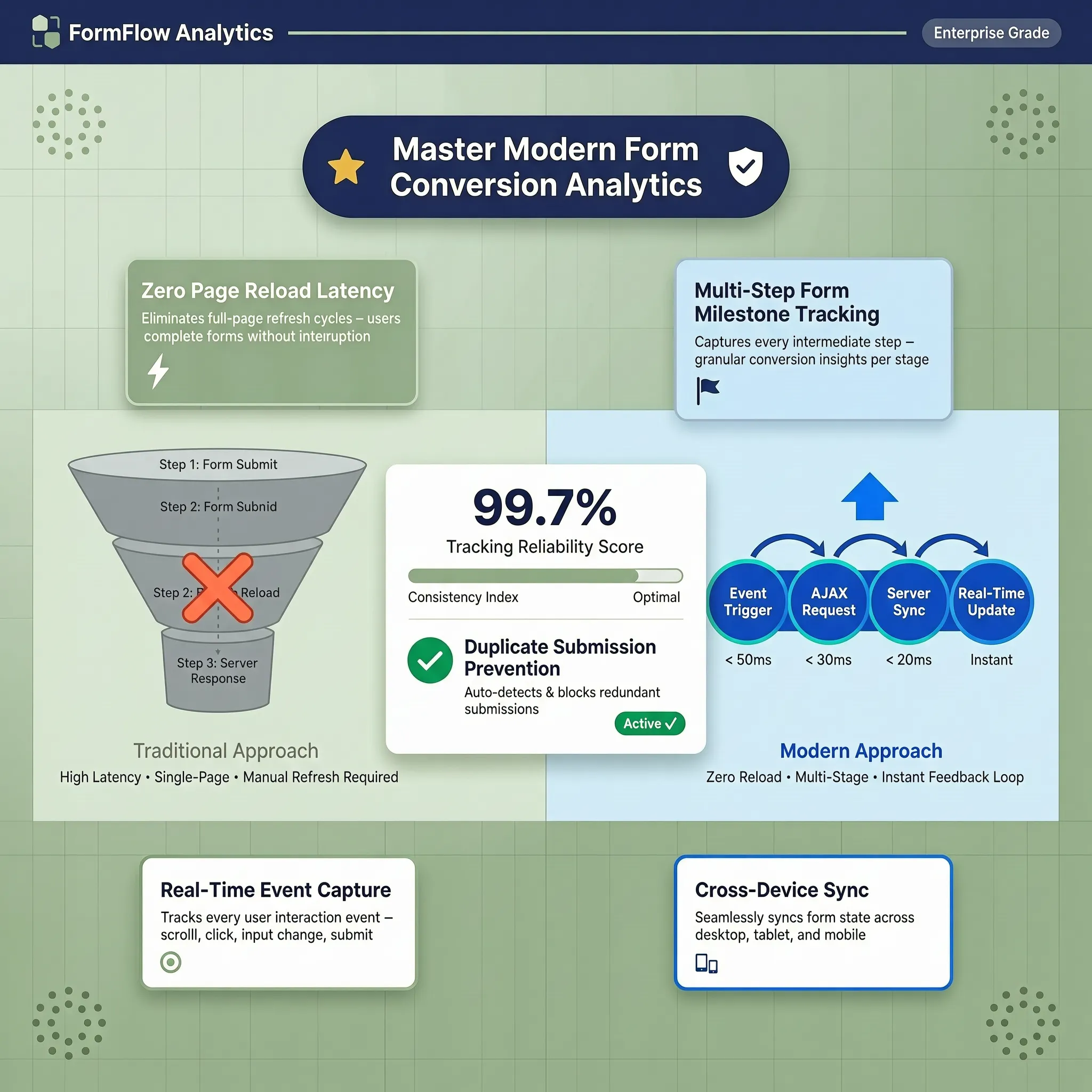
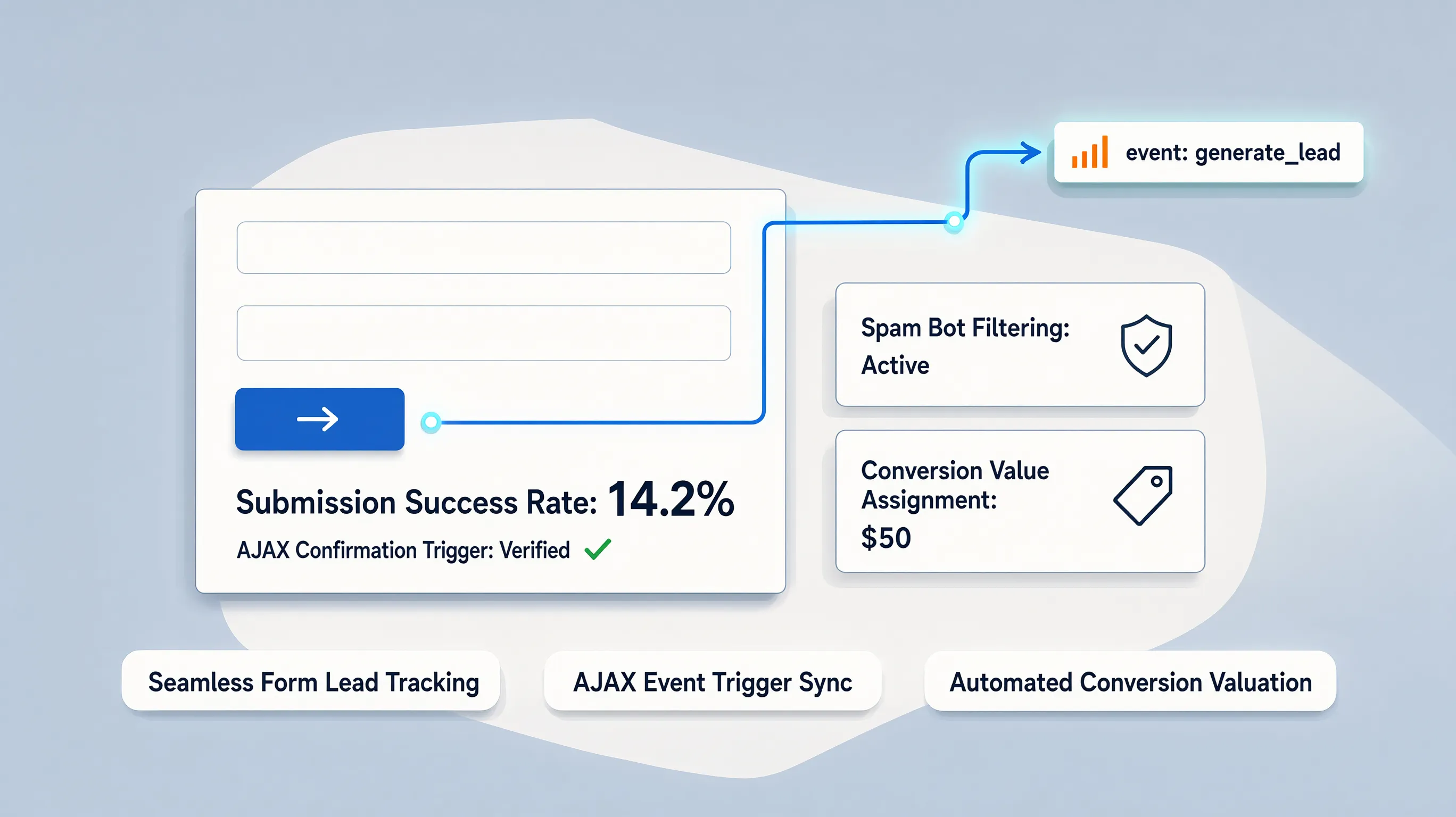
Learning how to track form submissions in GA4 ensures accurate GA4 form conversion tracking so you can track contact form conversions without reporting errors.
7. Track Phone Calls, Bookings, Signups, and Purchases
A mature digital storefront offers multiple paths for prospective buyers to take action. Your analytics dashboard should reflect every conversion channel. Configure specialized event tracking across all primary touchpoints:
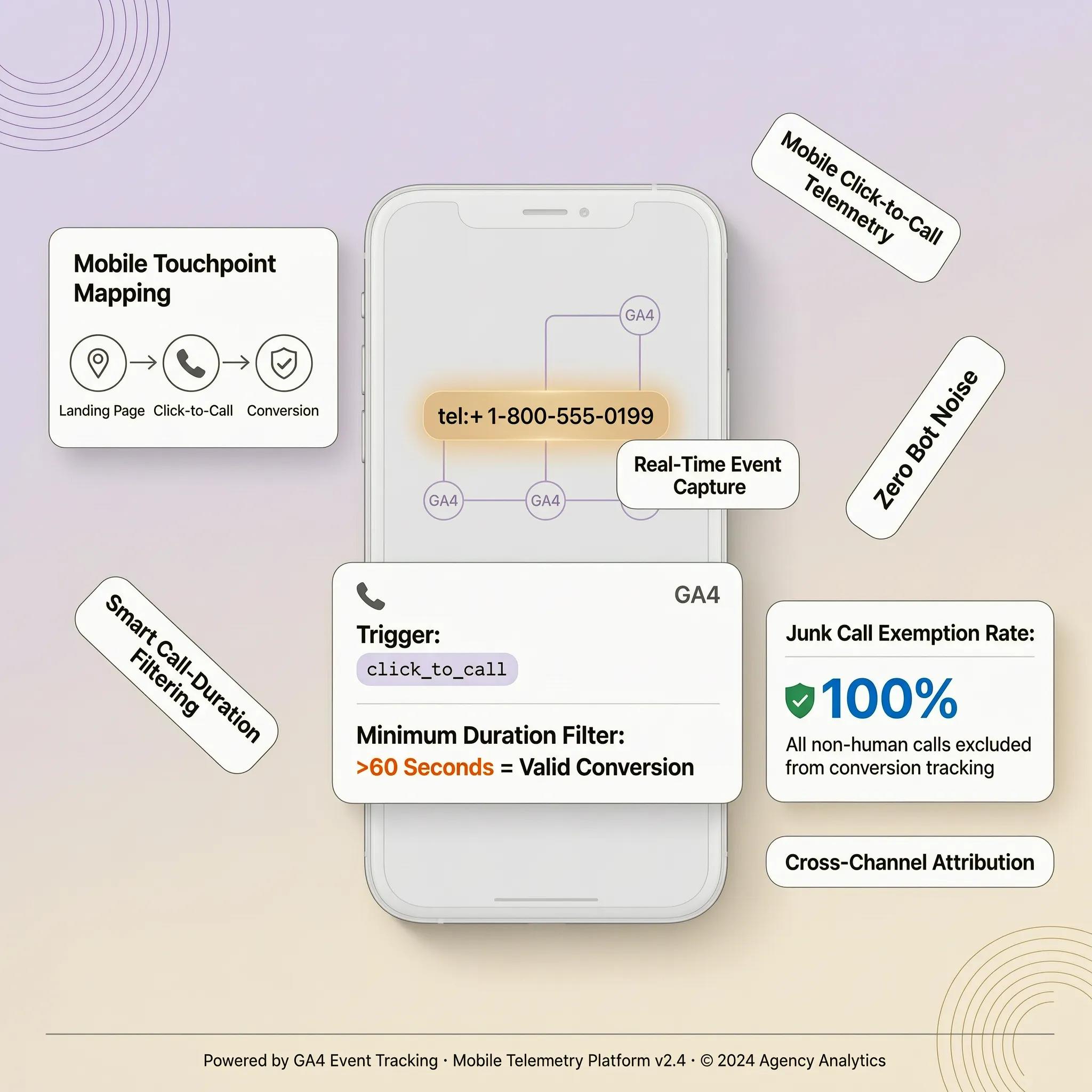
- Click-to-Call Phone Links: Capture mobile visitors dialing your office (see tracking phone call conversions from your website).
- Online Appointment Bookings: Track calendar scheduling completions (explore how to add a booking form to a website).
- E-Commerce Purchases: Measure completed transactions, order values, and cart items (see tracking website sales and revenue).
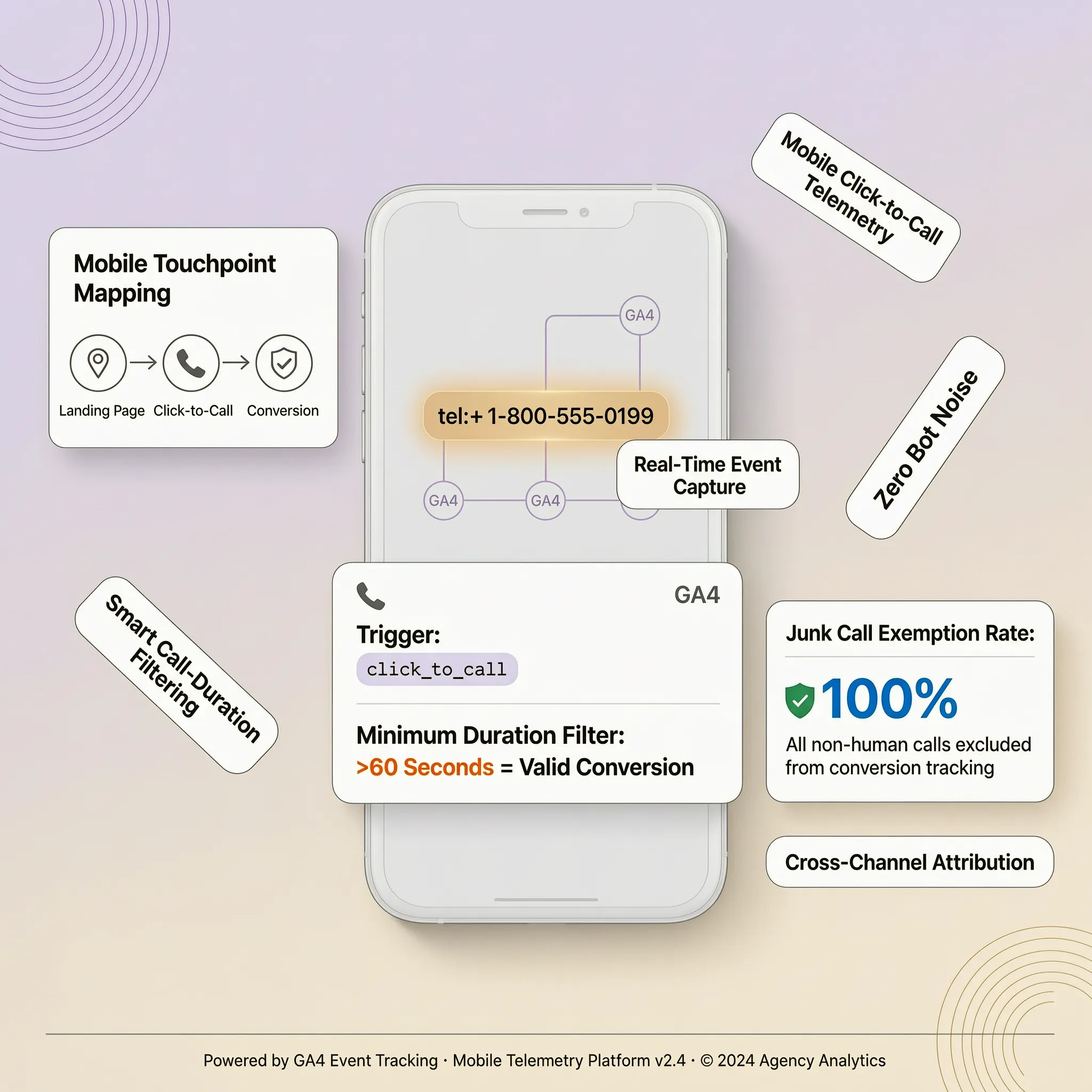
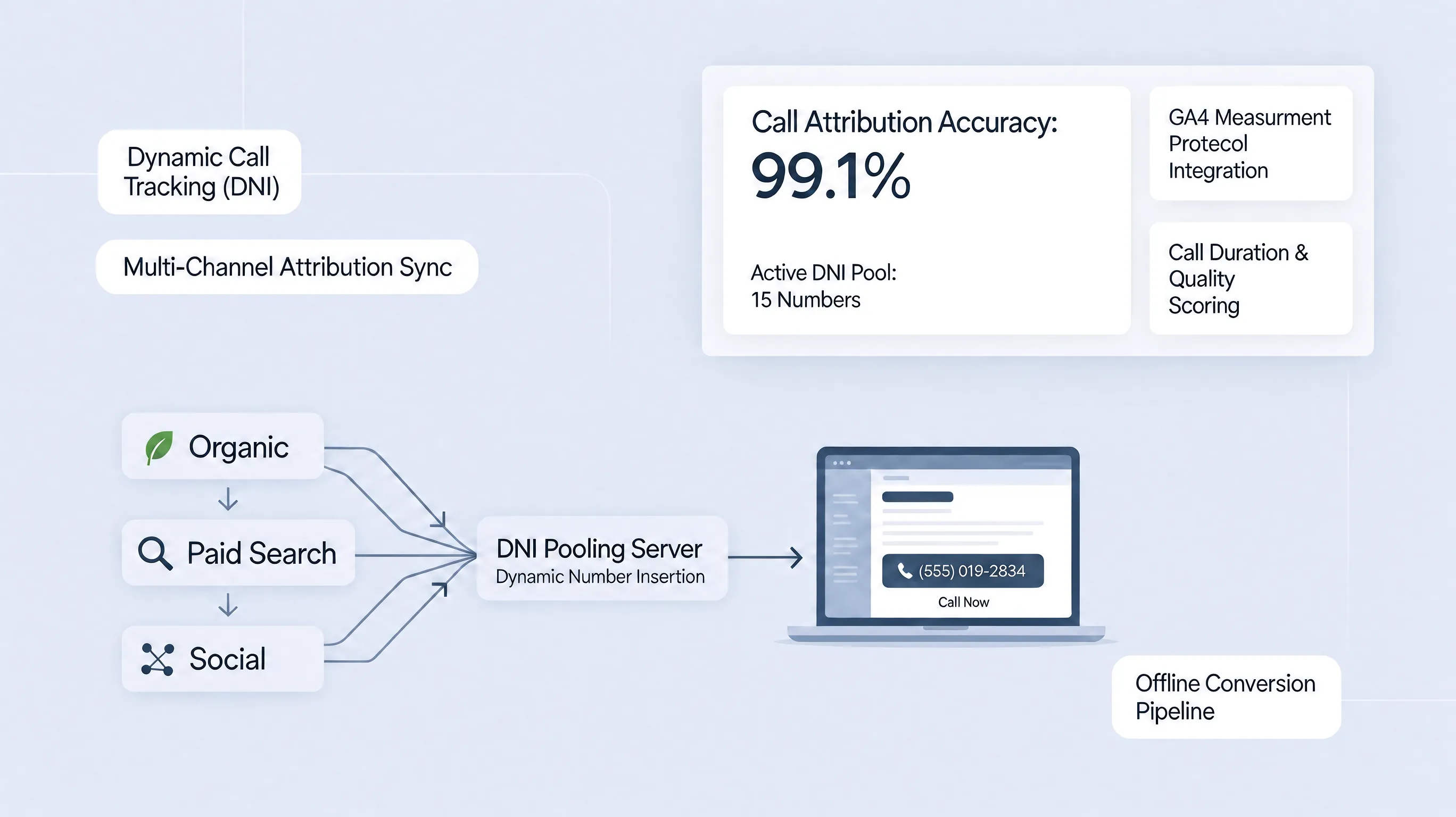
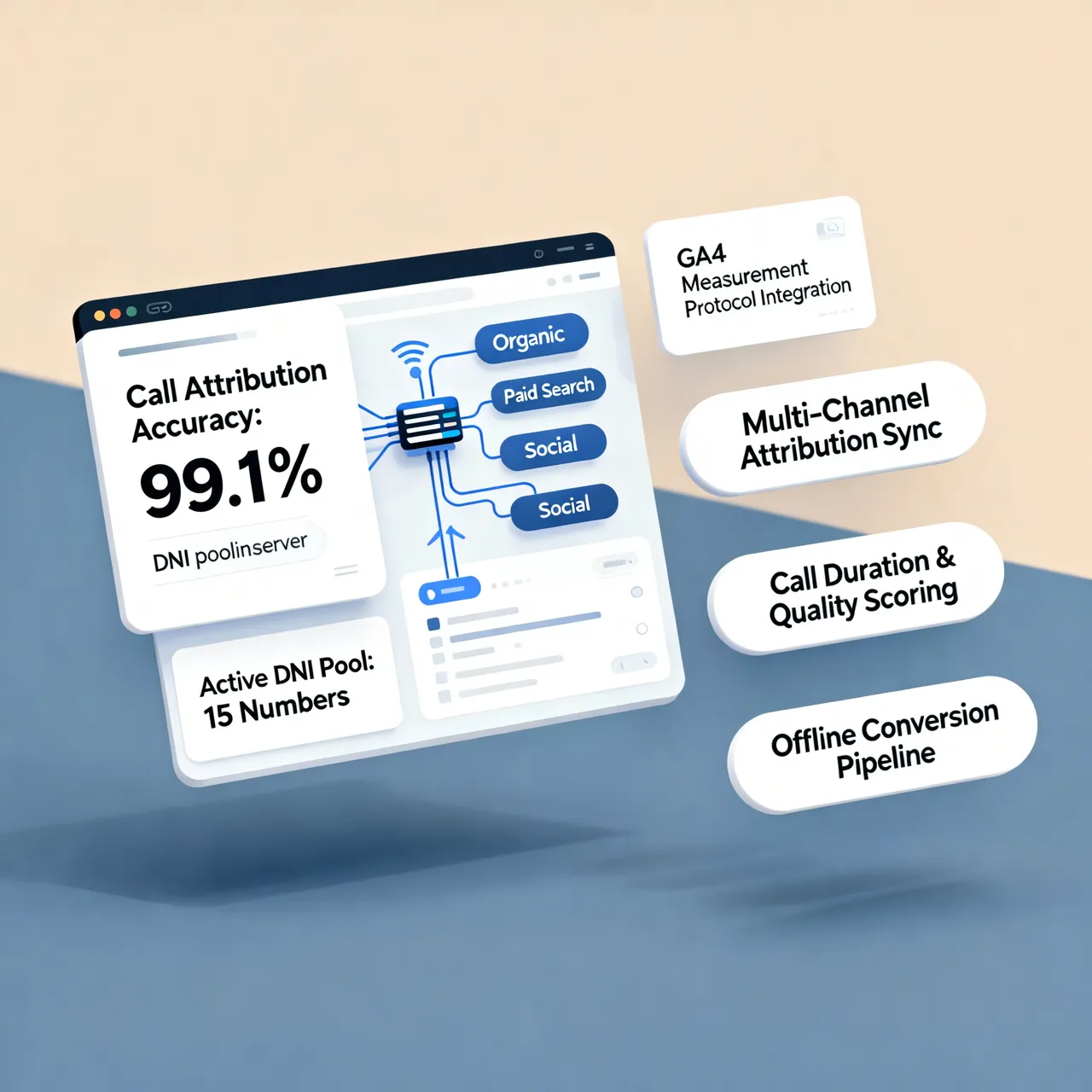
Configuring systems to track phone calls in GA4, track bookings in Google Analytics, execute GA4 signup tracking, and maintain GA4 purchase tracking covers every revenue driver on BoltWeb.
8. Mark Important Events as Key Events in Google Analytics 4
Once your custom events are active and streaming into Analytics, you must explicitly flag high-value actions as Key Events. Step-by-step activation guide:
- Open GA4 Admin: Navigate to Admin → Data Display → Events.
- Locate Target Event: Find your custom action (such as generate_lead or purchase) in the live list.
- Toggle Key Event Flag: Flip the switch next to the event to Mark as key event.
Learning how to mark events as key events in GA4 completes your GA4 key event setup and clarifies how to configure GA4 conversions for accurate reporting.
9. Test Your Conversion Tracking Before Relying on the Data
Launching unverified analytics tags often leads to duplicate records, missing parameters, or broken conversion funnels. Run this 3-step quality assurance audit:
- GA4 DebugView: Open Admin → DebugView to verify that incoming event names and parameters stream in live as you test.
- GTM Preview Mode: Connect your site to Tag Assistant to confirm your triggers fire strictly under the correct conditions.
- Realtime Report Verification: Check the GA4 Realtime dashboard during a live test run to verify that key event flags trigger properly.
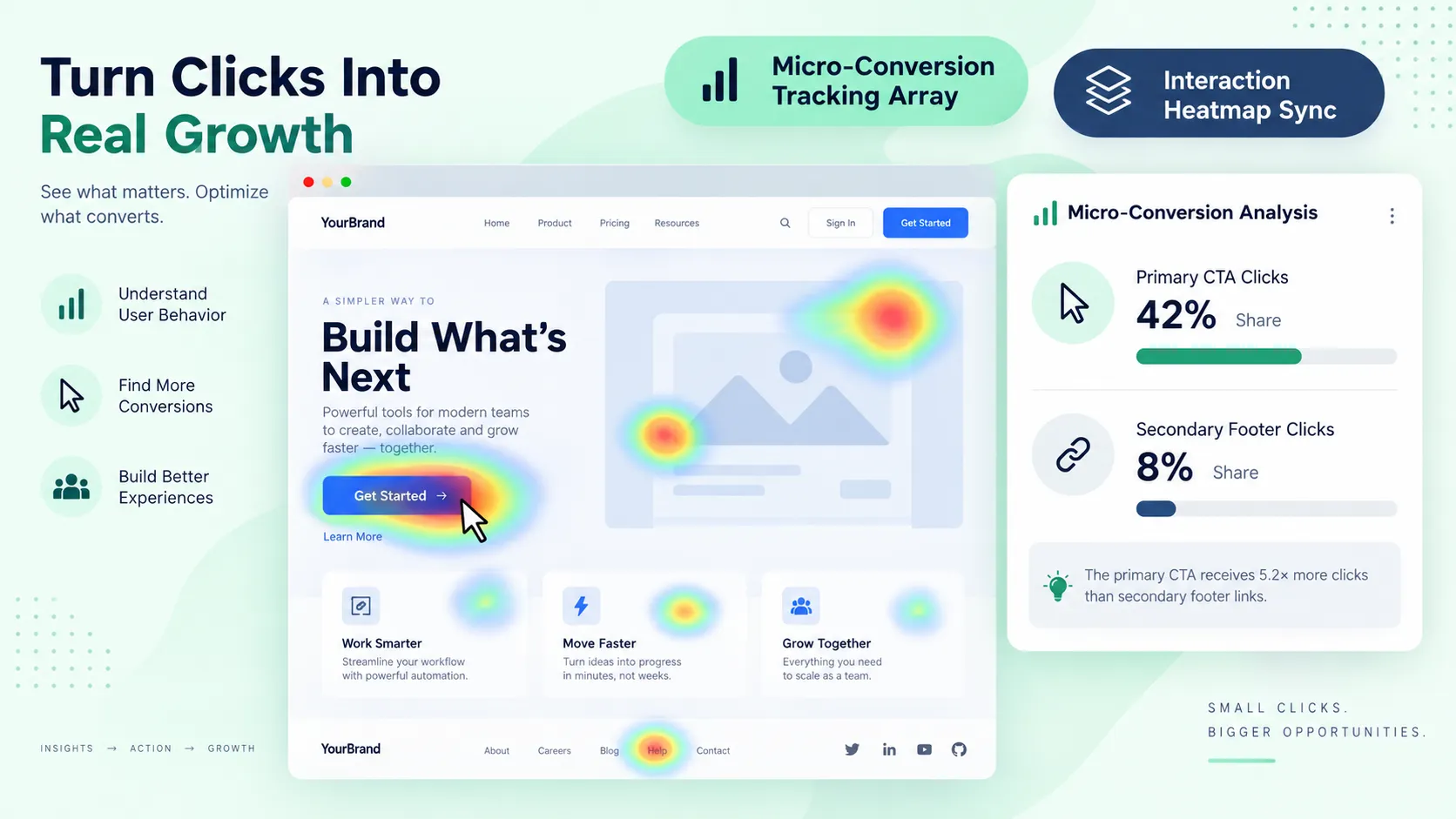
Taking time to test GA4 conversion tracking inside GA4 DebugView helps you troubleshoot GA4 events before driving paid campaign traffic.
10. Find Which Traffic Sources Generate the Most Conversions
Acquiring website traffic is meaningless if that traffic fails to convert into paying customers. You need to know which channels generate your highest-value leads. Analyze acquisition channels inside GA4 reporting tools:
- Traffic Acquisition Report: Go to Reports → Acquisition → Traffic Acquisition. Cross-reference session traffic against your key event metrics (learn more in finding where website traffic comes from).
- Campaign Parameter Tracking: Use clean UTM parameters on external marketing links to track social, email, and ad campaign performance cleanly.
Reviewing your GA4 conversion reports, analyzing traffic sources and conversions, and implementing Google Analytics campaign tracking connects marketing channels to clear business outcomes (pair this with our guide to analyzing website traffic reports).
11. Measure Conversion Rates and Improve Website Performance
Measuring total conversion volume is helpful, but calculating your overall conversion rate reveals how effectively your landing page copy and visual layout perform. Calculate your store's conversion efficiency:
Session Key Event Rate = (Total Key Events Completed / Total Website Sessions) × 100
Analyze High-Traffic Pages: If a high-traffic service page suffers from a poor conversion rate, test high-contrast calls to action, add authentic social proof, or streamline form fields (see optimizing high-traffic low-conversion pages).
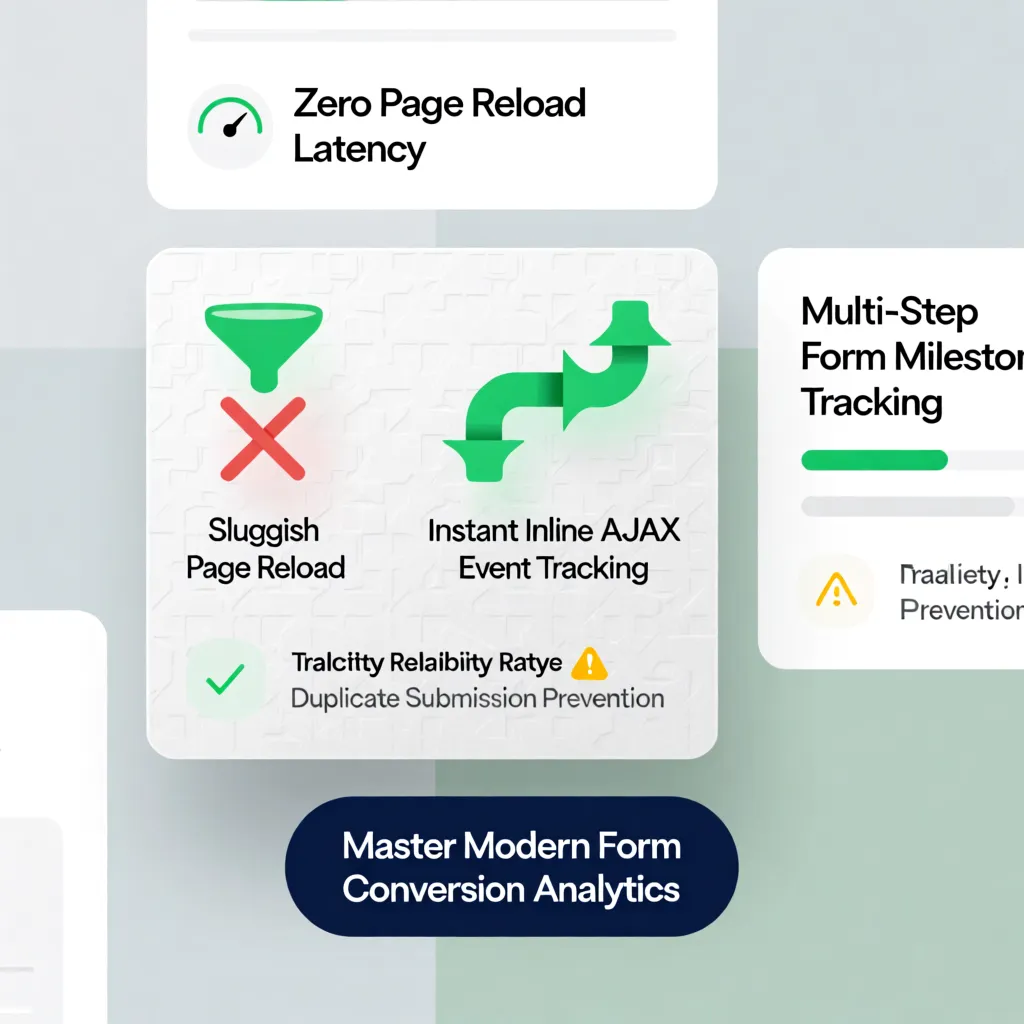
Monitoring your GA4 conversion rate, deploying landing page conversion tracking, and taking steps to improve website conversions turns casual browsers into high-ticket clients (start by identifying your best performing website pages).
12. Fix Common GA4 Conversion Tracking Problems
If your analytics reports reflect inflated numbers or missing leads, systematically resolve these common technical glitches:
- Duplicate Tag Execution: Ensure you haven't deployed duplicate tracking scripts inside both Google Tag Manager and inline header code.
- Unfiltered Internal Traffic: Exclude your internal IP addresses inside GA4 settings so test visits don't skew conversion metrics.
- Cross-Domain Breaks: If your checkout or scheduling tool lives on a third-party domain, configure cross-domain measurement parameters cleanly.
Diagnosing a GA4 conversion tracking not working alert resolves GA4 duplicate events and fixes Google Analytics conversion tracking issues fast.
Build High-Converting Storefronts with BoltWeb
Configuring conversion tracking, setting up key event triggers, and measuring sales funnels should never be a frustrating technical struggle. When you publish your digital storefront on BoltWeb, every page is engineered for maximum performance right out of the box.
Whether you run a local contracting company, a boutique consulting agency, or a growing online shop, BoltWeb builds high-converting page layouts, integrates analytics tracking scripts smoothly, structures clear calls to action, and deploys lead-generating storefronts tailored to your audience.
Frequently Asked Questions: Measuring Commercial Growth with GA4
1. What does website conversion tracking actually mean in Google Analytics 4?
In Google Analytics 4, conversion tracking measures the exact moments visitors perform key commercial actions on your storefront—such as purchasing an item, submitting a quote request, booking an appointment, or calling your office line. Under GA4's measurement model, these vital outcomes are formally designated as Key Events. Traffic volume alone won't pay your bills; a page receiving 50,000 passive clicks that yields zero inquiries is far less valuable than a targeted page bringing in 200 visitors and 20 paying clients. Setting up track website conversions with Google Analytics 4 parameters gives you a clear GA4 conversion tracking engine to calculate your return on ad spend. When you build your storefront on BoltWeb, connecting your analytics tracking is completely seamless. As an all-in-one business website builder, BoltWeb automatically pairs lead forms, booking widgets, and call buttons with clean event structures in under 60 seconds!
2. How do I decide which website actions my business needs to measure?
Instead of clogging your analytics reports by tagging every minor link click or menu drop-down, focus strictly on visitor actions that directly impact your bank account. Prioritize tracking based on your primary business model: Service Businesses: Measure quote request form completions, click-to-call phone dials, and direct calendar bookings. Online Stores: Track item additions to cart, checkout starts, and completed transactions. SaaS & Software Platforms: Monitor free trial signups, account activations, and demo requests. Establishing clear website conversion goals and mapping custom GA4 conversion events delivers practical conversion tracking examples that keep your data focused on profit (pair this with the core metrics every small business should monitor).
3. What is the difference between standard GA4 events, key events, and conversions?
Google Analytics 4 logs every user interaction as an event, but structures that incoming data into clear categories of commercial importance. Understand the measurement hierarchy: Automatically Collected Events: Basic page loads and session starts captured out of the box. Enhanced Measurement Events: Optional interactions logged automatically, like scrolls, site searches, and file downloads. Custom Events: Specific actions you configure manually, such as generate_lead or pricing_calculator_click. Key Events: Custom or recommended events that you explicitly mark as primary business successes inside your administrative settings. Categorizing standard GA4 events into GA4 key events clarifies how to interpret Google Analytics conversion events without drowning in irrelevant data.
4. Which conversion events does GA4 track out of the box?
Before spending time writing custom scripts or building complex tag containers, audit what your analytics engine collects automatically. GA4 features a native tool called Enhanced Measurement: Automatically Captured: Outbound link clicks, file downloads (like PDFs), scroll depth, and video plays. Requires Manual Setup: Completed contact form submissions, phone link taps, appointment bookings, and custom checkout flows. Inspecting your GA4 enhanced measurement configuration lets you confirm automatically collected events before adding custom scripts, simplifying how you check GA4 events (start with the full Google Analytics setup walkthrough for small businesses).
5. How do I set up custom events for actions GA4 doesn't track automatically?
When native settings fall short of measuring proprietary customer interactions, creating custom events guarantees no high-value lead goes unrecorded. Follow these execution guidelines: Deploy Google Tag Manager (GTM): Build custom triggers that fire when specific form success messages appear or primary action buttons get clicked (see setup steps in tracking website button clicks in GA4). Use Clean Naming Schemes: Format event names using standard snake_case (such as lead_form_submit or schedule_consultation). Learning to create custom events in GA4 unlocks advanced GA4 custom event tracking and modernizes your Google Analytics event setup.
6. How do I track contact form submissions as confirmed key events?
If your system logs a conversion every time someone taps "Submit"—even when required fields are left blank—your lead reports will be inaccurate. Capture genuine, validated inquiries using two bulletproof methods: Thank-You Page Redirects: Route users to a unique confirmation URL (/thank-you) upon successful submission and measure pageviews on that destination (learn steps in tracking contact form submissions in GA4). Success Element Listeners: Use Tag Manager listeners to trigger events strictly when on-screen success messages render after field validation. Learning to track form submissions in GA4 delivers accurate GA4 form conversion tracking so you can track contact form conversions with complete confidence.
7. How do I track phone calls, bookings, signups, and online purchases on one site?
A high-converting storefront offers prospective buyers multiple ways to take action, and your analytics framework must monitor every conversion path simultaneously. Configure tailored event tags for your core touchpoints: Click-to-Call Links: Capture mobile visitors dialing your office number directly from your header (see tracking phone call conversions from your website). Appointment Calendars: Record completed scheduling sessions (explore how to add a booking form to a website). E-Commerce Checkout: Log completed purchases, product IDs, and total order revenue (see tracking website sales and revenue). Deploying setups to track phone calls in GA4, track bookings in Google Analytics, manage GA4 signup tracking, and execute GA4 purchase tracking covers every revenue driver on BoltWeb.
8. How do I mark an event as a Key Event inside the Google Analytics 4 interface?
Once your custom tags are firing and streaming into your reporting property, you must manually mark those high-value actions as Key Events. Follow this 3-step activation path: Access Admin Console: Navigate to Admin → Data Display → Events. Identify Business Action: Locate your custom event name (such as generate_lead or purchase) in the active event list. Toggle Conversion Flag: Flip the switch beside the event to Mark as key event. Knowing how to mark events as key events in GA4 completes your GA4 key event setup and shows you how to configure GA4 conversions for clear reporting.
9. How do I test conversion tracking to ensure my data is accurate?
Never launch paid ad campaigns or interpret reports without testing whether your event tags fire correctly under real-world conditions. Run this 3-step quality assurance protocol: Inspect via GA4 DebugView: Open Admin → DebugView to watch event names and incoming parameters stream live as you complete test forms. Use Tag Assistant: Connect your storefront to Tag Assistant in GTM Preview Mode to confirm tags fire strictly on successful completions. Verify Realtime Cards: Open your site on a mobile device and check the GA4 Realtime dashboard to verify key event flags activate. Taking time to test GA4 conversion tracking inside GA4 DebugView helps you troubleshoot GA4 events before driving paid campaign traffic.
10. How do I find out which marketing channels and traffic sources generate the most conversions?
Acquiring site traffic is meaningless if those visits fail to turn into paying customers. You need to identify which marketing channels drive actual profits. Analyze acquisition performance inside reporting tools: Traffic Acquisition Report: Navigate to Reports → Acquisition → Traffic Acquisition. Cross-reference total session volume against key event counts (see details in finding where website traffic comes from). UTM Link Tagging: Attach clean custom UTM parameters (?utm_source=facebook&utm_campaign=spring_sale) to marketing links to measure ad campaign efficiency. Reviewing GA4 conversion reports, tracking traffic sources and conversions, and implementing Google Analytics campaign tracking connects marketing spend to closed deals (combine with our guide to analyzing website traffic reports).
11. How do I calculate my landing page conversion rate inside GA4?
Measuring total conversion volume is helpful, but calculating your overall conversion rate reveals how effectively your copy, visual hierarchy, and offer perform. Use this simple formula to measure page efficiency:
Session Key Event Rate = (Total Key Events Completed / Total Website Sessions) × 100
If a high-traffic service page suffers from a low conversion rate, optimize your page layout by adding high-contrast action buttons, placing authentic customer reviews near forms, or removing unnecessary input fields (learn how in optimizing high-traffic low-conversion pages). Monitoring your GA4 conversion rate, establishing landing page conversion tracking, and taking active steps to improve website conversions turns casual browsers into long-term clients.
12. How do I fix common GA4 conversion tracking issues like duplicate or missing data?
If your conversion numbers appear inflated or fail to record incoming inquiries accurately, run through these primary technical fixes: Eliminate Duplicate Tags: Verify that you haven't installed tracking scripts inside both Google Tag Manager and direct site header code. Filter Internal Staff Traffic: Exclude your office and home IP addresses inside GA4 settings so test visits don't skew conversion rates. Fix Cross-Domain Gaps: If your checkout gateway or calendar scheduler lives on a third-party domain, configure cross-domain measurement settings cleanly. Diagnosing a GA4 conversion tracking not working alert clears up GA4 duplicate events and resolves Google Analytics conversion tracking issues fast (review baseline configuration in our Google Analytics setup walkthrough for small businesses).