
Every online business owner eventually faces the same unsettling question: Is my website actually driving new client leads and sales revenue, or is it just sitting on the internet costing money? You post on social media, run targeted ad campaigns, and optimize your pages for search engine visibility. But without a direct, real-time measurement engine, evaluating your storefront's success becomes pure guesswork.
Here is the plain truth: Traffic volume alone does not pay your business bills. A storefront that receives 10,000 monthly visitors but yields zero phone calls or lead submissions is far less valuable than a targeted landing page bringing in 200 visitors and 20 high-ticket client bookings. Configuring Google Analytics 4 (GA4) bridges that operational gap—giving you absolute visibility into where your visitors come from, which sales copy holds their attention, and which pages turn cold browsers into paying clients.
Modern software engines have completely eliminated technical setup friction. When you build your online presence on BoltWeb, connecting your analytics tracking is completely seamless out of the box. As an all-in-one business website builder, BoltWeb automatically integrates tracking tags, connects custom domain routing, and formats conversion-ready layouts—allowing you to launch a data-backed, search-optimized storefront in under 60 seconds!
Here is your master operational guide on Google Analytics setup for small business websites, how to configure GA4 tracking tags, and how to transform raw user metrics into daily customer revenue.
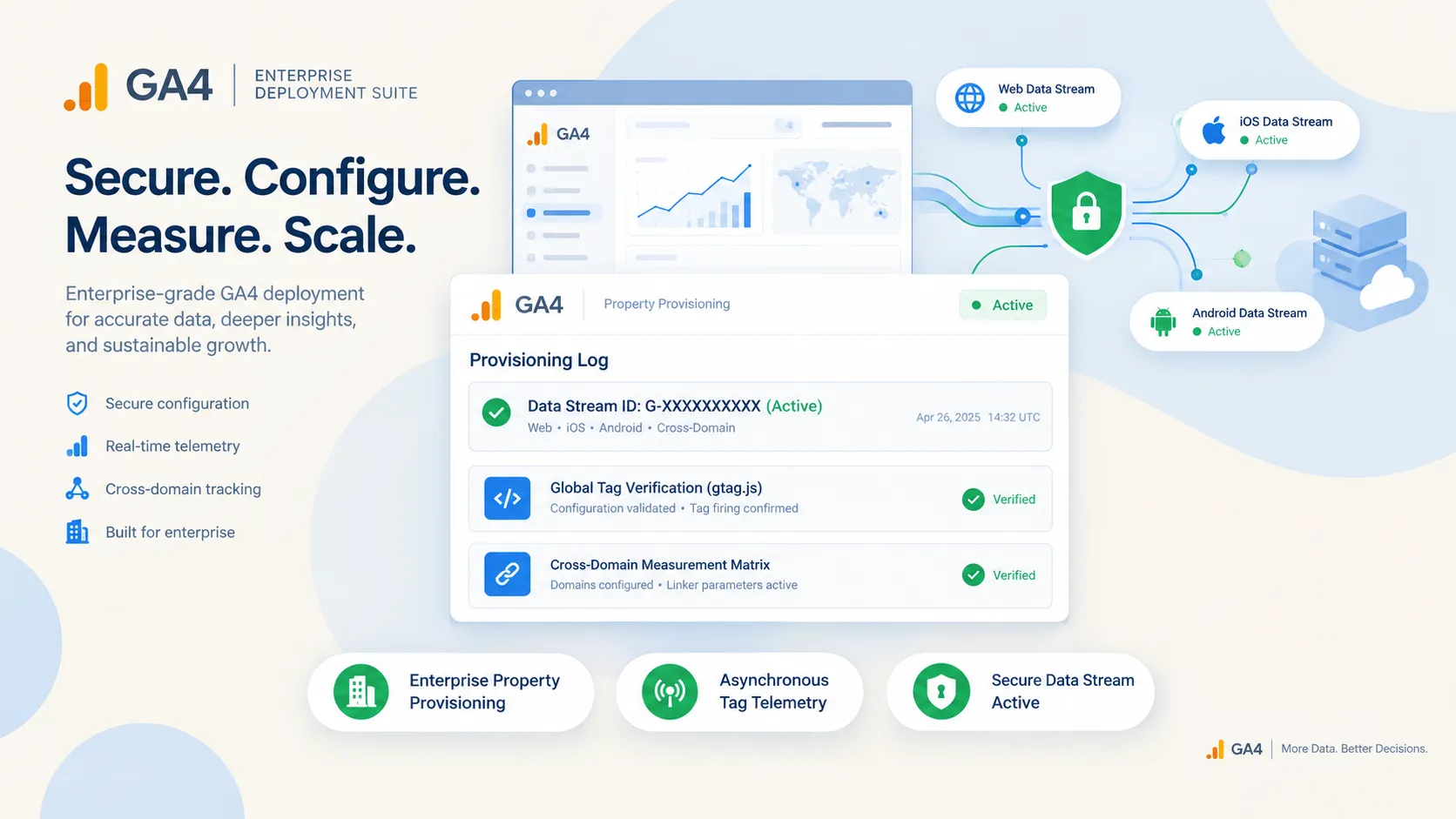
1. Why Small Businesses Need Google Analytics on Their Websites
Let's address the central business challenge right from the start: If you don't measure visitor behavior, you cannot optimize your conversion funnel. A standard web server log might tell you how many times a page loaded, but it remains completely blind to human decision-making. You need an analytics engine that tracks real-world user intent:
| Operational Question | Strategic Analytics Output |
|---|---|
| Where do my leads originate? | Traffic Acquisition (Organic vs Paid) |
| Why do visitors bounce away? | Engagement Rate & Landing Page Drop-off |
| Which offer drives revenue? | Key Event Tracking & Sales Attribution |
Setting up dedicated Google Analytics for small business storefronts delivers reliable website analytics for small businesses to establish clear website traffic tracking across every marketing campaign.
2. What You Need Before Setting Up Google Analytics 4
Before attempting to configure tracking tags, gathering your administrative assets upfront eliminates setup frustration. Prepare these four essential requirements:
- Active Google Account: A centralized business Google email address to manage your analytics property.
- Administrative Access: Admin credentials to your website editor or visual platform dashboard.
- Custom Domain Ownership: Complete administrative access to your live domain assets (see how to manage domain setups in our domain connection walkthrough).
- Primary Conversion Goal: A clear business objective (such as collecting quote form submissions, booking appointment calls, or processing store transactions).
Reviewing core Google Analytics requirements upfront clarifies GA4 setup requirements before opening your Google Analytics account for business deployment.
3. Create a Google Analytics 4 Property for Your Business Website
Setting up your tracking foundation inside GA4 requires establishing proper property settings right from day one. Follow this step-by-step account configuration path:
- Step 1: Access Google Analytics: Log into Google Analytics and click the Admin gear icon in the lower-left corner.
- Step 2: Create Account & Property: Name your company account, then click Create Property. Input your exact business name.
- Step 3: Set Time Zone and Currency: Select your local reporting time zone and operational currency. This ensures financial metrics align perfectly with your actual bank records.
- Step 4: Create Data Stream: Select Web as your platform, input your website URL (yourdomain.com), and assign a clear Stream Name.
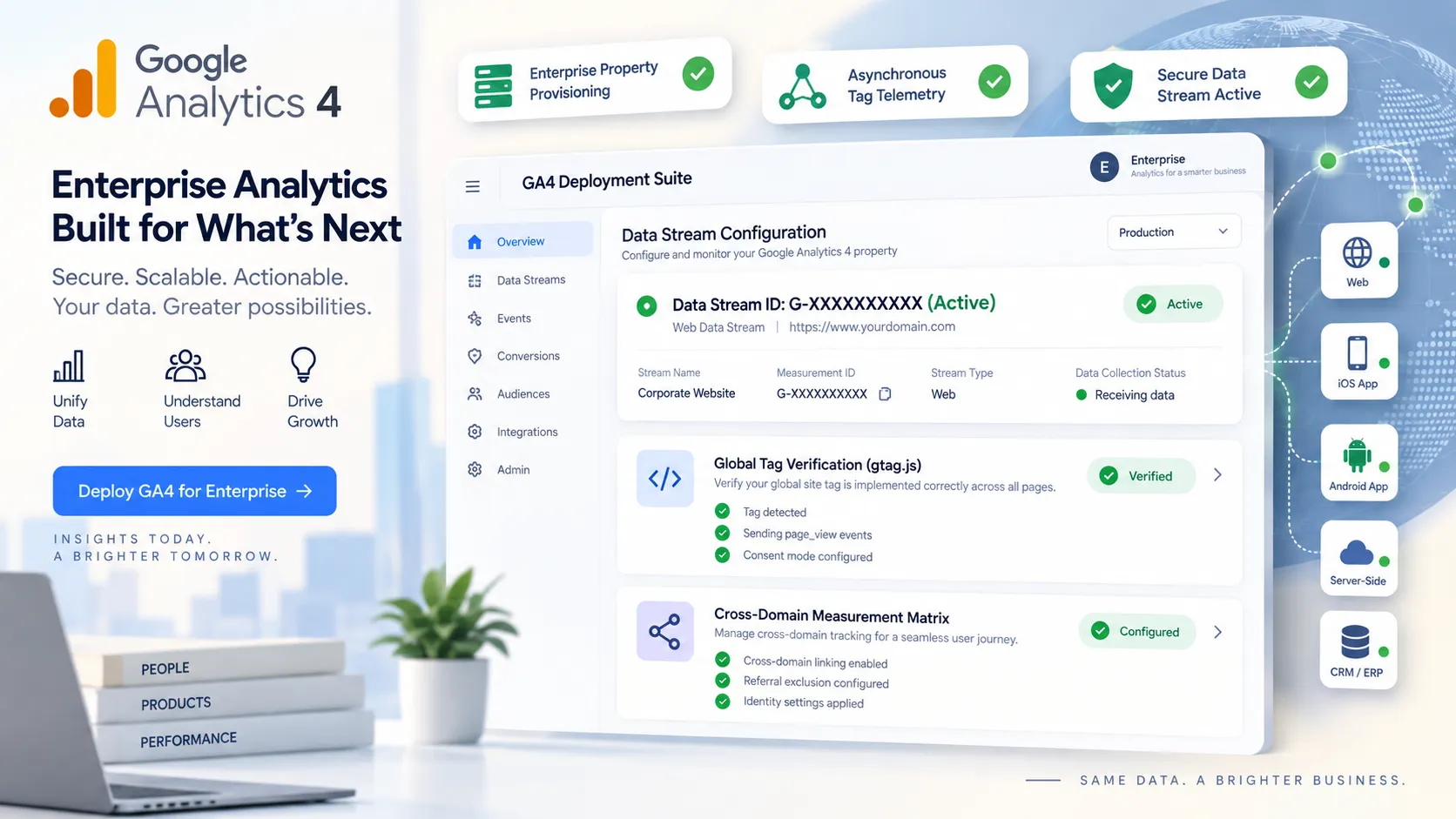
Taking time to create Google Analytics account properties correctly allows you to create GA4 property profiles that maintain clean Google Analytics 4 setup reporting.
4. Add the GA4 Tracking Code to Your Website
Once your data stream is active, GA4 provides a unique Measurement ID (formatted as G-XXXXXXXXXX). You must connect this tag to your storefront to start receiving visitor data. Select the cleanest implementation path for your setup:
- Native Builder Integrations: Modern platforms allow you to simply paste your Measurement ID directly into a designated settings field without editing code.
- Google Tag Manager (GTM): Deploy a GA4 Google Tag container through GTM for advanced trigger flexibility (learn setup steps in tracking website button clicks in GA4).
- Direct Script Injection: Paste the official gtag.js code snippet directly into the <head> section of your site markup.
Learning how to add Google Analytics to website pages allows you to install GA4 tracking code via a clean Google tag installation on BoltWeb.
5. Check Whether Google Analytics Is Collecting Website Data
Never assume your tracking script works without testing real-time data reception. Deploying unverified tags risks launching ad campaigns completely blind. Run this instant 3-step verification test:
- Open Storefront in New Window: Open your live storefront link in a separate browser window or smartphone.
- Access GA4 Realtime Dashboard: In your GA4 account, navigate to Reports → Realtime.
- Verify Active Card Count: Confirm that your current visit displays on the global activity map within 30 seconds.
Taking a minute to test Google Analytics tracking helps you check GA4 installation accuracy and resolve Google Analytics not tracking alerts fast.
6. Set Up Events to Track Important Visitor Actions
In Google Analytics 4, every recorded user action is classified as an Event. While basic pageviews load automatically, tracking specific visitor engagement requires custom event configuration:
- Enhanced Measurement Events: GA4 tracks scrolls, video plays, file downloads, and outbound link clicks out of the box when toggled on.
- Custom Engagement Events: Set up custom click events to measure when prospects interact with pricing calculators, video demos, or quote request buttons.
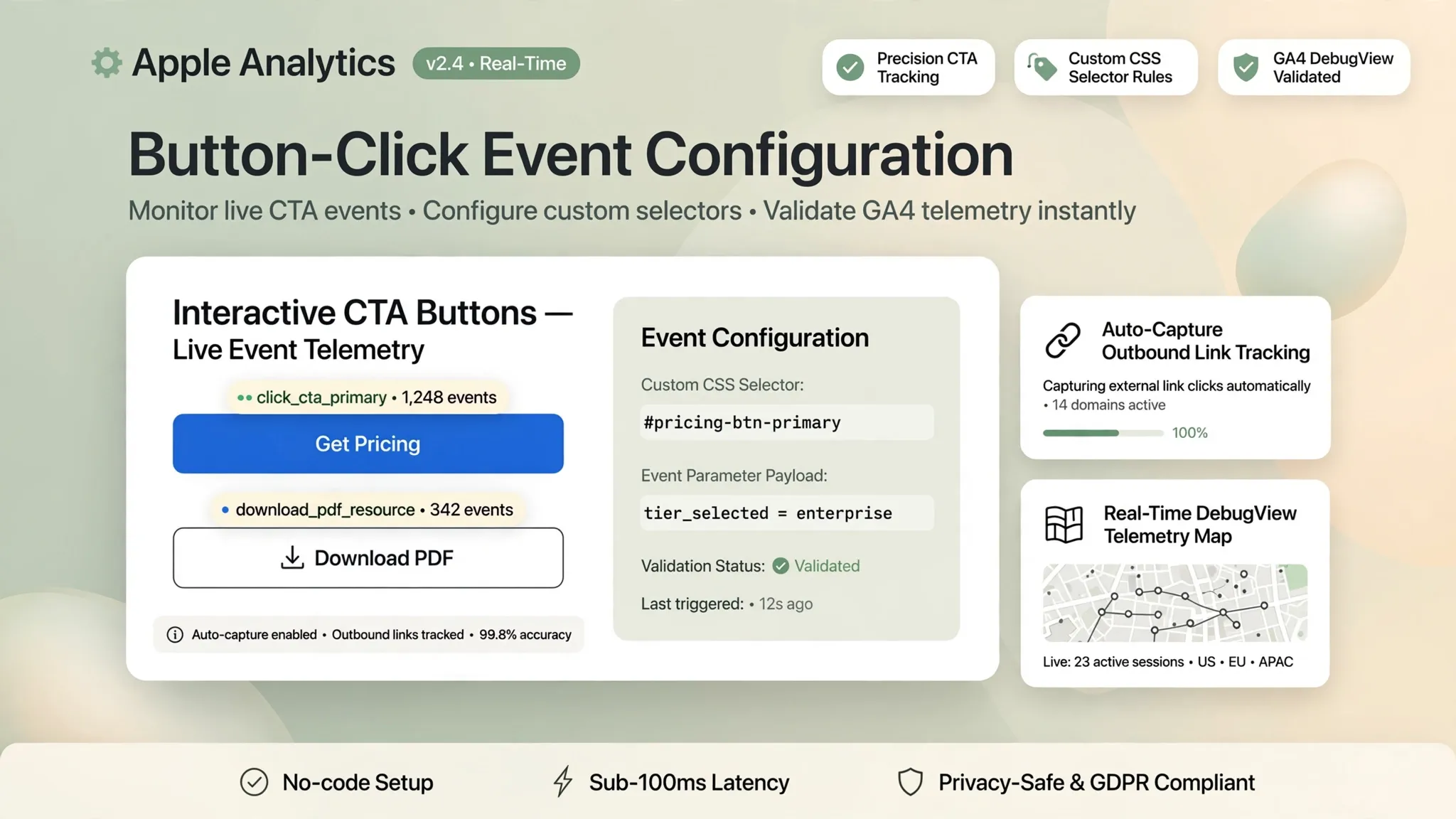
Deploying structured GA4 event tracking makes it easy to track button clicks in Google Analytics and organize clean Google Analytics events across your pages (see strategy in core metrics every small business should monitor).
7. Track Contact Forms, Phone Calls, Bookings, and Purchases
Measuring generic clicks and page scrolls is a good starting point, but tracking true commercial outcomes is what drives business profitability. Configure specialized conversion events for primary customer actions:
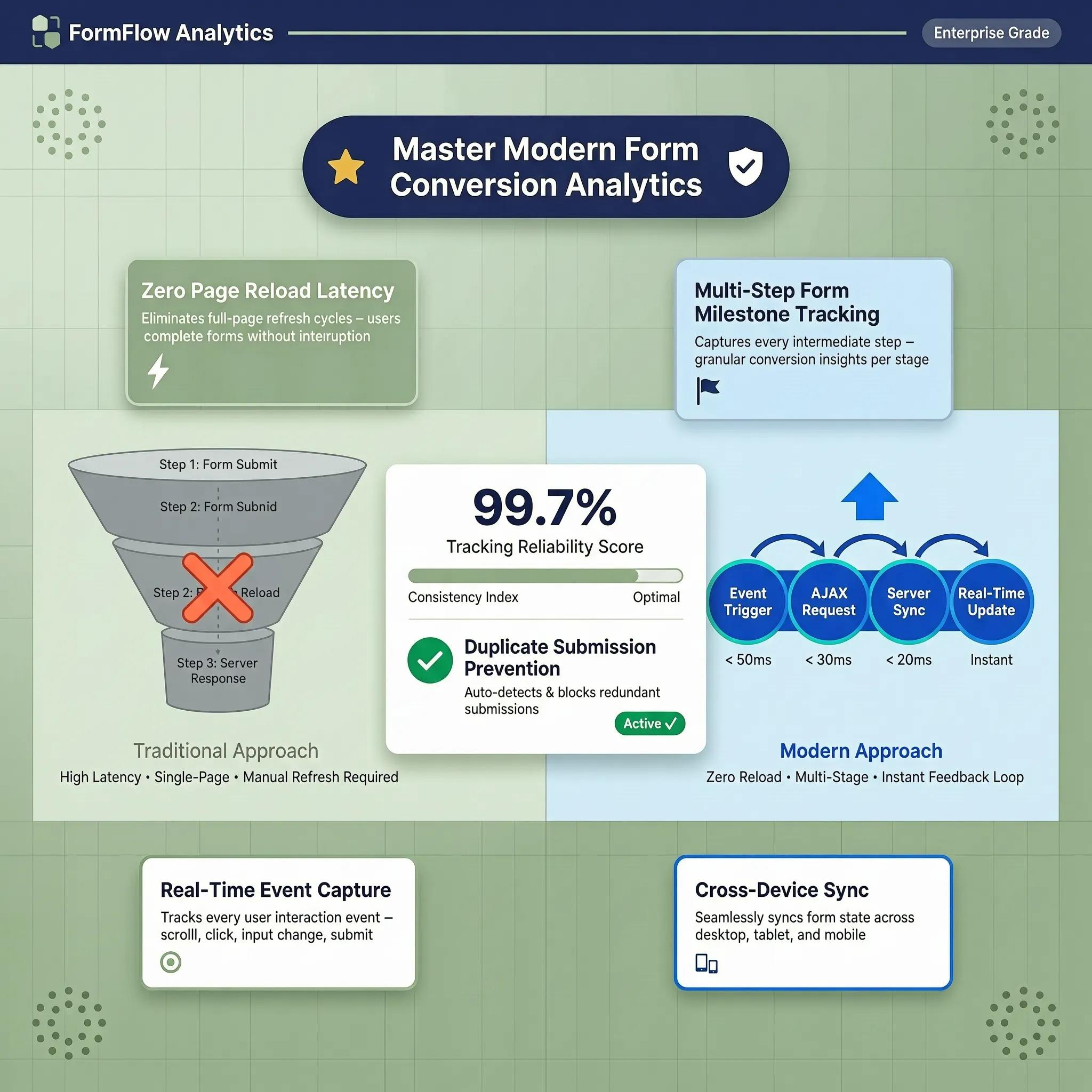
- Contact Form Submissions: Track completed inquiries using dedicated thank-you pages or form-success triggers (see tracking contact form submissions in GA4).
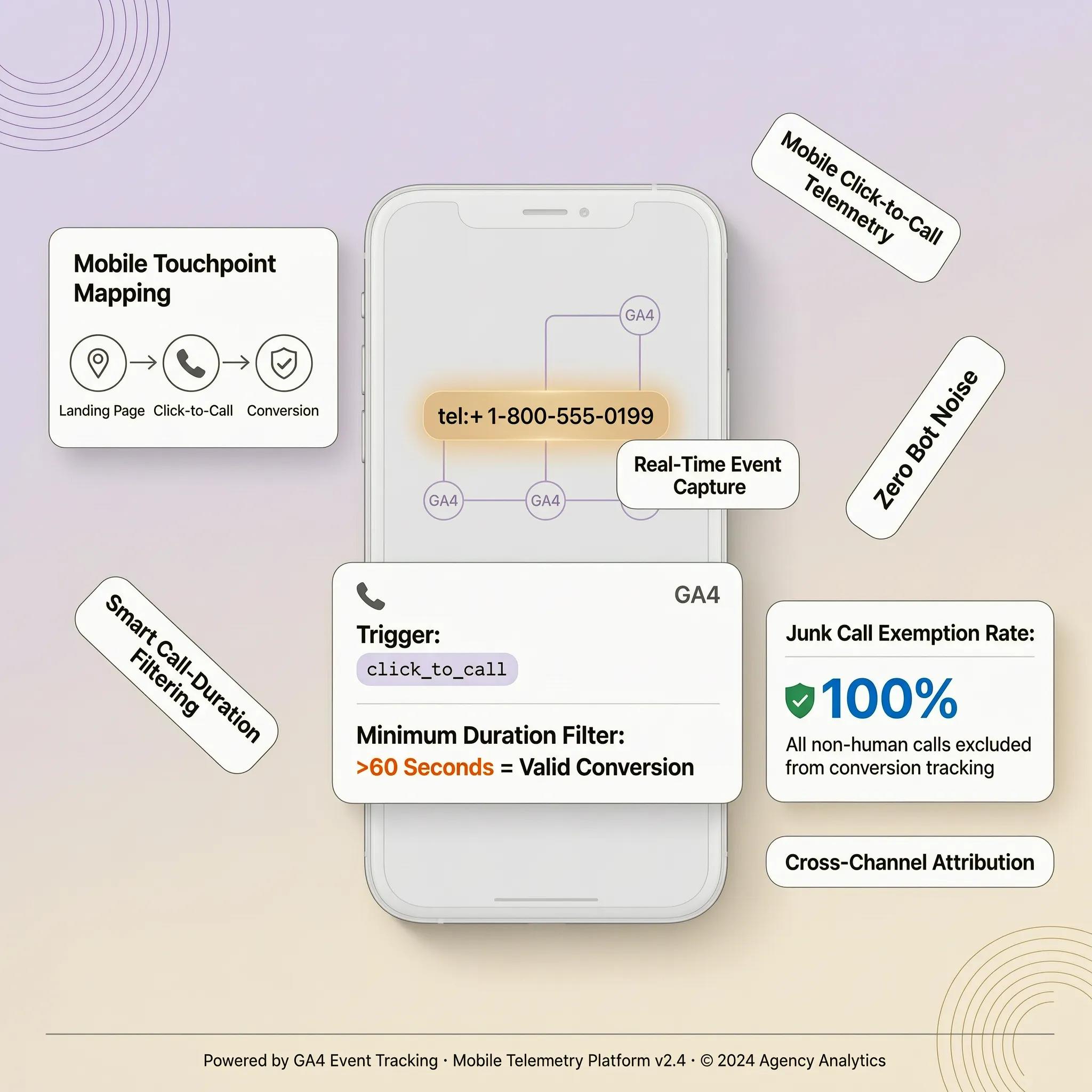
- Click-to-Call Phone Inquiries: Capture mobile visitors dialing your office number (see tracking phone call conversions from your website).
- Appointment Bookings: Track calendar scheduling completions (explore how to add a booking form to a website).
- E-Commerce Checkout Transactions: Measure online sales revenue, order counts, and item details (see tracking website sales and revenue).
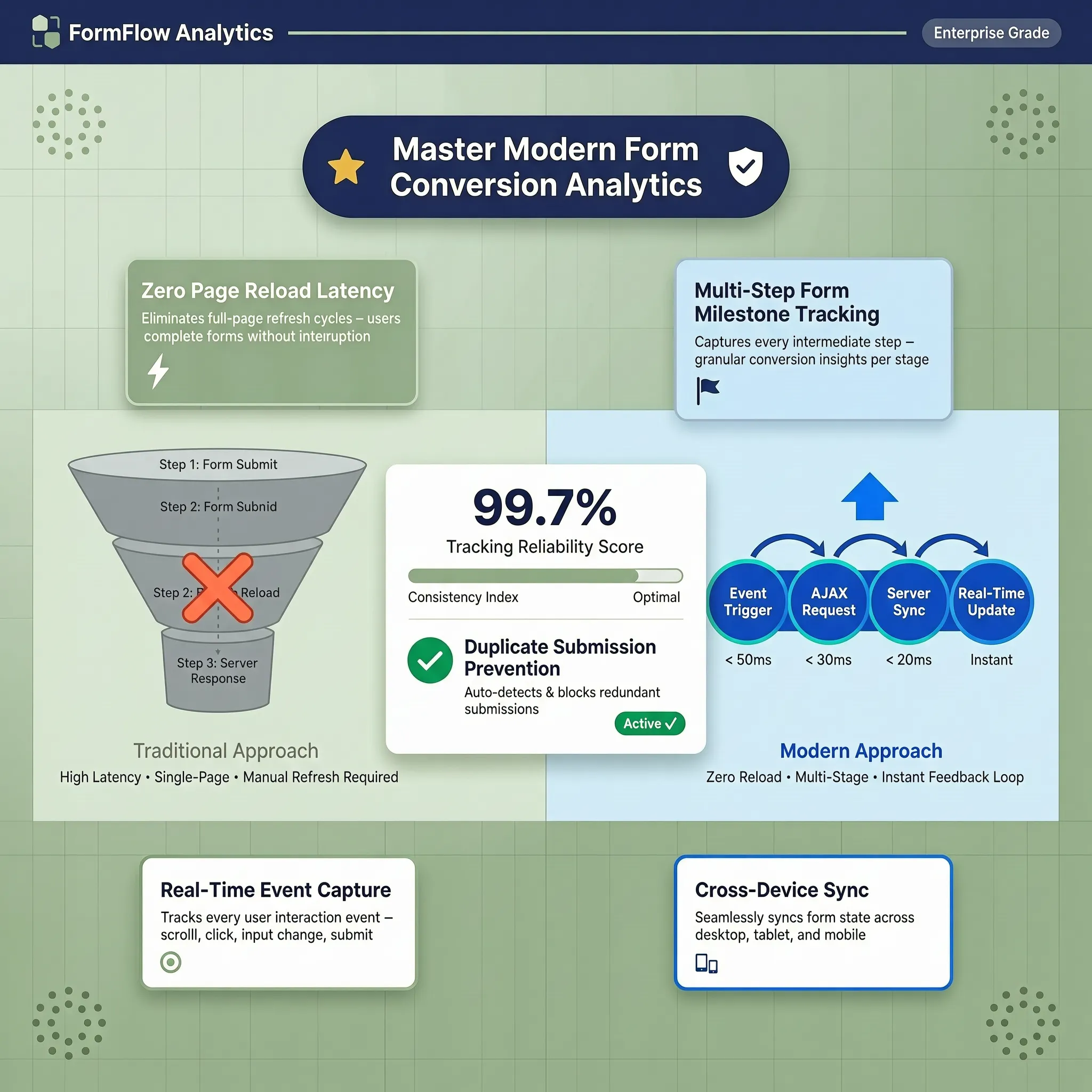
Setting up steps to track form submissions in GA4, track phone calls in Google Analytics, track bookings, and execute GA4 ecommerce tracking provides full visibility into your sales funnel.
8. Mark Your Most Valuable Actions as Key Events
Google Analytics 4 separates general user interactions from critical business outcomes using a classification feature called Key Events. How to turn standard events into Key Events:
generate_lead or purchase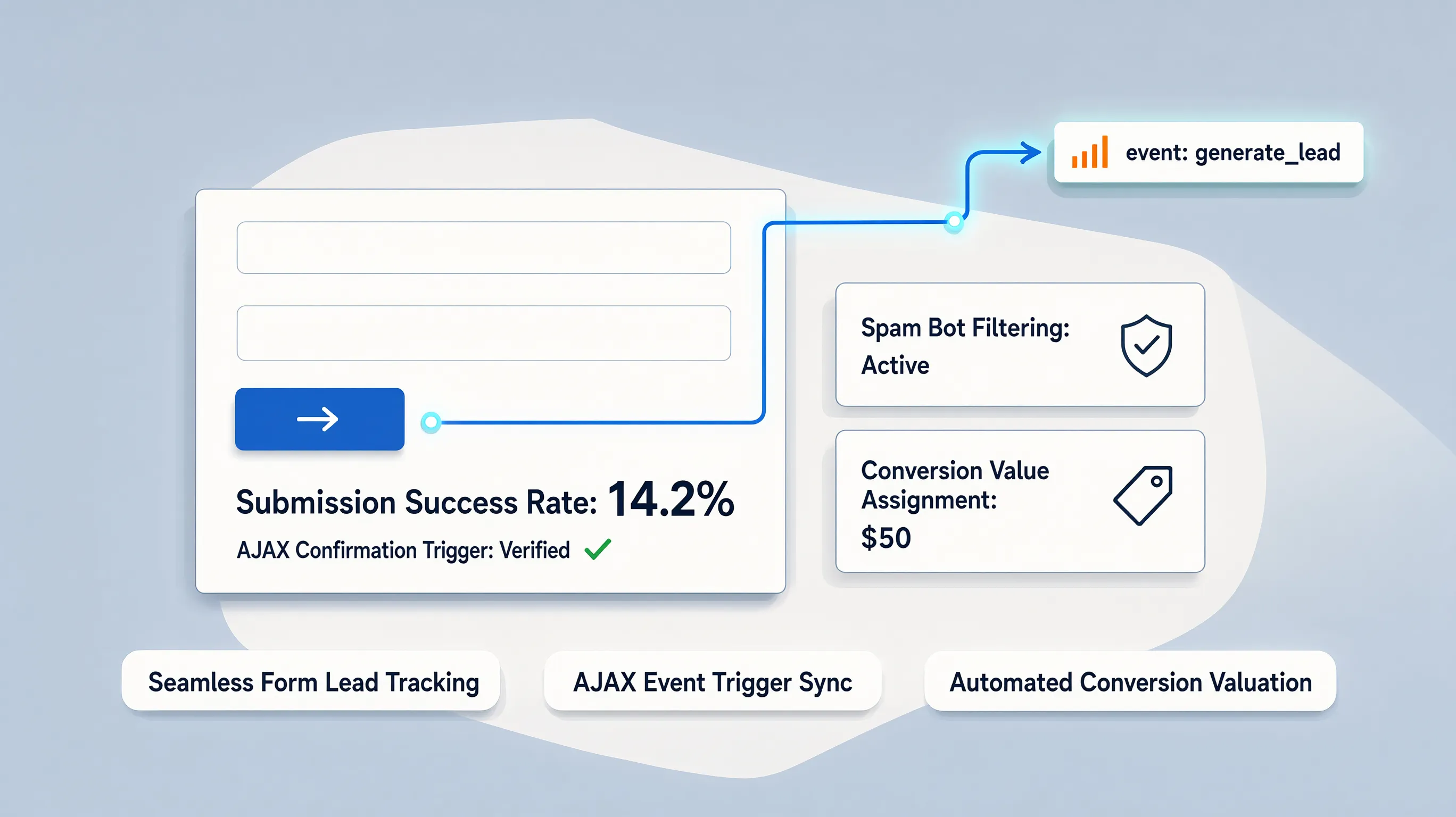
Defining GA4 key events, marking Google Analytics conversions, and taking time to set up conversions in GA4 focuses your analytics dashboard on true business results.
9. Find Out Where Your Website Visitors Come From
Acquiring web traffic is meaningless if you don't know which marketing channels produce those visitors. Analyze traffic sources using built-in acquisition reports:
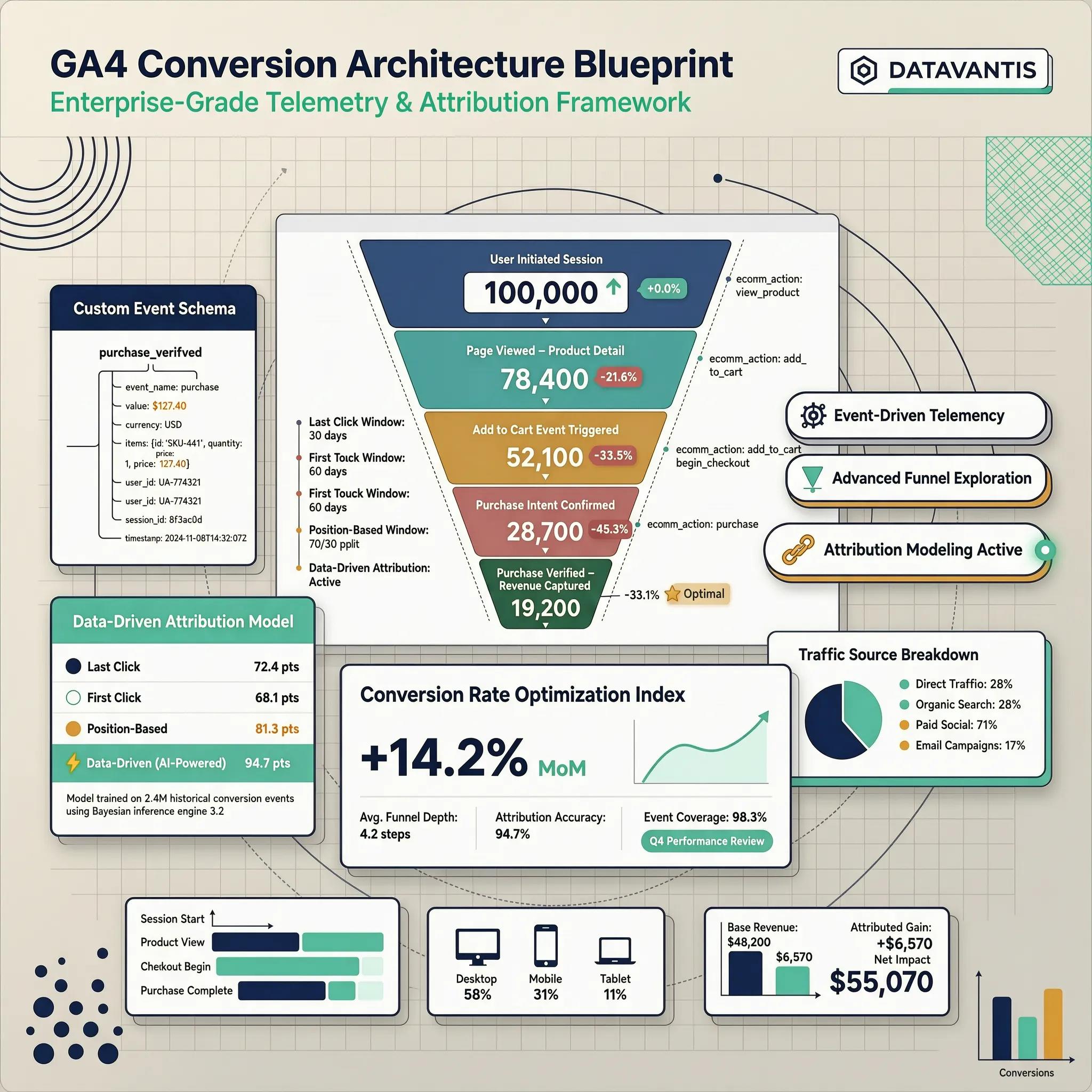
- Traffic Acquisition Report: Go to Reports → Acquisition → Traffic Acquisition. Compare traffic volume across Organic Search, Paid Search, Social Media, and Direct channels (learn more in finding where website traffic comes from).
- UTM Campaign Tracking: Add clean custom UTM parameters (?utm_source=facebook&utm_campaign=spring_sale) to marketing links to evaluate specific ad spend.
UTM Syntax = yourdomain.com/landing?utm_source=google&utm_medium=cpc&utm_campaign=lead_gen
Analyzing GA4 traffic sources, evaluating Google Analytics traffic acquisition patterns, and deploying UTM tracking connects marketing efforts straight to incoming traffic (see report breakdowns in analyzing website traffic reports).
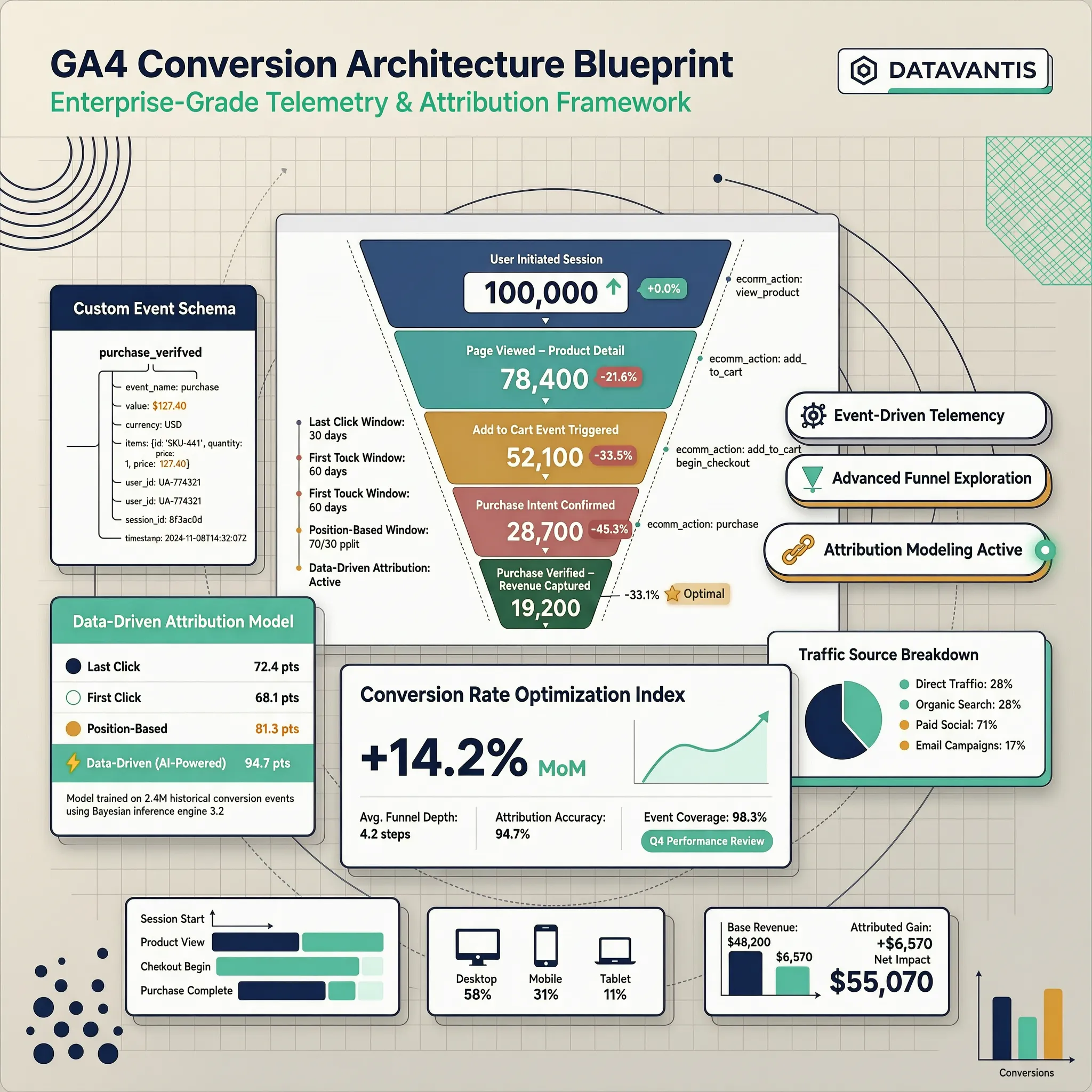
10. Understand the Google Analytics Reports Small Businesses Should Check
Don't get overwhelmed by complex analytics dashboards. Focus your weekly review strictly on five core performance metrics:
- Active Users & Sessions: Total count of unique visitors exploring your site.
- Engagement Rate: The percentage of visits that lasted longer than 10 seconds, viewed 2+ pages, or triggered a key event.
- Top Landing Pages: Identifying which pages serve as the primary entry point for new leads (see identifying your best performing website pages).
- Traffic Acquisition Source: Pinpointing which channels generate high-intent traffic.
- Total Key Events Completed: Total lead inquiries, calls, and purchases generated.
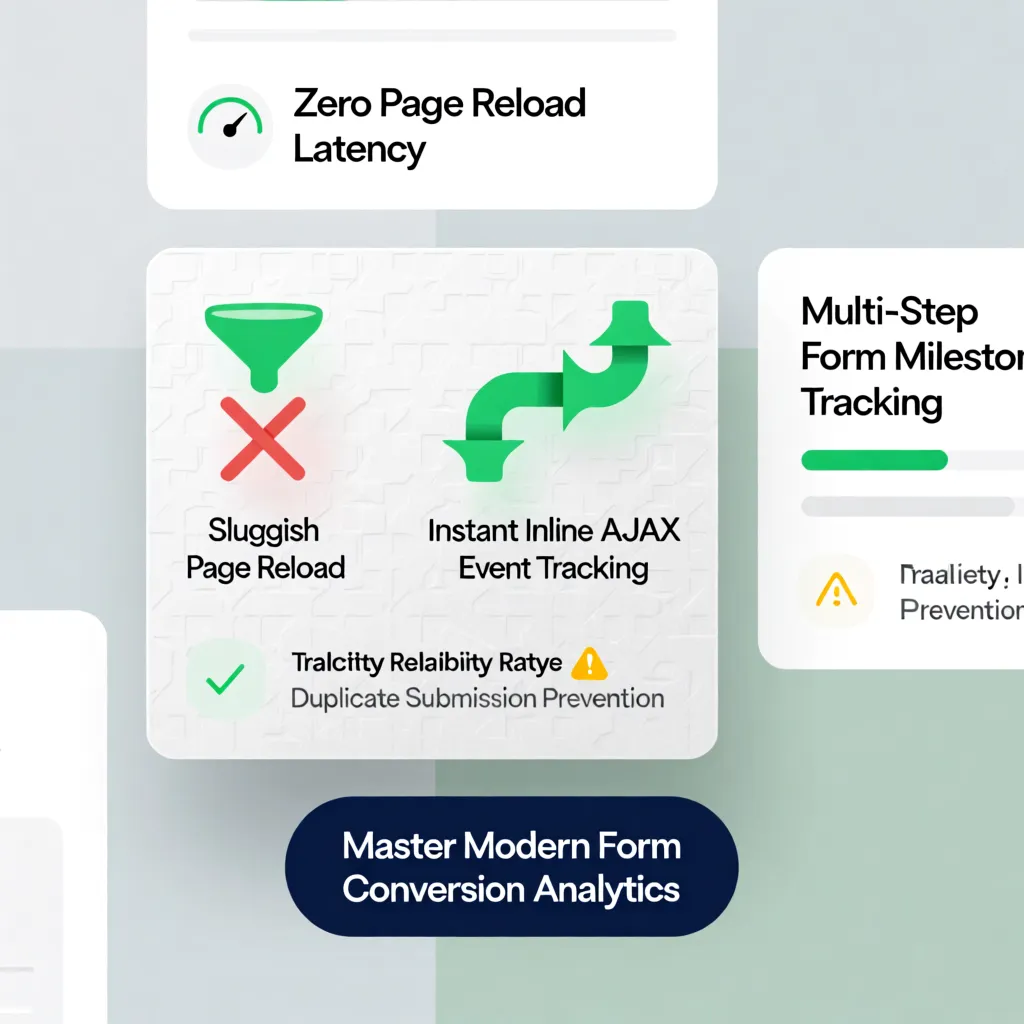
Reviewing key Google Analytics reports, understanding GA4 metrics, and building a clean website analytics dashboard gives you full clarity over site performance.
11. Connect Google Analytics With Google Search Console and Other Tools
Linking GA4 with auxiliary Google tools unlocks deep technical insights about how users discover your storefront on search engines. Why you should link Google Search Console:
- Discover Organic Keywords: See the exact Google search queries driving organic impressions and clicks to your pages (learn how in finding keywords in Google Search Console).
- Inspect Indexing Health: Verify which pages Google crawls and indexes successfully (explore the Google Search Console guide for small businesses).
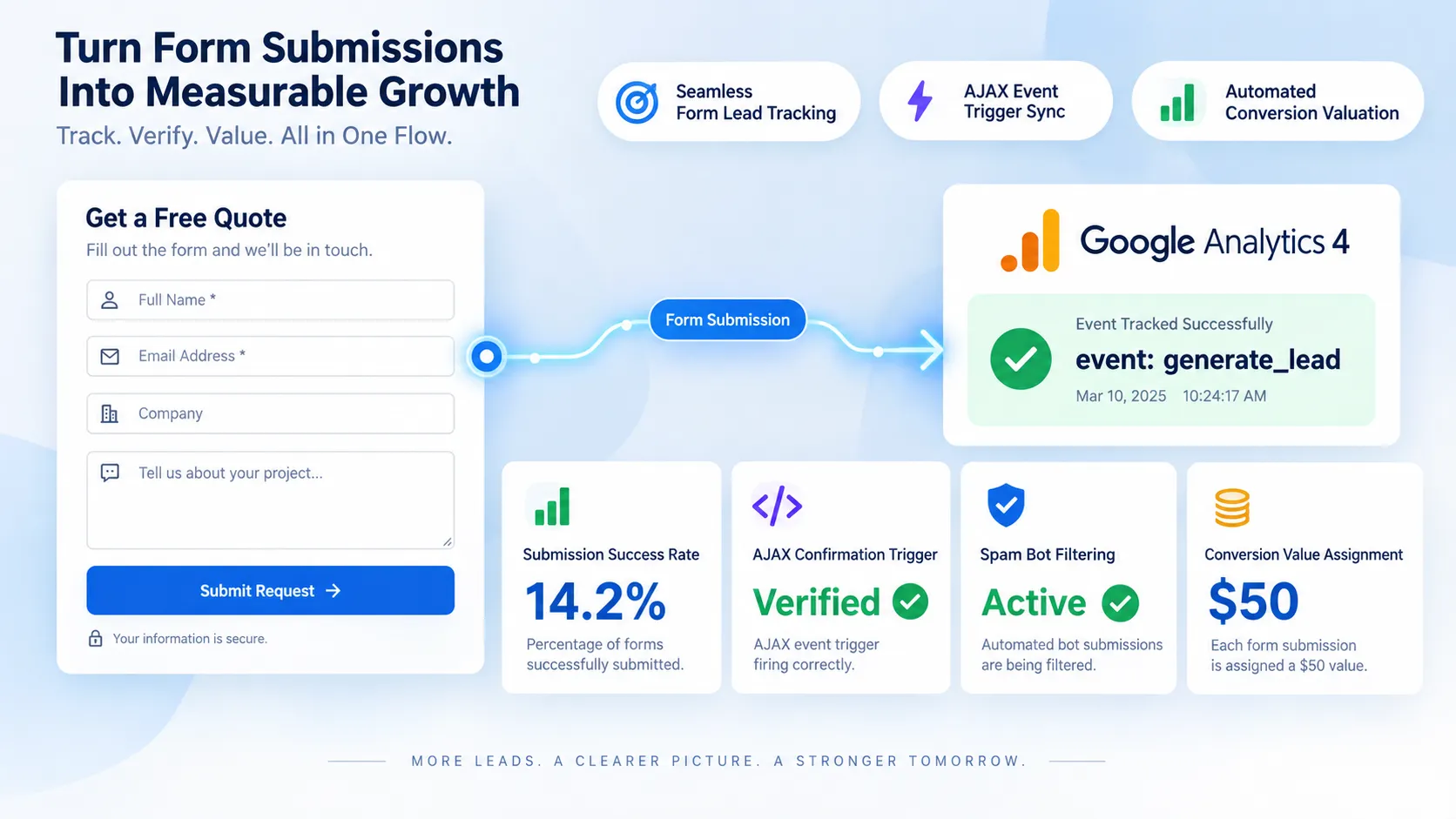
Steps to connect Google Analytics to Search Console, execute GA4 Search Console integration, and manage auxiliary Google Analytics integrations unify your search data.
12. Protect Visitor Privacy and Maintain Accurate Analytics Data
Operating a reliable analytics setup requires maintaining user privacy compliance while filtering out skewed data. Maintain clean data integrity:
- Filter Internal IP Traffic: Exclude your office and home IP addresses inside GA4 settings so your personal visits don't inflate session counts.
- Respect User Privacy Consent: Deploy a compliant consent banner when collecting data from international users (see adding a cookie consent banner to your website).
- Protect Sensitive PII Data: Never send personally identifiable information (like email addresses or phone numbers) into GA4 parameters (learn details in checking what personal data your website collects).
Configuring compliant Google Analytics privacy settings, enabling a GA4 internal traffic filter, and respecting Google Analytics GDPR compliance keeps your business protected while collecting accurate data.
Turn Traffic Insights Into Daily Customer Growth
Configuring tracking scripts, setting up key event triggers, and measuring marketing funnels should never feel like an intimidating technical barrier. When you publish your digital storefront on BoltWeb, every performance tool is built to support your growth right from the start.
Whether you run a local contracting service, a boutique advisory firm, or an online storefront, BoltWeb builds search-optimized section layouts, integrates analytics tracking code seamlessly, formats responsive mobile headers, and deploys a lead-generating site tailored to your target audience. Take control of your website's performance—build on BoltWeb, attach your custom domain, and start tracking real customer growth in under 60 seconds!
12 High-Converting FAQs: Google Analytics Setup for Small Business Websites
1. Why do small businesses need Google Analytics 4 on their websites?
Here's the plain truth: If you don't measure visitor behavior, you cannot optimize your conversion funnel. A standard web server log might tell you how many times a page loaded, but it remains completely blind to human decision-making. Traffic volume alone does not pay your business bills—a storefront that receives 10,000 monthly visitors but yields zero phone calls or lead submissions is far less valuable than a targeted landing page bringing in 200 visitors and 20 high-ticket client bookings. Setting up Google Analytics for small business storefronts delivers reliable website analytics for small businesses to establish clear website traffic tracking across every marketing campaign. When you build your online presence on BoltWeb, connecting your analytics tracking is completely seamless out of the box. As an all-in-one business website builder, BoltWeb automatically integrates tracking tags, connects custom domain routing, and formats conversion-ready layouts in under 60 seconds!
2. What do I need before setting up a Google Analytics account for business?
Before attempting to configure tracking tags, gathering your administrative assets upfront eliminates setup frustration. Prepare these four essential requirements:
- Active Google Account: A centralized business Google email address to manage your analytics property.
- Administrative Access: Admin credentials to your website editor or visual platform dashboard.
- Custom Domain Ownership: Complete administrative access to your live domain assets (see how to manage domain setups in our domain connection walkthrough).
- Primary Conversion Goal: A clear business objective (such as collecting quote form submissions, booking appointment calls, or processing store transactions).
Reviewing core Google Analytics requirements upfront clarifies GA4 setup requirements before opening your Google Analytics account for business deployment.
3. How do I create a GA4 property for my small business website?
Setting up your tracking foundation inside GA4 requires establishing proper property settings right from day one. Follow this step-by-step account configuration path: Step 1: Access Google Analytics — Log into Google Analytics and click the Admin gear icon in the lower-left corner. Step 2: Create Account & Property — Name your company account, then click Create Property. Input your exact business name. Step 3: Set Time Zone and Currency — Select your local reporting time zone and operational currency so financial metrics align with your bank records. Step 4: Create Data Stream — Select Web as your platform, input your website URL (yourdomain.com), and assign a clear Stream Name. Taking time to create Google Analytics account properties correctly allows you to create GA4 property profiles that maintain clean Google Analytics 4 setup reporting.
4. How do I add the GA4 tracking code to my website without a developer?
Once your data stream is active, GA4 provides a unique Measurement ID (formatted as G-XXXXXXXXXX). You must connect this tag to your storefront to start receiving visitor data. Select the cleanest implementation path for your setup: Native Builder Integrations: Modern platforms allow you to simply paste your Measurement ID directly into a designated settings field without editing code. Google Tag Manager (GTM): Deploy a GA4 Google Tag container through GTM for advanced trigger flexibility (learn setup steps in tracking website button clicks in GA4). Direct Script Injection: Paste the official gtag.js code snippet directly into the <head> section of your site markup. Learning how to add Google Analytics to website pages allows you to install GA4 tracking code via a clean Google tag installation on BoltWeb.
5. How do I test Google Analytics tracking to make sure GA4 is receiving data?
Never assume your tracking script works without testing real-time data reception. Deploying unverified tags risks launching ad campaigns completely blind. Run this instant 3-step verification test: Open Storefront in New Window — Open your live storefront link in a separate browser window or smartphone. Access GA4 Realtime Dashboard — In your GA4 account, navigate to Reports → Realtime. Verify Active Card Count — Confirm that your current visit displays on the global activity map within 30 seconds. Taking a minute to test Google Analytics tracking helps you check GA4 installation accuracy and resolve Google Analytics not tracking alerts fast.
6. How do I set up GA4 event tracking for specific button clicks and visitor actions?
In Google Analytics 4, every recorded user action is classified as an Event. While basic pageviews load automatically, tracking specific visitor engagement requires custom event configuration: Enhanced Measurement Events: GA4 tracks scrolls, video plays, file downloads, and outbound link clicks out of the box when toggled on. Custom Engagement Events: Set up custom click events to measure when prospects interact with pricing calculators, video demos, or quote request buttons. Deploying structured GA4 event tracking makes it easy to track button clicks in Google Analytics and organize clean Google Analytics events across your pages (see strategy in core metrics every small business should monitor).
7. How do I track form submissions, phone calls, bookings, and sales in GA4?
Measuring generic clicks and page scrolls is a good starting point, but tracking true commercial outcomes is what drives business profitability. Configure specialized conversion events for primary customer actions: Contact Form Submissions: Track completed inquiries using dedicated thank-you pages or form-success triggers (see tracking contact form submissions in GA4). Click-to-Call Phone Inquiries: Capture mobile visitors dialing your office number (see tracking phone call conversions from your website). Appointment Bookings: Track calendar scheduling completions (explore how to add a booking form to a website). E-Commerce Checkout Transactions: Measure online sales revenue, order counts, and item details (see tracking website sales and revenue). Setting up steps to track form submissions in GA4, track phone calls in Google Analytics, track bookings, and execute GA4 ecommerce tracking provides full visibility into your sales funnel.
8. How do I set up conversions in GA4 by marking events as Key Events?
Google Analytics 4 separates general user interactions from critical business outcomes using a classification feature called Key Events. How to turn standard events into Key Events: Open GA4 Admin Console: Navigate to Data Display → Events Panel. Find Business Event: Locate your custom action (such as generate_lead or purchase) in the active list. Toggle Conversion Flag: Flip the switch next to the event to Mark as key event ACTIVE. Defining GA4 key events, marking Google Analytics conversions, and taking time to set up conversions in GA4 focuses your analytics dashboard on true business results.
9. How do I check GA4 traffic sources to see where website visitors come from?
Acquiring web traffic is meaningless if you don't know which marketing channels produce those visitors. Analyze traffic sources using built-in acquisition reports: Traffic Acquisition Report: Go to Reports → Acquisition → Traffic Acquisition. Compare traffic volume across Organic Search, Paid Search, Social Media, and Direct channels (learn more in finding where website traffic comes from). UTM Campaign Tracking: Add clean custom UTM parameters (?utm_source=facebook&utm_campaign=spring_sale) to marketing links to evaluate specific ad spend. Analyzing GA4 traffic sources, evaluating Google Analytics traffic acquisition patterns, and deploying UTM tracking connects marketing efforts straight to incoming traffic (see report breakdowns in analyzing website traffic reports).
10. Which Google Analytics reports and GA4 metrics should a small business owner check?
Don't get overwhelmed by complex analytics dashboards. Focus your weekly review strictly on five core performance metrics: Active Users & Sessions: Total count of unique visitors exploring your site. Engagement Rate: The percentage of visits that lasted longer than 10 seconds, viewed 2+ pages, or triggered a key event. Top Landing Pages: Identifying which pages serve as the primary entry point for new leads (see identifying your best performing website pages). Traffic Acquisition Source: Pinpointing which channels generate high-intent traffic. Total Key Events Completed: Total lead inquiries, calls, and purchases generated. Reviewing key Google Analytics reports, understanding GA4 metrics, and building a clean website analytics dashboard gives you full clarity over site performance.
11. How do I connect Google Analytics to Search Console to view organic keyword data?
Linking GA4 with auxiliary Google tools unlocks deep technical insights about how users discover your storefront on search engines. Why you should link Google Search Console: Discover Organic Keywords: See the exact Google search queries driving organic impressions and clicks to your pages (learn how in finding keywords in Google Search Console). Inspect Indexing Health: Verify which pages Google crawls and indexes successfully (explore the Google Search Console guide for small businesses). Steps to connect Google Analytics to Search Console, execute GA4 Search Console integration, and manage auxiliary Google Analytics integrations unify your search data.
12. How do I configure Google Analytics privacy settings and internal traffic filters?
Operating a reliable analytics setup requires maintaining user privacy compliance while filtering out skewed data. Maintain clean data integrity: Filter Internal IP Traffic: Exclude your office and home IP addresses inside GA4 settings so your personal visits don't inflate session counts. Respect User Privacy Consent: Deploy a compliant consent banner when collecting data from international users (see adding a cookie consent banner to your website). Protect Sensitive PII Data: Never send personally identifiable information (like email addresses or phone numbers) into GA4 parameters (learn details in checking what personal data your website collects). Configuring compliant Google Analytics privacy settings, enabling a GA4 internal traffic filter, and respecting Google Analytics GDPR compliance keeps your business protected while collecting accurate data.