
Every click on your digital storefront represents visitor intent. When a user taps your primary action button, they are signaling interest in your services, products, or offers. But if your analytics setup only tracks general pageviews, you remain blind to how users actually engage with your conversion elements.
Here is the plain truth: Tracking pageviews alone doesn't tell you why visitors bounce or which offers grab their attention. Measuring real-time button interactions gives you exact visual data on which call-to-action buttons drive engagement—and which ones get ignored.
Historically, setting up custom click analytics required writing complex JavaScript event listeners or hiring analytics agencies. Modern platforms have completely changed that dynamic. When you build your online presence with BoltWeb, tracking user engagement and connecting analytics becomes fast and effortless. As an all-in-one business website builder, BoltWeb features native tag integration, clean event structures, and automated form tracking—allowing you to launch a data-ready, search-optimized storefront in under 60 seconds!
Here is your operational guide on how to track website button clicks in Google Analytics 4, map critical click events, and transform analytics data into revenue.
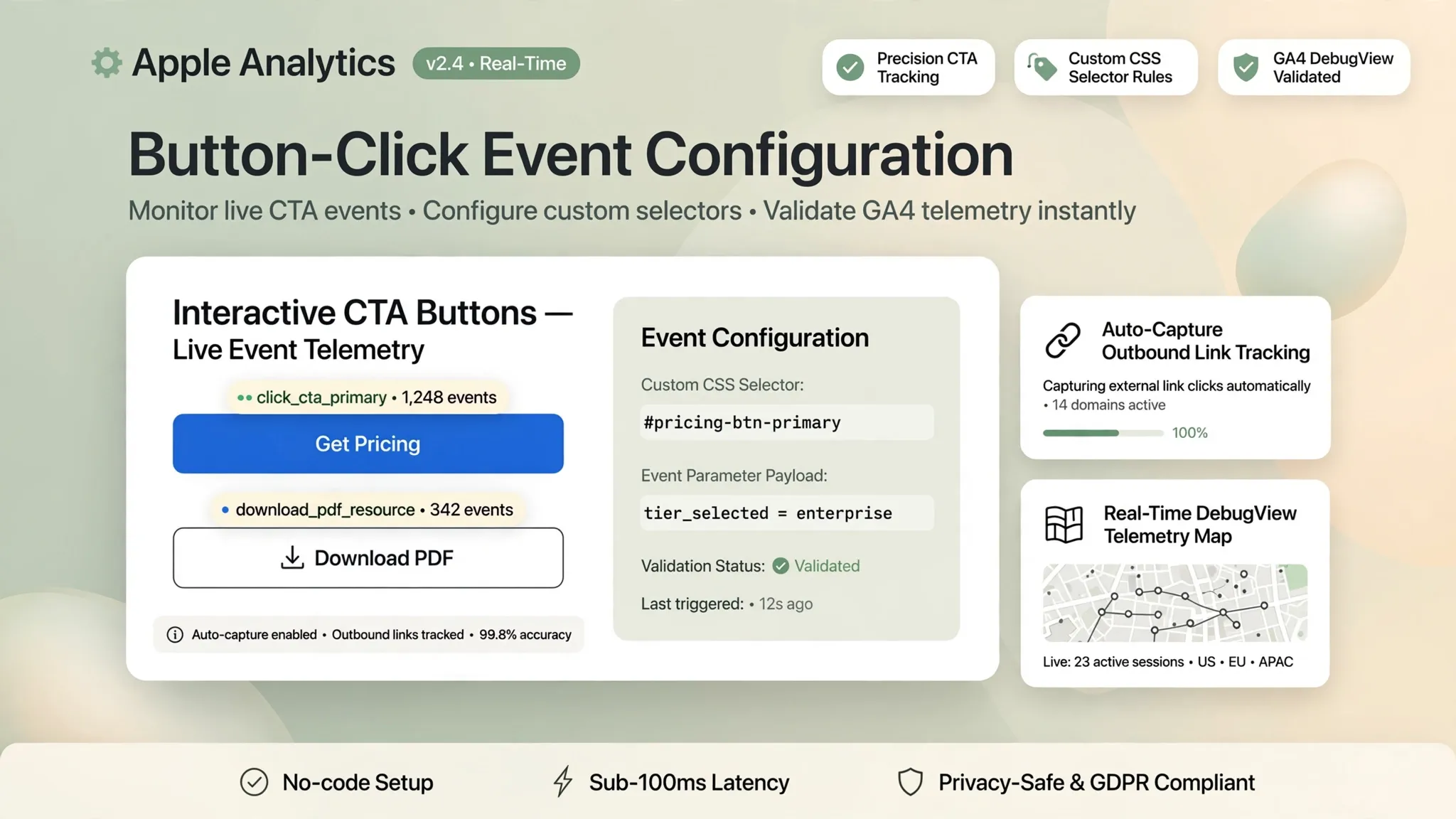
The Master Button Click Analytics Matrix
| Tracking Layer | Primary Function | Primary Tools Used | Business Impact |
|---|---|---|---|
| Enhanced Measurement | Auto-captures outbound links & files | GA4 Native Settings | Tracks external exit paths |
| GTM Click Triggers | Listens for specific button element clicks | Google Tag Manager | Isolates exact CTA interactions |
| GA4 Event Tagging | Sends click data & metadata to reports | GA4 Custom Events | Provides clean data hierarchy |
| Key Event Marking | Highlights revenue-driving button clicks | GA4 Admin Console | Evaluates conversion performance |
1. How to Track Website Button Clicks in Google Analytics 4
Let me answer your most pressing analytics question right away: Yes, you can track every click on your storefront. But relying solely on default Google Analytics 4 setups will leave critical blind spots. GA4 measures session starts and page renders automatically. However, specific inline element interactions—like clicking a "Get Quote" button—require explicit tracking configurations.
| Default Measurement | Enhanced Click Tracking |
|---|---|
| Tracks page loading paths | Captures exact CTA button clicks |
| Records generic outbound links | Isolates specific form submit actions |
| Misses internal form buttons | Maps click-to-lead conversion rates |
Mastering how to track website button clicks in Google Analytics 4 allows you to implement reliable GA4 button click tracking and deploy custom track button clicks in GA4 configurations across your pages (start with the foundational Google Analytics setup walkthrough for small businesses).
2. Understand Which Website Button Clicks Are Worth Tracking
Here is a common analytics mistake: tagging every single clickable link, footer item, and menu tab on your website. Filling your reports with low-value data makes it difficult to uncover meaningful insights. Focus your measurement efforts strictly on high-intent actions that impact revenue:
- Primary Conversion CTAs: "Start Free Trial", "Buy Now", "Get Instant Estimate".
- Direct Contact Triggers: "Call Now" phone links, email mailto buttons, and live chat triggers.
- Content Engagement Leads: PDF brochure downloads, pricing calculator clicks, and video plays.
Establishing clear website button tracking priorities isolates important button clicks, giving you actionable button click analytics to optimize your sales funnel (pair with the core metrics every small business should monitor).
3. Check Whether Google Analytics 4 Already Captures Your Button Clicks
Before building custom triggers in Tag Manager, check what your current setup already captures out of the box. GA4 includes an automated feature called Enhanced Measurement:
Reviewing your GA4 enhanced measurement settings helps you audit automatically collected events before adding custom Google Analytics click tracking rules.
4. Track Website Button Clicks Using Google Tag Manager
The cleanest and most reliable way to capture button interactions without editing raw code is using Google Tag Manager (GTM). Follow this step-by-step installation flow:
- Enable Click Variables: Inside GTM, open Variables and check Click Text, Click ID, Click Classes, and Click URL.
- Create a Click Trigger: Navigate to Triggers → New → select All Elements (or Just Links).
- Set Trigger Filter Conditions: Configure the trigger to fire only when Click Text equals your exact button phrasing (e.g., "Claim My Quote").
- Attach GA4 Event Tag: Create a new Google Analytics: GA4 Event tag, link your Measurement ID, and pair it with your click trigger.
select_content or click to GA4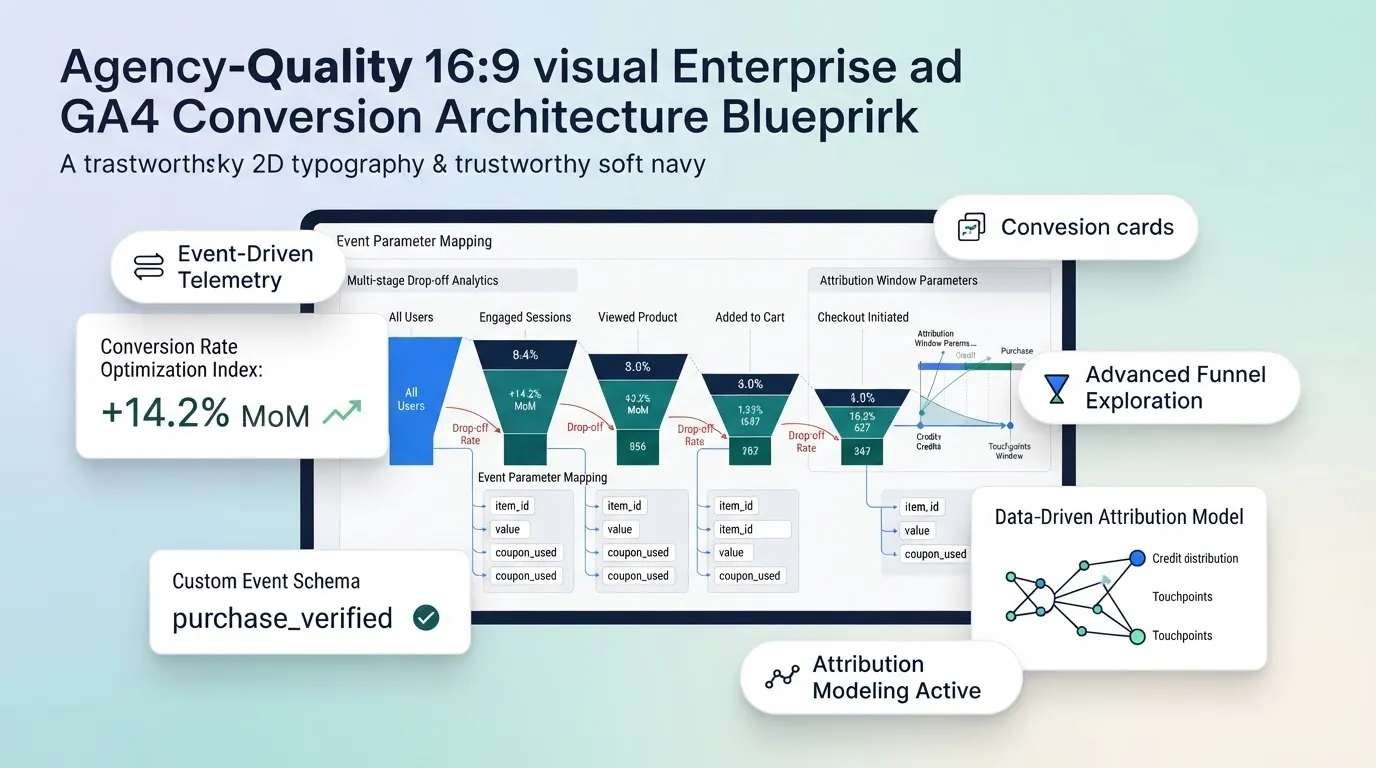
Utilizing Google Tag Manager button click tracking simplifies GTM click tracking so you can track button clicks without coding directly on BoltWeb.
5. Create a GA4 Event for Specific Button Clicks
Sending generic click events with vague labels leads to messy reporting. Every meaningful action needs a clear, standardized event name. Follow Google's recommended naming conventions:
- Standard Event Name: Use clean snake_case formats (e.g.,
cta_button_clickorlead_form_start). - Custom Parameters: Pass context variables like
button_name,page_location, andcta_position.
Event Data Payload = Event Name (cta_click) + Parameters (button_text, page_url)
Setting up a create custom event in GA4 workflow ensures your GA4 button click event payload delivers accurate custom click event tracking reporting (extend this with tracking contact form submissions in GA4).
6. Identify Buttons Using Click Text, Classes, IDs, and URLs
If your homepage features three separate buttons that all say "Get Started," tracking by text alone won't show you which button placement performs best. Use unique technical selectors inside GTM to separate identical buttons:
- Click ID: The most stable method (id="hero-cta-btn").
- Data Attributes: Custom HTML attributes (data-cta="header-pricing").
- Click Classes: CSS class selectors (.btn-primary-lead).
- Page URL Path: Isolating clicks occurring strictly on /pricing vs /services.
Leveraging precise GTM click variables lets you track button clicks by ID or track clicks by button text to eliminate reporting overlap.
7. Track Different Button Actions Across Your Website
Not all button clicks hold the same business value. A click on a phone link indicates immediate sales intent, while a click to open a secondary menu is just navigation. Structure distinct event groups for key actions:
- Direct Phone Calls: Track href^="tel:" clicks (see tracking phone call conversions from your website).
- Contact Form Submissions: Track form CTA buttons (see tracking contact form submissions in GA4).
- Resource Downloads: Monitor whitepaper and PDF download triggers.
- Checkout Starts: Measure purchase intent triggers.
Categorizing track CTA button clicks, track signup button clicks, track download button clicks, and track phone button clicks ensures clear conversion analysis.
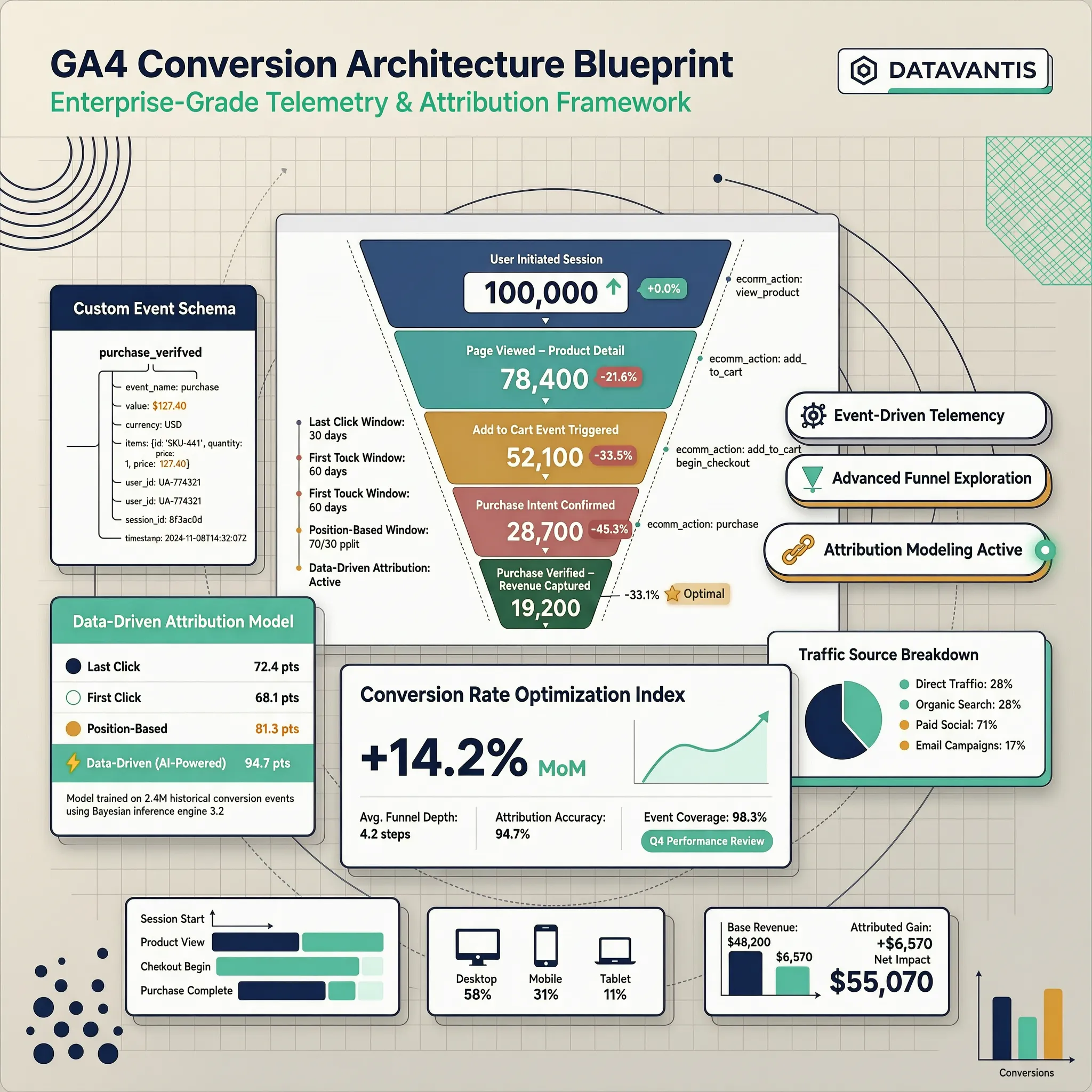
8. Mark Important Button Actions as Key Events in GA4
In Google Analytics 4, high-value interactions formerly known as "Conversions" are now classified as Key Events. How to elevate a button click to a Key Event:
cta_quote_click in your event listDefining GA4 key events, learning to mark button clicks as key events, and setting up overall GA4 conversion tracking links click data directly to business outcomes (explore strategies in our complete guide to tracking website conversions with GA4).
9. Test Button Click Tracking Before Relying on Your Reports
Never assume your tracking works without testing it first. Deploying unverified tags leads to duplicate records or missing data. Run this 3-step verification protocol:
- GTM Preview Mode: Connect your site to GTM's Tag Assistant to test button clicks in real time.
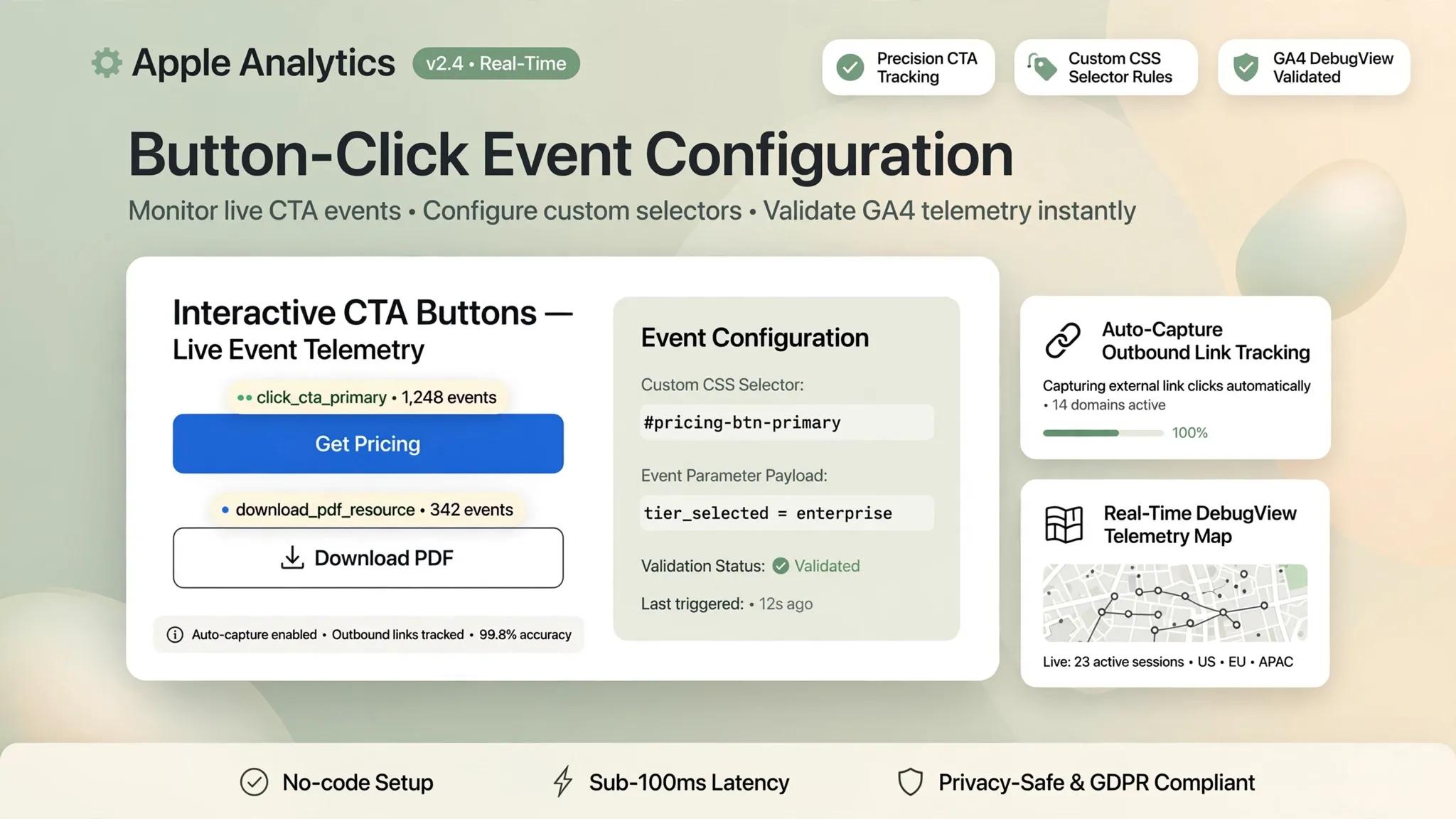
- GA4 DebugView: Open Admin → DebugView to verify that event names and parameters arrive correctly.
- Realtime Report Audit: Confirm event counts appear inside the GA4 Realtime dashboard during live testing.
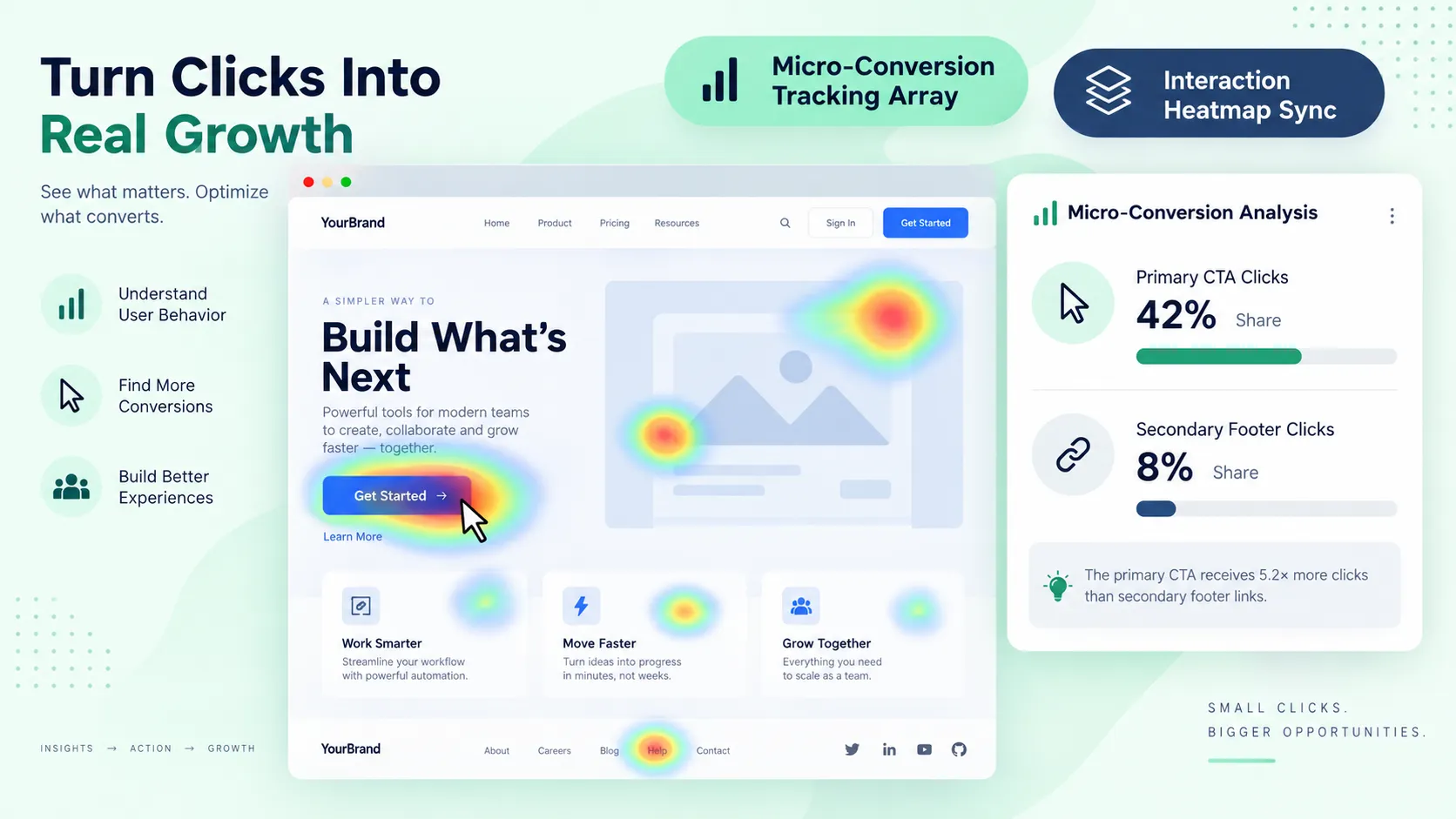
Taking time to test GA4 button tracking in GTM Preview mode using GA4 DebugView ensures clean data before launching campaigns.
10. Find Button Click Events in Google Analytics Reports
Once your click tags are live and verified, navigate to GA4 reporting tools to extract actionable insights. Where to locate button click data:
- Standard Events Report: Go to Reports → Engagement → Events to see overall click volume.
- Custom Explorations: Create a Free Form Exploration to dimension button clicks by Page Location, Device Class, and Traffic Source (learn more in finding where website traffic comes from).
Building a custom GA4 button click report simplifies how you find click events in GA4 across standard Google Analytics event reports (combine with analyzing website traffic reports).
11. Fix Common Google Analytics Button Tracking Problems
If your click counts seem inaccurate, work through these diagnostic checks:
- Unbound Element Clicks: If a click registers on an inner <span> or <i> tag rather than the <button> parent, switch your trigger selector to All Elements using CSS nested selectors (.btn-primary *).
- Duplicate Tag Executions: Ensure you haven't deployed the same GA4 tag twice inside GTM and inline on your site.
- Missing Page Variables: Verify built-in click variables are active inside GTM settings.
Fixing a GA4 button tracking not working alert resolves GTM click trigger problems and eliminates duplicate click events quickly.
12. Use Button Click Data to Improve Website Conversions
Collecting data is only valuable if it drives meaningful improvements to your website. Use click insights to optimize user experience and conversion design. Strategic optimizations driven by click data:
- High Traffic, Low Clicks: If a high-traffic service page generates zero button taps, redesign the button's contrast, phrasing, or screen placement (see landing page CTA best practices).
- High Clicks, Low Form Submissions: If users tap "Get Started" but abandon the form, reduce input fields or clear up cost hesitations (see optimizing high-traffic low-conversion pages).
Applying insights to improve website conversions, refining CTA click tracking, and reviewing website interaction analytics helps turn casual clicks into customer revenue on BoltWeb (review how to identify your best performing website pages).
Build Data-Ready Storefronts with BoltWeb Today
Setting up analytics tags, testing triggers, and tracking button conversions used to require complex custom scripts. With BoltWeb, that process is completely streamlined.
Whether you are launching a service business or upgrading an e-commerce storefront, BoltWeb acts as your intelligent website builder. It generates search-optimized copy, connects custom domain routing, integrates tracking tags effortlessly, and deploys high-converting website in minutes.
Frequently Asked Questions: Measuring Button Clicks in GA4
1. How do I track website button clicks in Google Analytics 4 so I can see what visitors engage with?
Tracking website button clicks in GA4 measures the exact moments prospective clients interact with key elements on your storefront—such as tapping your primary call-to-action (CTA), opening pricing modals, downloading resources, or submitting forms. Traffic volume alone won't pay your bills—a page receiving 10,000 passive clicks that yields zero inquiries is far less valuable than a targeted landing page bringing in 200 visitors and 20 paying clients. Setting up track website button clicks in Google Analytics 4 parameters gives you a clear GA4 button click tracking engine to track button clicks in GA4 across every conversion funnel. When you build your storefront on BoltWeb, connecting your click analytics is completely integrated right out of the box. As an all-in-one business website builder, BoltWeb automatically pairs interactive buttons and lead forms with clean event tags in under 60 seconds!
2. Which website button clicks are actually worth tracking for my business?
A common analytics mistake business owners make is tagging every minor menu link or footer item on their site, cluttering their reports with useless noise. Focus your tracking engine strictly on revenue-driving user actions: Primary Conversion CTAs: Buttons like "Claim Free Audit", "Start Trial", or "Book Consultation". Direct Contact Buttons: Mobile "Call Now" links, email triggers, and live chat buttons. High-Intent Asset Downloads: Product spec sheets, pricing calculators, and PDF brochure triggers. Establishing clear website button tracking priorities isolates important button clicks, giving you clean button click analytics to optimize your marketing campaigns (review the core metrics every small business should monitor).
3. Does Google Analytics 4 automatically track my website button clicks out of the box?
Before spending time writing custom code or building complex tag containers, inspect what your analytics setup captures natively. GA4 features an automated tool called Enhanced Measurement: Automatically Captured: Outbound links leading away from your domain, file downloads (.pdf, .zip), video play interactions, and page scrolls. Requires Manual Setup: Internal CTA button taps, inline form buttons, modal popups, and custom site actions. Auditing your GA4 enhanced measurement configuration helps you inspect automatically collected events before adding custom Google Analytics click tracking rules (start with the foundational Google Analytics setup walkthrough for small businesses).
4. How do I track button clicks using Google Tag Manager without editing code?
Google Tag Manager (GTM) is the cleanest, most reliable way to capture specific button interactions without altering your website's raw code. Follow this simple 4-step implementation flow: Enable Click Variables: Inside GTM, open Variables and check Click Text, Click ID, Click Classes, and Click URL. Create Click Trigger: Go to Triggers → New → All Elements (or Just Links). Set the trigger to fire when Click Text matches your exact button wording. Configure GA4 Event Tag: Create a Google Analytics: GA4 Event tag, add your Measurement ID, and attach your click trigger. Publish Container: Test your setup inside Tag Assistant before publishing live. Mastering Google Tag Manager button click tracking simplifies GTM click tracking so you can track button clicks without coding on BoltWeb.
5. How do I create a custom event in GA4 for specific button clicks?
Sending generic event labels like "click" without contextual parameters makes downstream reporting confusing and disorganized for your team. Structure clean, standardized event payloads: Standard Event Name: Use clean snake_case formatting (such as cta_button_click or lead_form_start). Custom Event Parameters: Pass contextual details alongside the payload, such as button_name, click_location, and page_url. Taking time to create custom event in GA4 setups ensures your GA4 button click event structure yields accurate custom click event tracking reporting.
6. How do I track identical buttons on the same page using IDs, classes, or text?
If your homepage features three separate buttons that all say "Get Started," tracking by text alone won't show you which screen placement performs best. Isolate specific button elements using unique technical selectors inside GTM: Click ID: The most stable selector (id="hero-cta-btn"). Data Attributes: Custom HTML tags (data-cta="header-pricing"). Click Classes: CSS styling classes (.btn-primary-lead). Page Location: Differentiating clicks occurring on /pricing versus /services. Leveraging built-in GTM click variables allows you to track button clicks by ID or track clicks by button text to eliminate reporting confusion.
7. How do I track different button actions across my website separately?
Not all button taps carry equal commercial weight. A click on a phone link indicates immediate sales intent, while a click to collapse an accordion is simple content navigation. Categorize custom events based on visitor intent: Direct Phone Calls: Track href^="tel:" clicks (see details in tracking phone call conversions from your website). Form Submissions: Track completed inquiry buttons (see tracking contact form submissions in GA4). Asset Downloads: Track whitepaper and brochure downloads. Structuring your setup to track CTA button clicks, track signup button clicks, track download button clicks, and track phone button clicks ensures clear conversion analysis.
8. How do I mark button click events as Key Events inside GA4?
In Google Analytics 4, high-value user interactions—formerly known as "Conversions"—are officially classified as Key Events. How to elevate a button click event to a Key Event: Open GA4 Admin: Navigate to Admin → Data Display → Events. Find Target Event: Locate your custom button event (such as cta_quote_click) in the active list. Toggle Conversion Flag: Flip the switch beside the event to Mark as key event ACTIVE. Defining GA4 key events, learning to mark button clicks as key events, and setting up overall GA4 conversion tracking connects button clicks directly to business outcomes (explore strategies in our complete guide to tracking website conversions with GA4).
9. How do I test button click tracking in GA4 to ensure my tags fire correctly?
Never launch paid ad campaigns or interpret reports without verifying whether your event tags fire strictly under the correct conditions. Run through this 3-step quality assurance audit: GTM Preview Mode: Connect your live storefront to Tag Assistant and tap target buttons to verify tag execution. GA4 DebugView: Open Admin → DebugView to verify parameter values and event names stream in accurately in real time. Realtime Report Verification: Check the GA4 Realtime dashboard during a live test run to confirm key event flags activate. Taking time to test GA4 button tracking inside GTM Preview mode using GA4 DebugView prevents reporting errors before launching paid ad campaigns.
10. Where do I find button click reports inside Google Analytics 4?
Once your click tags are validated and active, navigate to GA4's reporting modules to extract actionable insights. Where to locate button click data: Standard Events Report: Go to Reports → Engagement → Events to see overall click volume. Custom Explorations: Create a Free Form Exploration to dimension button clicks by Page Location, Device Class, and Traffic Source (learn more in finding where website traffic comes from). Building a custom GA4 button click report simplifies how you find click events in GA4 across standard Google Analytics event reports (combine with analyzing website traffic reports).
11. How do I fix common GA4 button tracking issues like missing or duplicate clicks?
If your click reports reflect missing interactions or duplicate counts, work through these primary technical fixes: Nested Element Clicks: If a click registers on an inner <span> tag rather than the main <button> wrapper, set your GTM trigger selector to All Elements using nested CSS selectors (.btn-primary *). Duplicate Tag Execution: Verify that you haven't deployed duplicate tracking scripts inside both Google Tag Manager and direct site header code. Missing GTM Variables: Confirm that built-in click variables are enabled inside your GTM container settings. Resolving a GA4 button tracking not working alert fixes GTM click trigger problems and eliminates duplicate click events fast.
12. How do I use button click data to improve landing page conversions and sales?
Collecting data is only valuable if it drives meaningful improvements to your website's layout and messaging strategy. Transform click reports into actual revenue: High Traffic, Low Button Clicks: If a high-traffic service page suffers from zero button taps, redesign the button's contrast, phrasing, or screen placement (see landing page CTA best practices). High Clicks, Low Form Submissions: If users tap "Get Quote" but abandon the form, reduce input fields or clear up cost hesitations (see optimizing high-traffic low-conversion pages). Applying insights to improve website conversions, refining CTA click tracking, and reviewing website interaction analytics helps turn casual clicks into customer revenue on BoltWeb (also review how to identify your best performing website pages).